
- What is the Eventin Integration?
- Why Do You Need It?
- Prerequisites
- Where to Find It
- Two Ways Eventin Sells Tickets
- Step-by-Step Instructions
- Step 1: Activate Eventin
- Step 2: Choose Which Order Statuses Take Points Back
- Step 3: Create Your Eventin Earning Rules
- Who Gets the Points
- Step 4: Create Rewards Customers Can Spend Points On
- Step 5: Configure the Reward
- Step 6: Give Customers Somewhere to Manage Their Points
- Step 7: Check the Storefront Placements
- Step 8: Place a Test Booking
- Key Functionality
- Validation Rules
- Limitations
- Troubleshooting
- Notes
What is the Eventin Integration? #
Eventin is an events and ticketing plugin, and Pointics treats its ticket sales as a store of their own. Once Eventin is active, Pointics can award points when a customer buys event tickets and when an attendee checks in, turn points into a native Eventin coupon at Eventin’s checkout, show earn previews on the ticket form and in the booking summary, and take points back when a ticket order is refunded.
Everything lives in the places you already know: the triggers appear in Points Program, the redemption methods appear in Rewards, and the refund rules and storefront placements appear in Settings under their own Eventin section.
Why Do You Need It? #
- Ticket sales are purchases too: Without the integration, a customer who books an event earns nothing. Activating Eventin gives Pointics ticket orders and check-ins to earn from.
- Showing up is worth rewarding: The attendance trigger pays points when an attendee is checked in, not just when they buy, so loyalty follows real engagement.
- Points need somewhere to land: Eventin supplies the coupon that turns a redemption into money off a real booking.
- Refunds have to be honest: A refunded ticket order takes its points back in proportion to what was actually refunded.
- Eventin’s checkout is not a shop checkout: It is a booking form with its own summary, so Pointics places its elements where Eventin actually has room for them.
- It works with your other stores: Eventin coexists with WooCommerce and Easy Digital Downloads. A customer’s balance is one balance across all of them.
Prerequisites #
- An Administrator account
- Eventin installed and active, kept up to date (redemption uses Eventin’s native coupon system)
- The loyalty program switched on under Settings → General
- WordPress scheduled tasks running for the daily reconciliation sweep
- Customers with a WordPress account (a booking made with an email that matches an account also counts)
- Eventin Pro, only for the Attend an event trigger
Where to Find It #
| What | Where | Direct URL |
|---|---|---|
| Install or activate Eventin | Pointics → Integrations | #/integrations |
| Refund rules and storefront placements | Pointics → Settings → Eventin | #/settings/eventin |
| Eventin earning triggers | Pointics → Points Program | #/points-program |
| Eventin redemption methods | Pointics → Rewards | #/rewards |
| Eventin ledger rows | Pointics → Transactions | #/transactions |
The Eventin section only appears in Settings while Eventin is active. Its saved values are kept either way, so temporarily deactivating Eventin does not remove your rules.
Two Ways Eventin Sells Tickets #
Eventin can take payment through its own checkout, or hand tickets to WooCommerce. Pointics supports both, but redemption works differently:
| Eventin Sells Through | Earning | Redeeming |
|---|---|---|
| Its own checkout | Buy an event ticket rule, priced from the Eventin order | Eventin rewards, applied as an Eventin coupon at Eventin’s checkout |
| WooCommerce | Buy an event ticket rule, priced from the WooCommerce order total | Your WooCommerce rewards, applied at WooCommerce checkout. Eventin rewards are not offered |
A ticket order paid through WooCommerce never also earns through WooCommerce’s Place a paid order rule, so one purchase is never paid twice.
Step-by-Step Instructions #
Step 1: Activate Eventin #
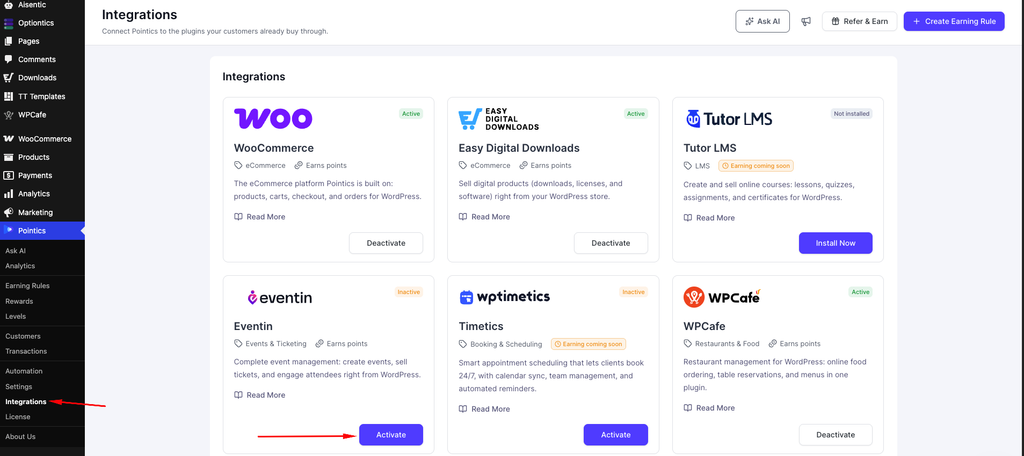
Go to Pointics → Integrations. Eventin appears on the Integrations shelf under the Events & Ticketing category. Use the card action to install it, then activate it.
Until Eventin is active, its earning triggers and redemption methods still appear in the Points Program and Rewards pickers as locked cards, so you can see what activating it would unlock. They award nothing while the plugin is off.
Step 2: Choose Which Order Statuses Take Points Back #
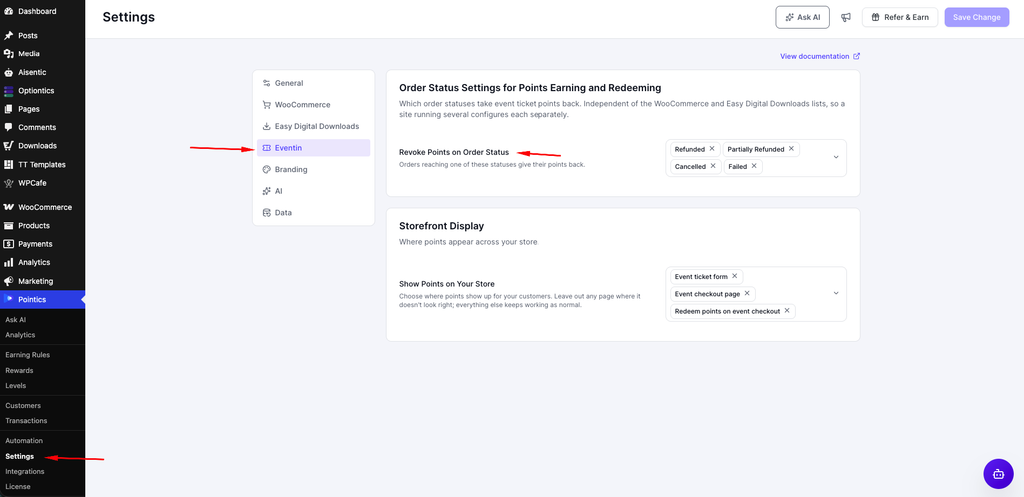
Go to Pointics → Settings → Eventin.
| Field | Description | Default |
|---|---|---|
| Revoke Points on Order Status | Which Eventin order statuses take points back when Eventin reports the order as refunded or failed | Refunded, Partially Refunded |
The available statuses are Eventin’s own: Pending, Waiting, Completed, Refunded, Partially Refunded, Cancelled and Failed.
There is no award status field. Eventin only reports a sale once the order is Completed, so that is the one status that pays points out.
This list is separate from WooCommerce’s and Easy Digital Downloads’. If your site runs more than one store, configure each independently.
Step 3: Create Your Eventin Earning Rules #
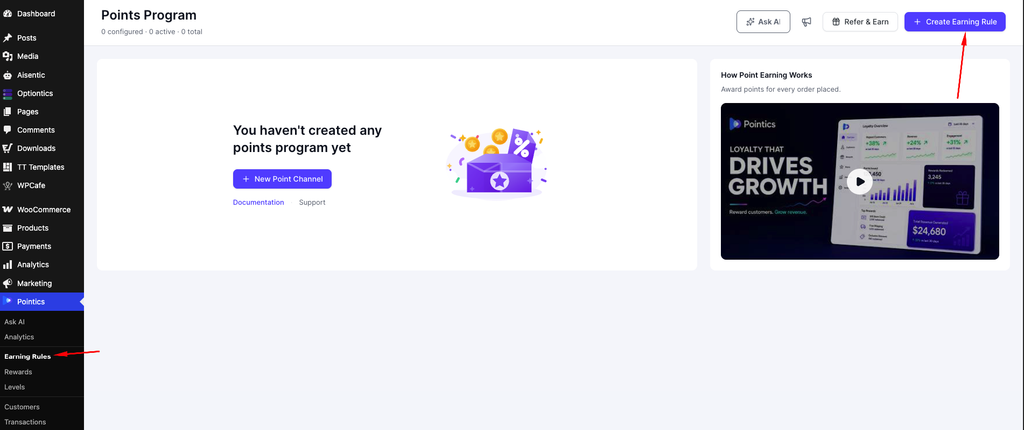
Go to Pointics → Points Program and add a rule. Two Eventin triggers are available:
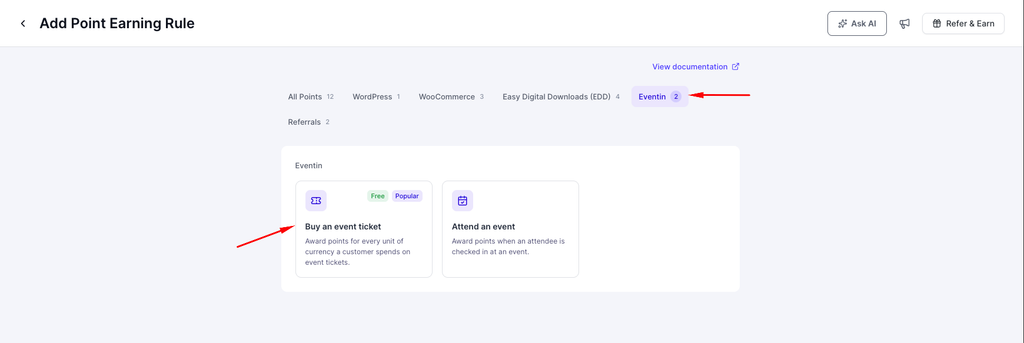
| Trigger | Fires When | Type | Default |
|---|---|---|---|
| Buy an event ticket (recommended) | An Eventin order is completed, or you change an order to Completed | Per currency unit spent | 1 point per unit |
| Attend an event | An attendee’s ticket is marked as used at check-in | Fixed award | 200 points |
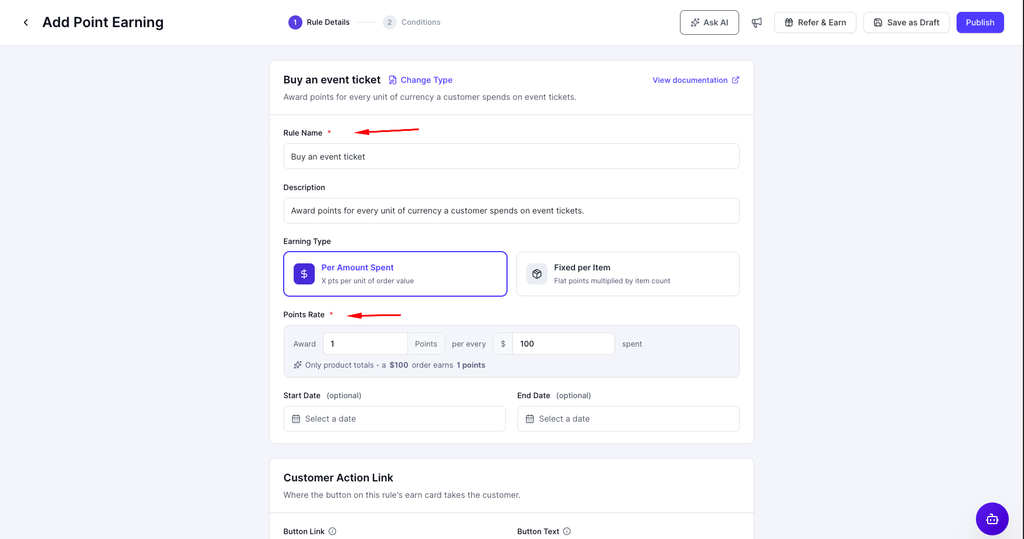
Buy an event ticket is the recommended trigger and the one every Eventin earn preview is calculated from. The award is calculated from what the customer was actually charged. For tickets sold through WooCommerce, that is the WooCommerce order total, including tax and any coupon.
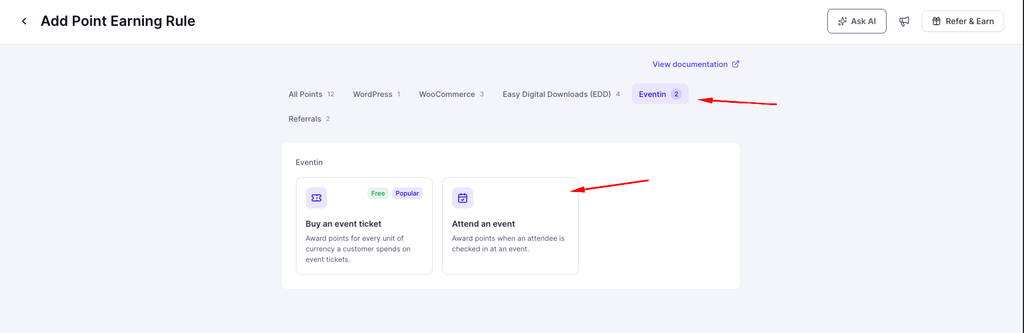
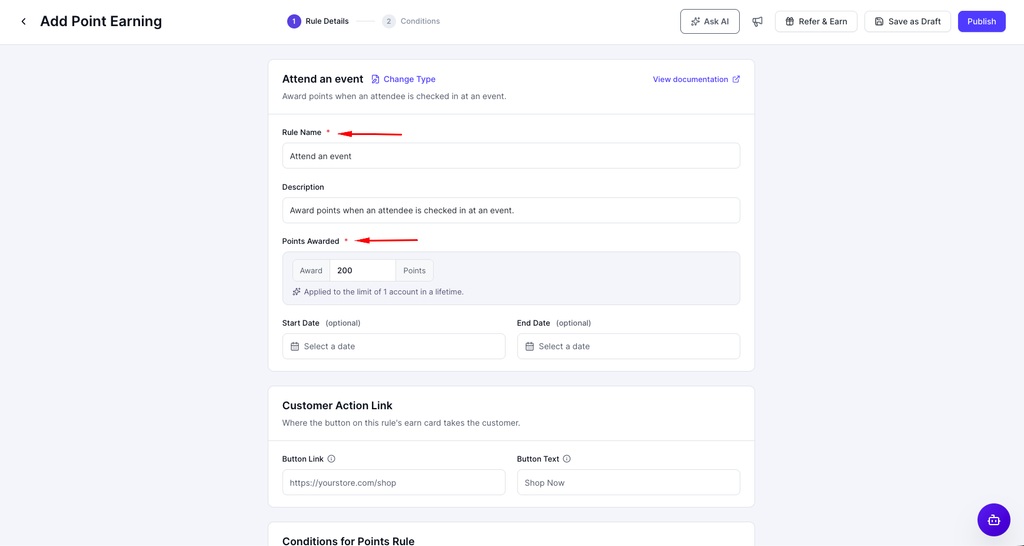
Attend an event requires Eventin Pro, which provides check-in. Without it, the card displays “Activate Eventin Pro to use this channel.” It works with every Eventin check-in method, because it watches the attendee’s ticket status rather than one screen.
Who Gets the Points #
Pointics finds the customer’s WordPress account in this order:
- The customer on the Eventin order
- The user on the Eventin order
- An account whose email matches the order’s email
For check-ins, the points go to the account behind the attendee’s order, falling back to an account matching the attendee’s own email. A booking with no matching account earns nothing.
Step 4: Create Rewards Customers Can Spend Points On #
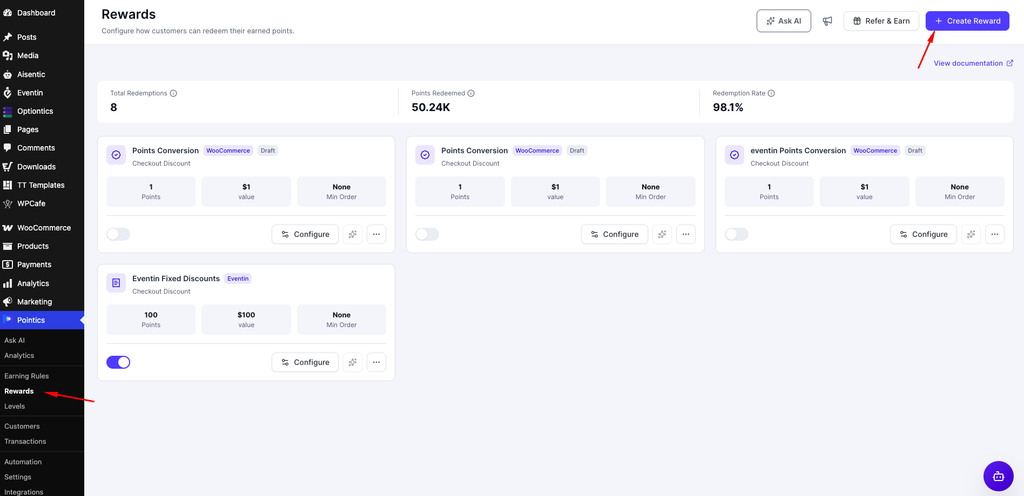
Go to Pointics → Rewards and add a reward. When Eventin sells through its own checkout, the built-in methods are:
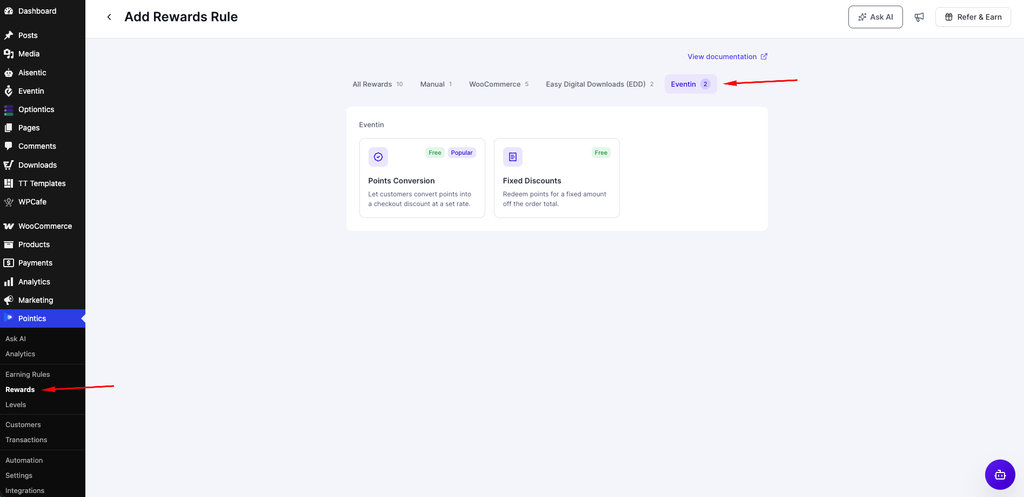
| Method | What It Does | Default Cost | Default Value |
|---|---|---|---|
| Points Conversion (recommended) | Converts points into a checkout discount at a set rate | 1500 points | 30 |
| Fixed Discounts | A fixed amount off the order total | 1500 points | 30 |
| Manual / generic | You fulfil the reward yourself outside checkout | None | None |
Both Eventin discount methods produce the same underlying result: a native Eventin coupon created at the moment of redemption and restricted to the customer who redeemed it.
If Eventin sells tickets through WooCommerce, the Eventin methods are not offered. Create WooCommerce rewards instead. See How Do I Use Pointics with WooCommerce?.
Step 5: Configure the Reward #
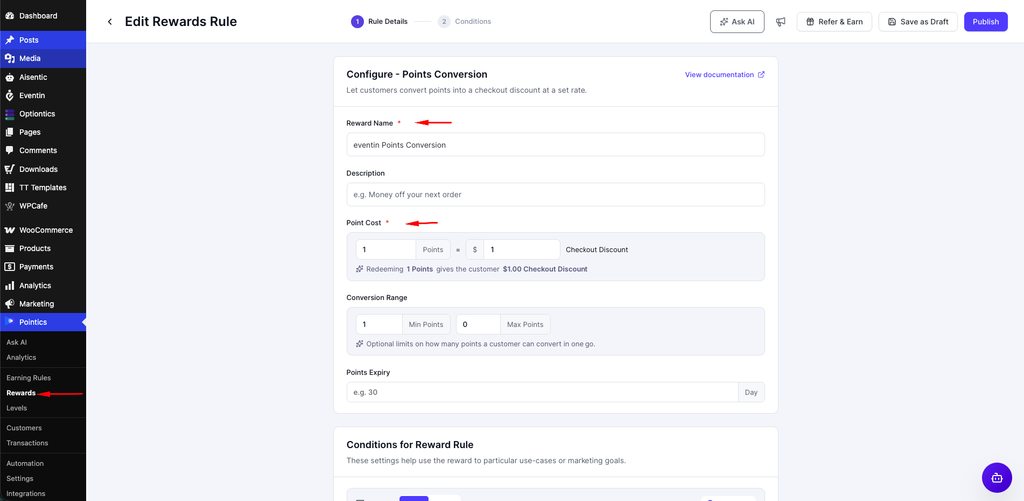
| Method | Fields |
|---|---|
| Points Conversion | Point Cost (points and the value they buy, which sets the rate) and an optional Conversion Range (minimum and maximum points per redemption) |
| Fixed Discounts | Point Cost (points and the amount off) |
Every reward also has Points Expiry: the number of days until the coupon expires and the held points return. Leave it blank for 30 days. Enter 0 for a coupon that never expires.
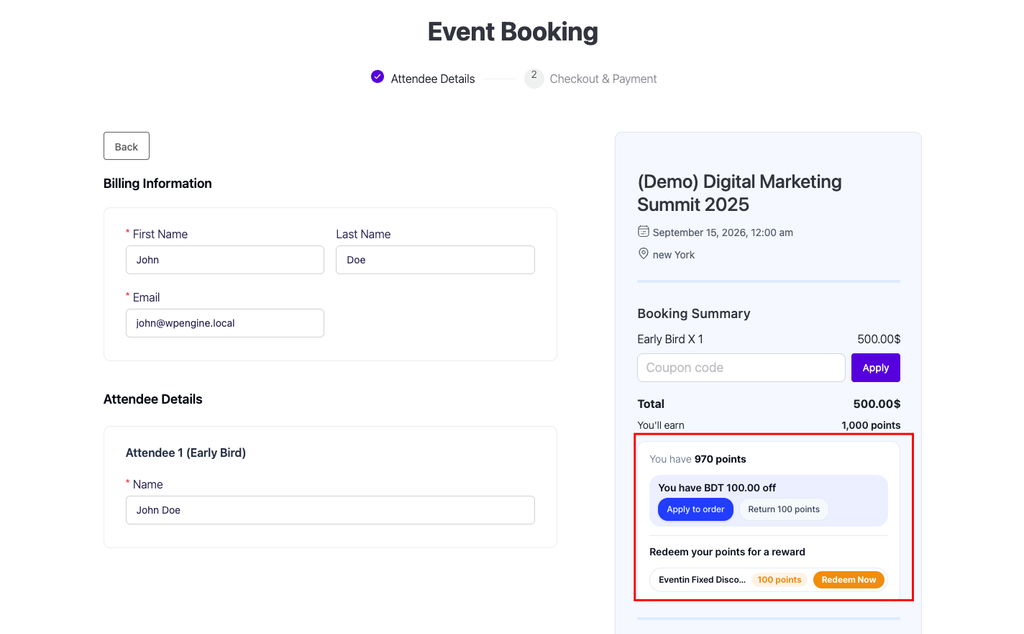
Generated coupon codes look like PTS-A1B2C3D4. Each coupon:
- takes a fixed amount off the whole order, tickets and add-ons included
- can be used once, and once per customer
- works only for the signed-in customer who redeemed it
- is never listed to other customers in Eventin’s coupon list
Eventin accepts one coupon per order. If the customer already applied one of your own coupons, the points card warns: “Redeeming a points reward replaces the coupon on this order.”
Step 6: Give Customers Somewhere to Manage Their Points #
Eventin has no customer account page of its own, so choose where customers see their balance and rewards:
- The Pointics floating widget, which is not tied to any store
- A page with the
[pointics_account]shortcode or the Account block (pointics/account) - My Account → Points & Rewards, if WooCommerce is also active
At Eventin’s checkout, signed-in customers can also redeem and apply rewards directly from the points card.
Step 7: Check the Storefront Placements #
Three placements are controlled by the Show Points on Your Store option in the Eventin Settings section. All are on by default:
| Placement | Option | Where It Appears |
|---|---|---|
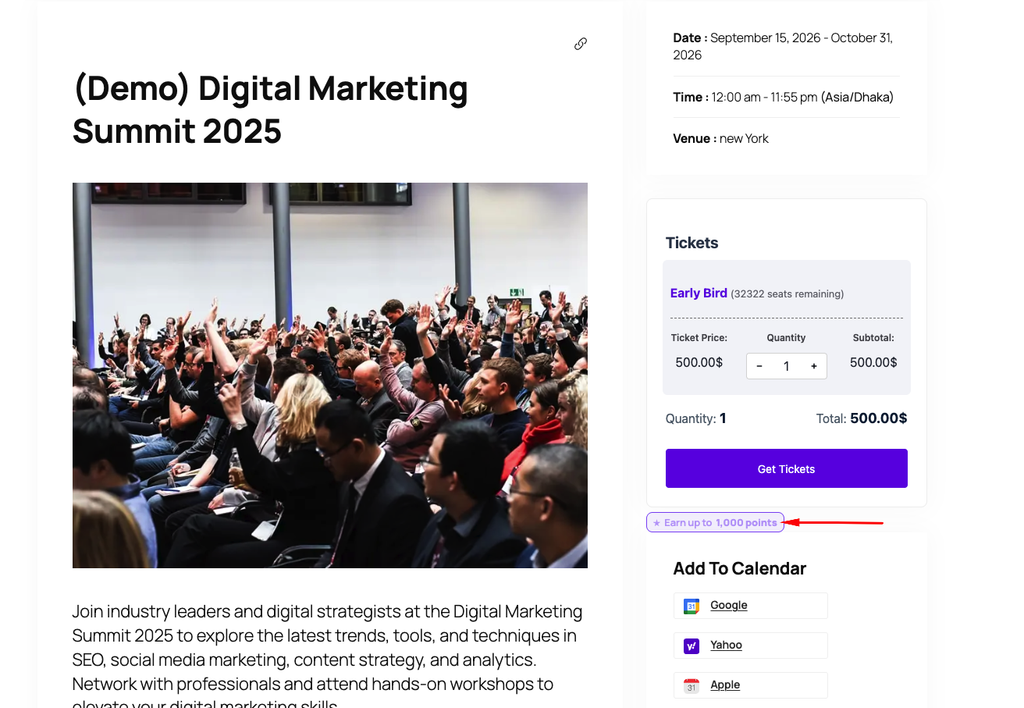
| Ticket form badge | Event ticket form | On the ticket form of a single event page, including recurring events and the ticket block or widget |
| Checkout earn row | Event checkout page | Under the Total in Eventin’s booking summary, for signed-in customers |
| Checkout points card | Redeem points on event checkout | Under the Total in Eventin’s booking summary, for signed-in customers |
These options are separate from WooCommerce’s and Easy Digital Downloads’. A site running WooCommerce and Eventin together can hide the ticket badge without hiding the shop badge.
An event with several ticket types shows a range on its badge, from the cheapest ticket to the most expensive. The checkout earn row updates as the customer changes tickets, add-ons or coupons.
Step 8: Place a Test Booking #
Book a ticket from the front end while signed in to a customer account, and complete the payment. Then go to Pointics → Transactions and look for the new row.
Next, redeem a reward from the points card at Eventin’s checkout and complete the booking. The points move from held to spent when the order is completed.
If you use check-in, check the attendee in from Eventin Pro and confirm a second row appears for the attendance award.
Key Functionality #
How Points Are Awarded and Taken Back #
- Customer books event tickets.
- If there is no matching WordPress account, no points are awarded because there is nobody to hold them.
- If there is a matching account and the order is completed, points are awarded against the amount charged.
- The award is recorded in Transactions.
- If the order is partially refunded later, points are taken back in proportion to the refund.
- If the order is fully refunded, the rest of the points are taken back.
- If there is no refund, the points stay.
Refunds are proportional. The share taken back is the refunded amount divided by what the customer was charged. Each partial refund is handled once, on its own, against what remains.
When Eventin reports an order as fully refunded or failed without a refund amount, Pointics takes back the whole remaining award, but only if the order’s status is in your Revoke Points on Order Status list.
Eventin fires two completion signals for one order. Pointics recognises them as the same order and awards once.
Attendance points belong to the attendee, not the order. Refunding the order does not take check-in points back.
How a Redemption Becomes a Coupon #
- The customer redeems a reward and the points are held, not spent.
- A private Eventin coupon is created.
- The customer applies it from the points card.
- If the order is completed, the hold is settled and the points are spent for good.
- If the order fails, the hold is released and the points are returned.
- If the order is cancelled, the hold is released by the daily sweep.
- If the coupon expires unused, the hold is released by the daily sweep.
A refund after the order is completed does not return the reward’s points. The discount was delivered on a real order.
Coupons Are Private to the Customer Who Earned Them #
Eventin coupons do not have an owner, so Pointics checks ownership every time Eventin validates one of its coupons.
- The coupon only works for the signed-in customer who redeemed it, and only while the reward is still held.
- One coupon can only ride one live order. Two checkouts at once cannot both use it.
- Only the redeeming customer’s own order can settle or release the held points.
Coupons you create in Eventin yourself are never touched.
The Daily Reconciliation Sweep #
Once a day, Pointics reviews open Eventin redemptions and finalizes any that have settled.
| What It Finds | What It Does |
|---|---|
| The coupon is on the customer’s order that is Completed, Refunded or Partially Refunded | Settles the hold and permanently spends the points |
| The coupon is only on the customer’s orders that Failed or were Cancelled | Releases the hold and returns the points |
| The coupon is on the customer’s order that is still Pending or Waiting | Leaves it alone so the points cannot be spent twice |
| Eventin has counted the coupon as used | Leaves it alone |
| Eventin now sells tickets through WooCommerce, so the coupon can never be used | Releases the hold |
| The coupon expired without being used | Releases the hold |
| The coupon is gone | Releases the hold |
| Creating the coupon failed and left no code more than an hour ago | Releases the hold |
The sweep works in batches, stops after about twenty seconds, and picks up where it left off five minutes later. It keeps running while Eventin is installed, even after you switch ticket sales to WooCommerce, so earlier rewards still settle. WordPress scheduled tasks must be running for this process to work.
Validation Rules #
- A booking with no matching WordPress account awards no points.
- Points award only when an Eventin order is completed.
- Eventin’s two completion signals for one order award once.
- A refund can never take back more points than the original award.
- A full refund or failure without a refund amount revokes only if the order’s status is in your Revoke Points on Order Status list.
- Refunds never take back attendance points.
- Attend an event awards only while Eventin Pro is active.
- A ticket order paid through WooCommerce earns through Buy an event ticket, never through WooCommerce’s Place a paid order.
- Pointics tries up to five times to generate an unused coupon code. If every attempt collides, the redemption fails rather than reusing an existing code.
- Points Expiry left blank means 30 days.
0means the coupon never expires and the points remain held until it is used. - A Pointics coupon works only for its signed-in owner, only while the reward is held, and only on one live order at a time.
- Eventin rewards can only be created while Eventin sells tickets through its own checkout.
Limitations #
- There is no award status setting. Points are awarded on Completed only.
- Cancelling a completed order without a refund does not take points back.
- The ticket form badge appears on single event pages only, not on event lists or archives.
- The checkout earn row and points card are for signed-in customers. Guests see neither.
- Eventin rewards offer Points Conversion and Fixed Discounts only. Percentage, free product and free shipping rewards are WooCommerce-only.
- When Eventin sells through WooCommerce, customers redeem with WooCommerce rewards at WooCommerce checkout.
- A reward coupon is single use. It cannot be split across multiple orders, and it replaces any other coupon on the order.
- Transactions rows from Eventin orders do not link to the Eventin booking.
- The Orders column on Customers does not count Eventin bookings.
- WooCommerce and Easy Digital Downloads conditions in Pointics Pro do not apply to Eventin rules.
- Automatic reconciliation requires WordPress scheduled tasks. Without them, expired coupons do not automatically release their points.
Troubleshooting #
| Problem | Solution |
|---|---|
| The Eventin section is missing from Settings | Eventin is inactive. Activate it and reload. |
| Eventin triggers show as locked in Points Program | Eventin is inactive. Activating it unlocks them. |
| “Activate Eventin Pro to use this channel.” | The Attend an event trigger requires Eventin Pro. |
| A booking was completed but no points were awarded | Check that the booking email belongs to a WordPress account and that the order status is Completed. |
| A ticket order paid through WooCommerce earned nothing under Place a paid order | This is expected. It earns through Buy an event ticket instead. |
| A refund took back only part of the points | Refunds are proportional to the refunded amount. Refund the rest to take back the rest. |
| A cancelled order kept its points | Cancelling does not record a refund. Issue a refund in Eventin to take the points back. |
| A refund did not take back check-in points | This is expected. Attendance points belong to the attendee, not the order. |
| Check-ins award nothing | Confirm Eventin Pro is active, an Attend an event rule is enabled, and the attendee’s email or order belongs to a WordPress account. |
| Eventin rewards are missing from the Rewards picker | Eventin is set to sell tickets through WooCommerce. Create WooCommerce rewards instead. |
| “The points could not be redeemed. Please try again.” | Eventin could not create the coupon. Update Eventin and check that its coupon system is working. |
| Eventin rejects the coupon | The coupon belongs to another customer, the customer is signed out, the reward was already returned, or the coupon is already on another unfinished order. |
| The customer’s own coupon disappeared after redeeming | Eventin accepts one coupon per order, and the points reward replaced it. |
| Points did not come back after a coupon expired | The release runs during the daily sweep. Confirm WordPress scheduled tasks are running. |
| Points are stuck as held | The coupon may be on an order that is still Pending or Waiting. The hold settles or releases when the order is completed, fails or is cancelled. |
| No badge appears on the event page | Check the Event ticket form option under Show Points on Your Store, and confirm a Buy an event ticket rule is active. |
| No earn row or points card at checkout | The customer must be signed in. Check the Event checkout page and Redeem points on event checkout options. |
Notes #
- Deactivating Eventin deletes nothing. Points already earned through Eventin remain in customer balances. The rules stop firing and the Eventin section stays hidden until the integration is active again.
- Pointics does not load its Eventin adapter on a site without Eventin, and it only watches for check-ins while an Attend an event rule is active.
- Coupons created through redemption are normal Eventin coupons. They are deactivated automatically when a hold is released.
- A bookkeeping problem during checkout is logged and retried by the reconciliation sweep rather than being shown to the customer, so an accounting issue does not fail the booking.
- Earn previews on the ticket form and at checkout are calculated from the Buy an event ticket trigger. If that rule is disabled, the badges have nothing to display.
Was this article helpful?
Related Articles #
- How Do I Configure Pointics Settings?
- How Do I Create Point Earning Rules?
- How Do I Create Rewards Customers Can Redeem?
- How Do Customers See Their Points?
- How Do I Install and Manage Integrations?
- How Do I Read the Points Ledger?
- How Do I Use Pointics with WooCommerce?
- How Do I Use Pointics with Easy Digital Downloads?


