How to Use AI Restaurant Management in WordPress With WPCafe MCP


Table of Contents
It’s Friday night, and a restaurant manager gets a last-minute booking request while handling a busy takeaway rush. Checking availability, confirming orders, and reviewing sales often means switching between multiple WordPress screens.
Most restaurants already use AI for content and marketing, but the bigger question is: Can AI work with your restaurant website data?
With MCP, WordPress restaurants can connect AI assistants with plugins like WPCafe to access operational information such as reservations, orders, and sales through natural language commands.
This guide explains how AI restaurant management in WordPress works, how MCP connects AI with restaurant data, and how WPCafe helps turn AI into a practical rest
Key Takeaways
- ✓ AI restaurant management in WordPress helps teams handle reservations, orders, and sales data faster with AI assistants.
- ✓ WPCafe MCP connects AI assistants with WordPress restaurant data while following user permissions.
- ✓ Restaurants can use AI to check bookings, monitor orders, and review sales insights.
- ✓ AI helps with repetitive tasks but does not replace decisions about pricing, menus, or customers.
- ✓ WPCafe MCP connects with AI clients like Claude Desktop, Cursor, and VS Code through a setup process.
What Is AI Restaurant Management in WordPress?
AI restaurant management in WordPress is the use of AI assistants connected with your WordPress restaurant data, such as reservations, orders, menus, and sales, to help staff find information, complete routine tasks, and manage daily operations faster.
It helps to separate two kinds of restaurant AI:
- Content AI: Helps restaurants create marketing materials such as menu descriptions, social posts, and customer emails.
- Operational AI: Works with restaurant data such as reservations, orders, and sales information to support daily management decisions.
Both are useful, but they solve different problems. While many restaurant AI tools focus on content or customer interaction, operational AI helps teams work with live restaurant data.
This article covers the second kind, specifically for restaurants that run their website on WordPress. For a wider view of how AI is used across the industry, from chatbots to inventory forecasting, read our guide on AI in restaurants.
Why AI Cannot Access Most WordPress Restaurant Data
Most AI tools can’t access your WordPress restaurant data because they aren’t connected to your WordPress site. If your restaurant runs on WordPress, your website is more than a menu page. A large part of your operation lives there:
- Menu items, prices, and food categories
- Table reservations and time slots
- Online orders for pickup, delivery, and dine-in
- Branch locations and schedules
- Sales history and customer details
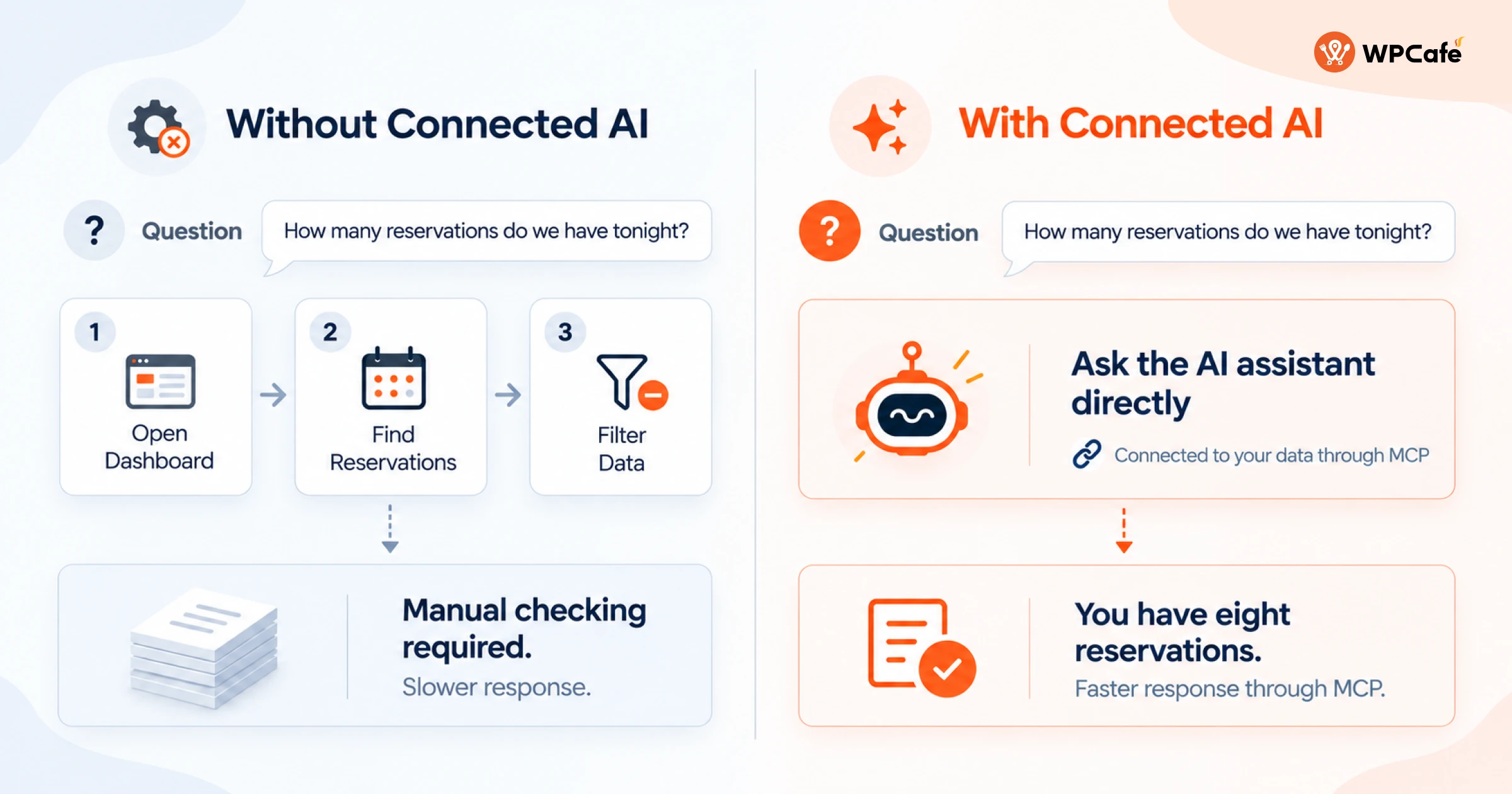
For example, if you ask Claude, “How many reservations do we have tonight?” it cannot answer unless it has permission to access your restaurant website data.
The AI itself is capable, but it needs a secure way to access the data stored inside your restaurant system. This is where MCP WordPress helps.
What Is MCP and How Does It Connect AI to WordPress Restaurants?
MCP, short for Model Context Protocol, is an open standard that lets AI assistants connect to outside systems and use them through defined tools. Instead of guessing, the AI can request real data and take the specific actions that the system allows.
Most restaurant AI tools work inside their own platforms. MCP changes this by allowing AI assistants to work with the WordPress tools your restaurant already uses.
For a restaurant running WPCafe, this means your reservations, orders, menus, and sales data stay inside WordPress while AI becomes a faster way to access and manage that information.
How MCP Works on a Restaurant Site
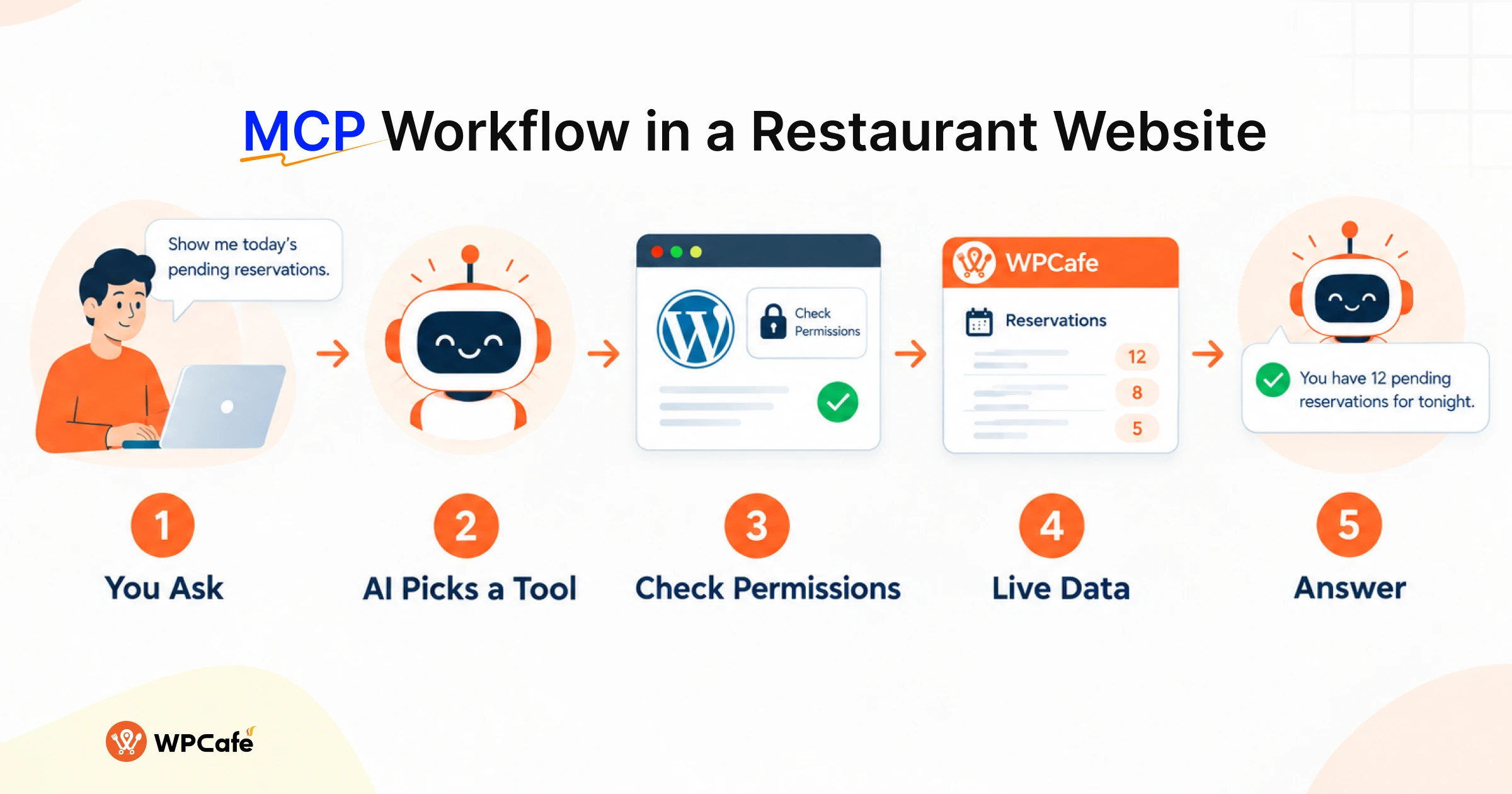
When you ask a question, four things happen:
- You ask. For example: “Show me today’s pending reservations.”
- The AI picks a tool. It chooses the WPCafe tool that lists reservations.
- WordPress checks permissions. The request runs through your WordPress account, so the AI can only do what your user role allows.
- Live data comes back. The AI reads the result and replies in plain language, such as a list of names, times, and party sizes.
Your data isn’t moved into another platform. The assistant fetches what it needs from your site for each request.
Built-In AI vs MCP: Which Path Fits You?
Not every restaurant needs the same level of AI access. Some owners want quick dashboard commands, while others need AI assistants connected to multiple websites or workflows.
WPCafe gives you two ways to manage your restaurant in plain language.
Aisentic is the AI agent built into WPCafe. It works inside your WordPress dashboard, needs no setup, and is included at no extra cost. It suits quick commands like “pause orders for the next two hours” or “turn off delivery for tomorrow.”
WPCafe MCP connects your site to external AI assistants such as Claude Desktop, Cursor, or VS Code. Setup takes about five minutes and needs a WordPress Application Password plus Node.js on your computer. It suits power users and agencies who already work in these tools or manage more than one site.
| Aisentic (built-in) | WPCafe MCP | |
|---|---|---|
| Where you use it | WordPress dashboard | Claude Desktop, Cursor, VS Code |
| Best for | Owners who want quick commands | Power users, agencies, multi-site teams |
A simple way to decide: if you spend your day in the WordPress dashboard, start with Aisentic. If you already use Claude or Cursor daily, or you manage client sites, MCP is the better fit.
What AI Can Do Inside a WordPress Restaurant Site
WPCafe MCP supports several restaurant workflows, including reservations, order tracking, sales insights, and location information. Instead of searching through multiple dashboard screens, you can ask questions or give instructions in plain language.
Reservation Management
Reservation handling often involves constant checking and follow-ups. Staff need to confirm upcoming bookings, check availability, handle cancellations, and answer guest questions while managing other restaurant tasks.
With WPCafe MCP, an AI assistant can help you view reservations, check available time slots, create new bookings, and update reservation details based on your permissions.
If you are setting up restaurant seating, availability rules, or table schedules, explore our guide to building a restaurant table management system
Order Monitoring and Status Updates
During busy hours, takeaway restaurants and cloud kitchens need to keep track of multiple orders at the same time. Constantly refreshing the order screen to check what is processing can slow down the workflow.
A connected AI assistant can help teams view order details, filter orders by status, and update order progress without manually navigating through different screens.
Learn more about improving restaurant order workflows in our guide tomanaging restaurant orders.
Sales Reports and Menu Insights
Restaurant owners often need quick answers about performance, but creating reports manually requires opening dashboards, selecting filters, and comparing different numbers.
With WPCafe MCP, AI can help summarize available sales data and answer questions about orders, revenue, and menu performance. This makes it easier to identify popular items, review recent performance, and plan upcoming promotions.
For a deeper look at using restaurant data effectively, read our guide to data analytics for restaurants.
QR Ordering and Multi-Location Management
Restaurants with table ordering systems or multiple branches often need to keep location details and customer access points updated. Managing this information manually can become time-consuming as the business grows.
With WPCafe MCP, AI assistants can help access restaurant location information and support QR ordering workflows based on your WPCafe setup.
Learn more about QR code menu ordering and managing a multi-location restaurant website.
How to Connect WPCafe MCP With Your AI Assistant
You don’t need a developer. If you can copy and paste into a settings file, you can connect your restaurant site to an AI assistant.
Before you start, check that you have:
- A WordPress site with WPCafe active (reservations, orders, and menu managed in WPCafe)
- A WordPress account with the Shop Manager role (or Administrator)
- HTTPS on your site (Application Passwords need it on live sites)
- Node.js 18 or newer on your computer (nodejs.org)
- An MCP-compatible AI client: Claude Desktop, Cursor, or VS Code
If you have all the above elements, now follow the steps below,
Step 1: Create an Application Password
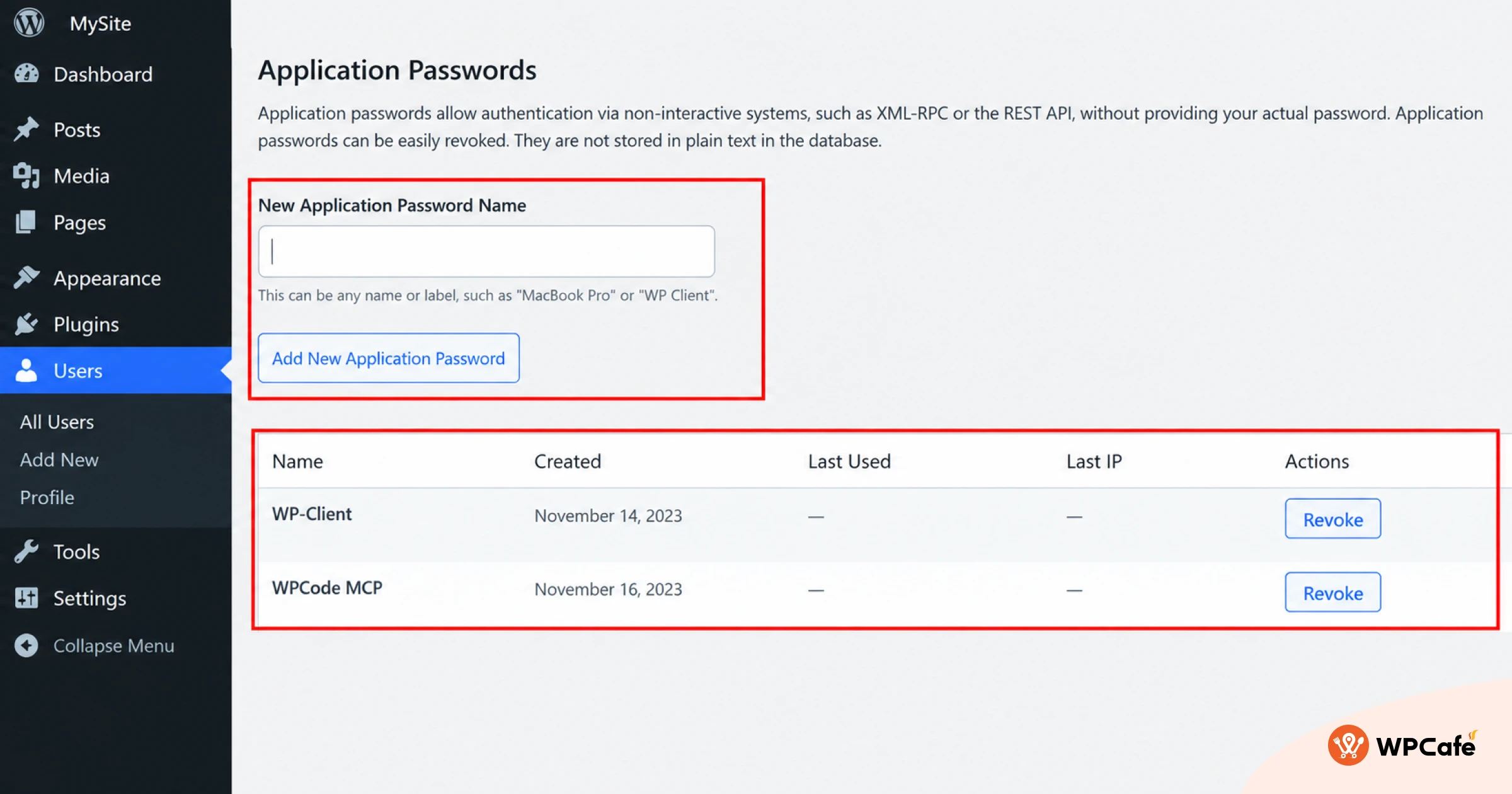
In WordPress, go to Users → Profile and scroll to Application Passwords. Enter a name such as “WPCafe MCP” and click Add New Application Password. Copy the password right away, because WordPress shows it only once.
Step 2: Add WPCafe MCP to Your AI Assistant
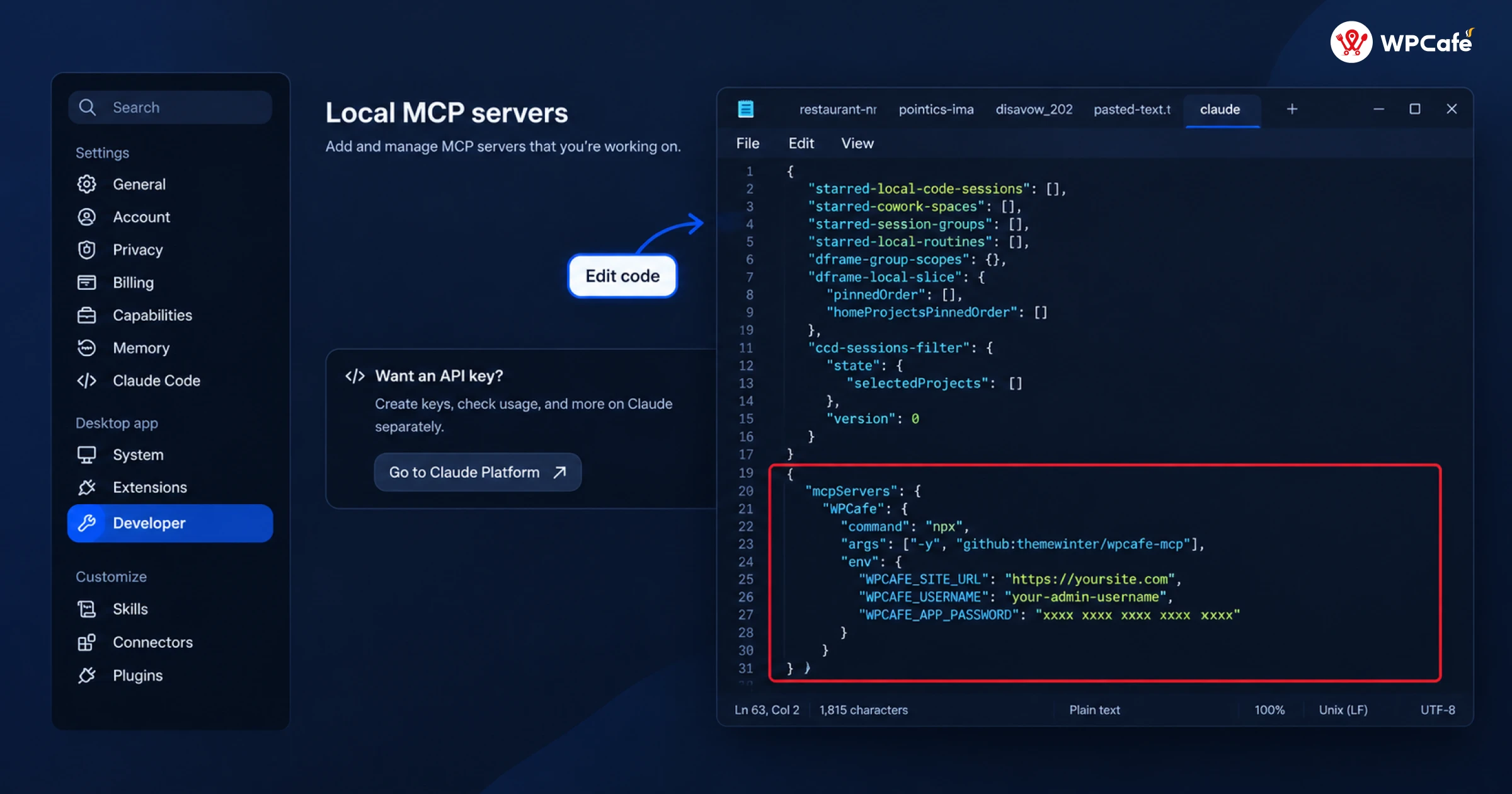
In Claude Desktop, open Settings → Developer → Edit Config. This opens the claude_desktop_config.json file. Paste the following and replace the three values with your own:
{
  "mcpServers": {
    "wpcafe": {
      "command": "npx",
      "args": ["-y", "github:themewinter/wpcafe-mcp"],
      "env": {
        "WPCAFE_SITE_URL": "https://yoursite.com",
        "WPCAFE_USERNAME": "your-username",
        "WPCAFE_APP_PASSWORD": "xxxx xxxx xxxx xxxx xxxx xxxx"
      }
    }
  }
}
Using Cursor or VS Code? Add the same server details in that app’s MCP settings. See the full WPCafe MCP setup guide for client-specific steps.
Step 3: Restart Your AI Assistant
Fully quit the app (not just the window) and open it again. WPCafe tools should now appear in the assistant’s tools or connectors list.
Step 4: Test the Connection
Ask: “List my WPCafe locations.” If you see your real branch names, you’re connected. Then try “Show today’s pending reservations.”
If It Doesn’t Work
- WPCafe tools don’t appear: Check the JSON for missing commas or brackets, then fully restart the app.
- “npx not found” error: Install Node.js 18+ and restart your computer.
- 401/authentication error: Re-check the username and Application Password, including spaces.
- No Application Passwords section: Make sure the site uses HTTPS and security plugins aren’t blocking the feature.
- Some actions are refused: Check the connected user’s role. Use Shop Manager or Administrator.
Real Restaurant AI Use Cases With WPCafe MCP
Once WPCafe MCP is connected, restaurant teams can use AI assistants to complete everyday tasks using simple prompts. Instead of opening multiple dashboard screens, they can ask questions about reservations, orders, sales, and restaurant operations.
Test setup: Tested on 26th September, 2026 with WPCafe 3.0, WPCafe MCP 1.0.0, and Claude Desktop, on a demo restaurant site with 15 reservations and 4 orders.
| Task | Prompt | What you get | Plan |
|---|---|---|---|
| Pending bookings | “Show me all pending reservations for today.” | A list of unconfirmed bookings with names, times, and party sizes | Free |
| Availability | “Do we have capacity for a party of 10 this Friday at 8 PM?” | Available slots and seating capacity for that time | Free |
| New booking | “Create a reservation for John Smith tomorrow at 7 PM for 4 guests.” | A confirmed reservation added to WPCafe | Free |
| Kitchen queue | “List all food orders with status processing.” | Orders still being prepared | Free |
| Order update | “Mark order #1042 as completed.” | Order status updated in WooCommerce | Free |
| Top sellers | “What are today’s best-selling menu items?” | Top products for the day | Free |
| Monthly summary | “Give me a dashboard overview for this month.” | Orders, revenue, and reservations in one answer | Free |
| Table QR | “Create a QR code for table 12 that links to our menu.” | A scan-to-order QR code | Free |
| Promotion | “Set up a 10% discount for weekend orders.” | A new discount rule | Pro |
Real Restaurant Scenarios With WPCafe MCP
WPCafe MCP is designed for practical restaurant operations, not just answering questions. The following examples show how restaurant teams can use AI during busy hours, daily management, and performance reviews.
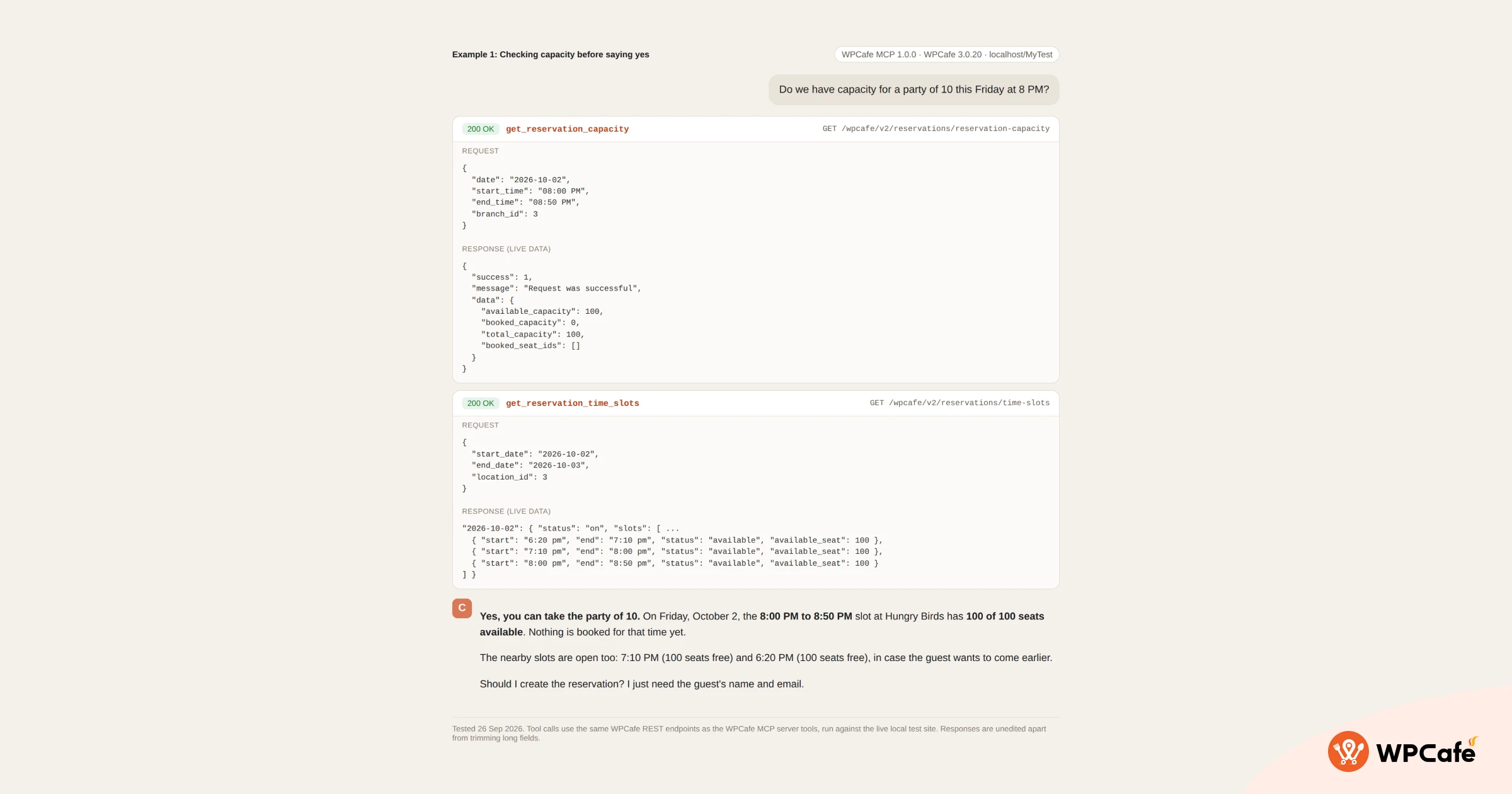
Example 1: Checking capacity before saying yes
Back to that Friday phone call. Instead of leaving the kitchen, the manager asks:
“Do we have capacity for a party of 10 this Friday at 8 PM?”
The AI checks the available time slots and seating for that evening, then replies with whether the table is possible and which nearby times are open if it isn’t.
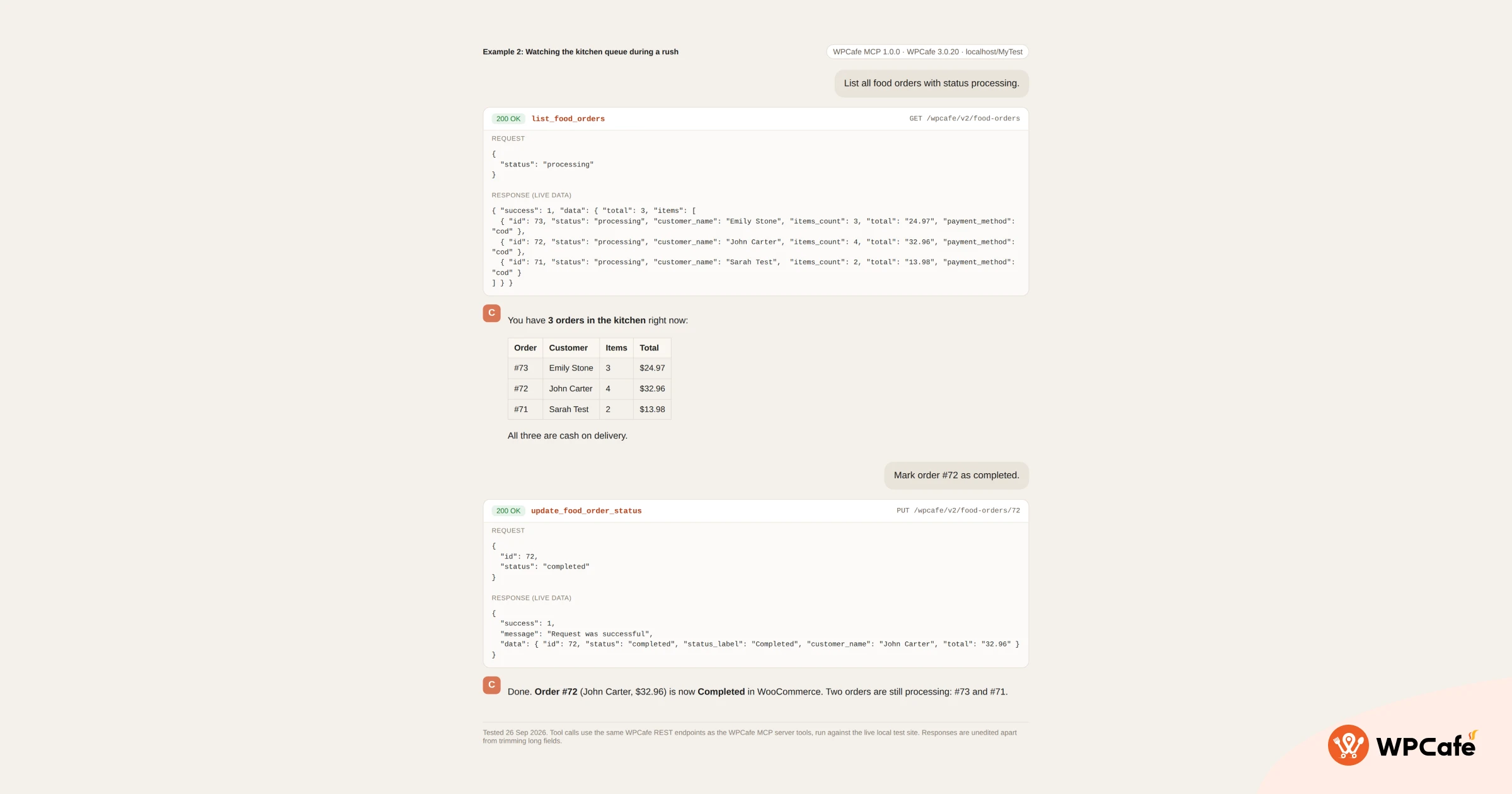
Example 2: Watching the kitchen queue during a rush
A takeaway team can check the queue and close orders in the same conversation:
“List all food orders with status processing.”
Then: “Mark order #1042 as completed.”
The first prompt shows what’s still in the kitchen. The second updates the order without anyone opening WooCommerce.
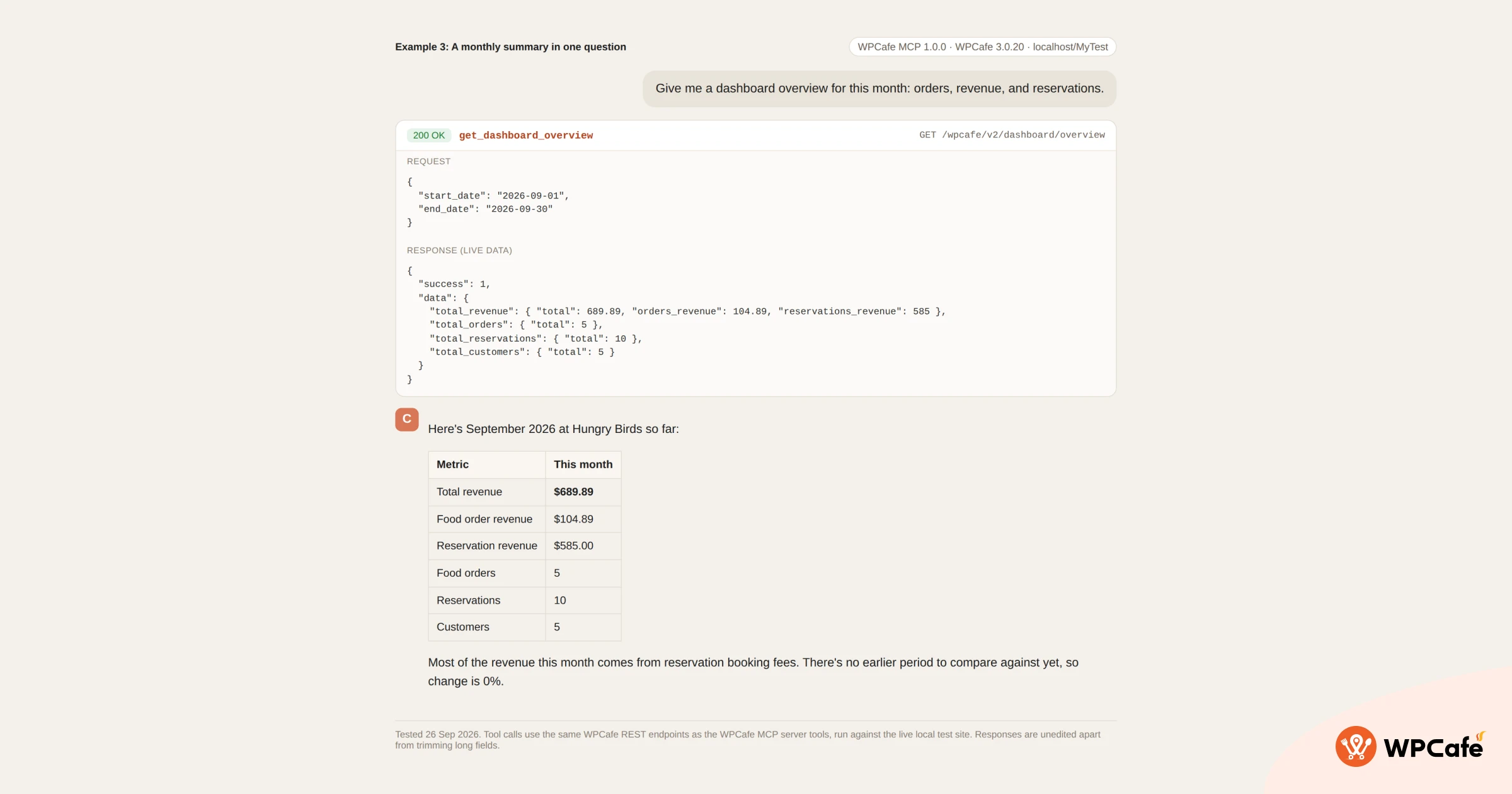
Example 3: A monthly summary in one question
“Give me a dashboard overview for this month: orders, revenue, and reservations.”
This suits owners who check their numbers weekly, and agencies preparing a quick update for a client.
Tips for better prompts
To get better results from WPCafe MCP:
- Give a time range: “today,” “this Friday,” or “last 7 days.”
- Name the branch if you have more than one: “at the Downtown location.”
- Use WPCafe’s status names: “pending,” “processing,” or “completed.”
- Review before approving: most MCP clients ask you to approve an action before it runs, so read what the AI plans to do first.
Is AI Safe for WordPress Restaurants?
AI can be used safely with a WordPress restaurant website when access is properly controlled. WPCafe MCP does not give the AI unlimited access to your WordPress site. Instead, it works within the permissions of the connected WordPress user account.
Here’s how access is controlled:
- Separate authentication: WPCafe MCP uses a WordPress Application Password instead of your main WordPress login password.
- WordPress permissions apply: The AI can only access the data and perform the actions allowed for the connected user’s role.
- Access can be revoked: Removing the Application Password immediately stops that AI connection.
- Use minimum permissions: For restaurant operations, connect an account with only the permissions the AI actually needs rather than using a full Administrator account.
So, the AI connection is not automatically risk-free, but you can reduce the risk by using a dedicated account with limited permissions and revoking its Application Password when access is no longer needed.
AI Restaurant Management: What Still Requires Human Decisions
Connected AI can handle many repetitive restaurant tasks, but it does not replace human judgment. Some decisions still require restaurant experience, customer understanding, and business context.
- It won’t forecast demand or build staff schedules. Labor planning, inventory costing, and supplier ordering still belong to POS and back-office tools.
- It can’t edit your menu through MCP. It can read items and categories, but changes to dishes and prices happen in WPCafe.
- It’s only as good as your data. If reservations or orders aren’t recorded in WPCafe, the AI can’t see them.
- It doesn’t replace judgment. The AI tells you there’s room for ten at 8 PM. Whether to seat a large party during a rush is still your call.
Frequently Asked Questions About WPCafe MCP and AI Restaurant Management
Does WPCafe MCP work with Claude Desktop?
Yes, WPCafe MCP works with Claude Desktop and allows restaurant owners to connect their WordPress restaurant data with an AI assistant. Users can ask Claude to check reservations, view orders, and review available restaurant information.
Is WPCafe MCP free?
Yes, core WPCafe MCP features are available with the free version of WPCafe. Advanced features like discounts, seat plans, receipts, and time-based products require WPCafe Pro.
Can AI create restaurant sales reports?
Yes, AI can help create restaurant sales reports by analyzing available order, revenue, and reservation data from WPCafe. Restaurant owners can ask questions like “Give me this month’s sales overview” to get quick insights without manually filtering reports.
Can AI update restaurant orders without opening WordPress?
Yes, AI can update restaurant orders without opening the WordPress dashboard when connected through WPCafe MCP with proper permissions. Staff can check processing orders, view order details, and update statuses using simple AI commands.
What restaurant tasks should not be handled by AI?
AI should assist with repetitive restaurant operations but should not replace human decisions. Tasks like customer issue handling, menu strategy, pricing decisions, and staffing choices still require restaurant owners’ judgment.
Does WPCafe MCP work for multiple restaurant locations?
Yes, WPCafe MCP can support restaurants managing multiple locations by allowing AI assistants to access available restaurant data from the connected WordPress setup. The information available depends on the WPCafe configuration and user permissions.
Conclusion
AI restaurant management in WordPress gives you a smarter way to handle daily restaurant operations without adding extra complexity. With WPCafe MCP, you can connect AI assistants with your workflow and get faster access to the information your team needs.
Start with the tasks that take the most time today, and gradually build an AI-powered workflow that supports your restaurant growth.
Start AI Restaurant Management With WPCafe MCP
Connect WPCafe with AI assistants using WordPress MCP to manage reservations, orders, sales insights, and restaurant tasks faster.

