How to Create Speakers List in WordPress (Step-by-Step + Best Method for Events)


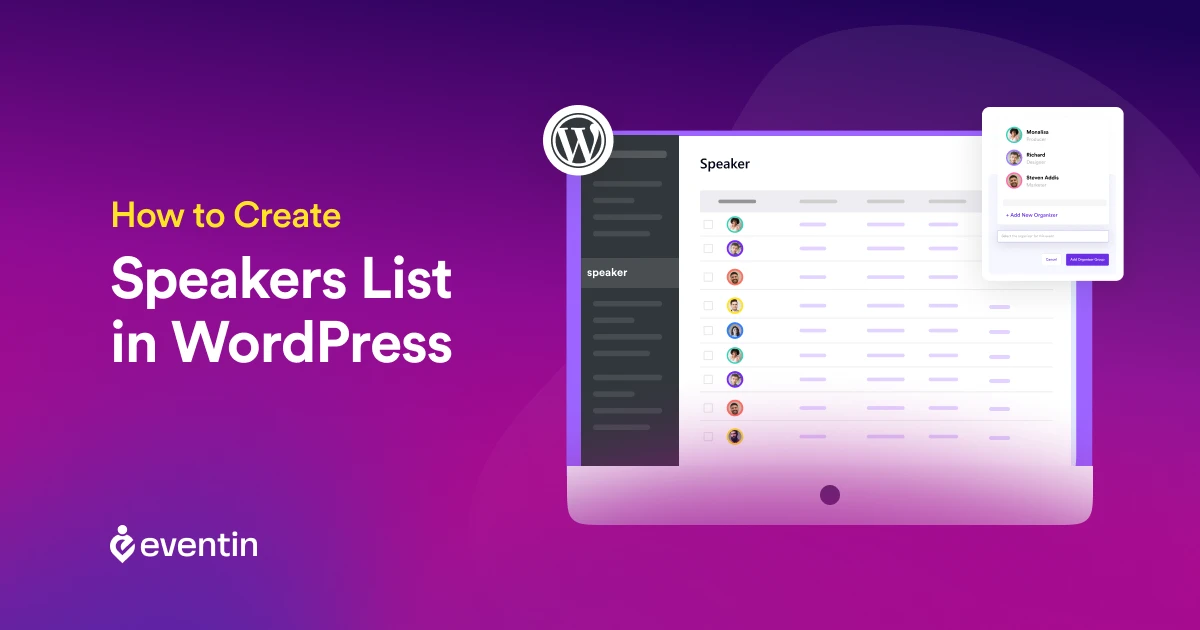
Table of Contents
A well-organized speakers list can make your event look more professional and help visitors quickly understand who’s speaking and why your event matters.
But many WordPress users struggle to add and manage speaker profiles properly.
In this step-by-step guide, you’ll learn how to create a speakers list in WordPress, including the best way to add speaker details, organize profiles, and display them on your event pages without any hassle.
Importance of Creating Speaker Lists in Events
From attracting attendees to increasing engagement, speakers are the core of any successful event. When visitors can easily explore your speakers, it builds trust and helps them decide whether to attend your event.
This is where creating a structured speaker’s list becomes essential, especially when you are managing your event website in WordPress.
Let’s look at why creating a speakers list is so important for your events:
- Adds professionalism to your event website
A well-organized speaker section makes your event look more credible, especially when combined with a properly designed event landing page.
- Improves user experience (UX)
Visitors can quickly browse speaker profiles, understand topics, and decide faster, this is crucial for any event registration process.
- Makes speaker management easier
When you organize speakers in one place, it becomes easier to update profiles, schedules, and sessions using a structured event management system in WordPress.
- Increases team productivity
Your team can manage speakers, sessions, and event details more efficiently without confusion, especially when working with a centralized event dashboard.
- Helps your event pages rank better on search engines
Adding structured speaker content improves SEO and helps your event pages perform better, especially when paired with a proper event calendar setup.
- Boosts attendee engagement
When people see strong speaker profiles, they are more likely to explore your event further and complete registration through your event booking system.

2 Easy Steps to Create Speakers List in WordPress Events
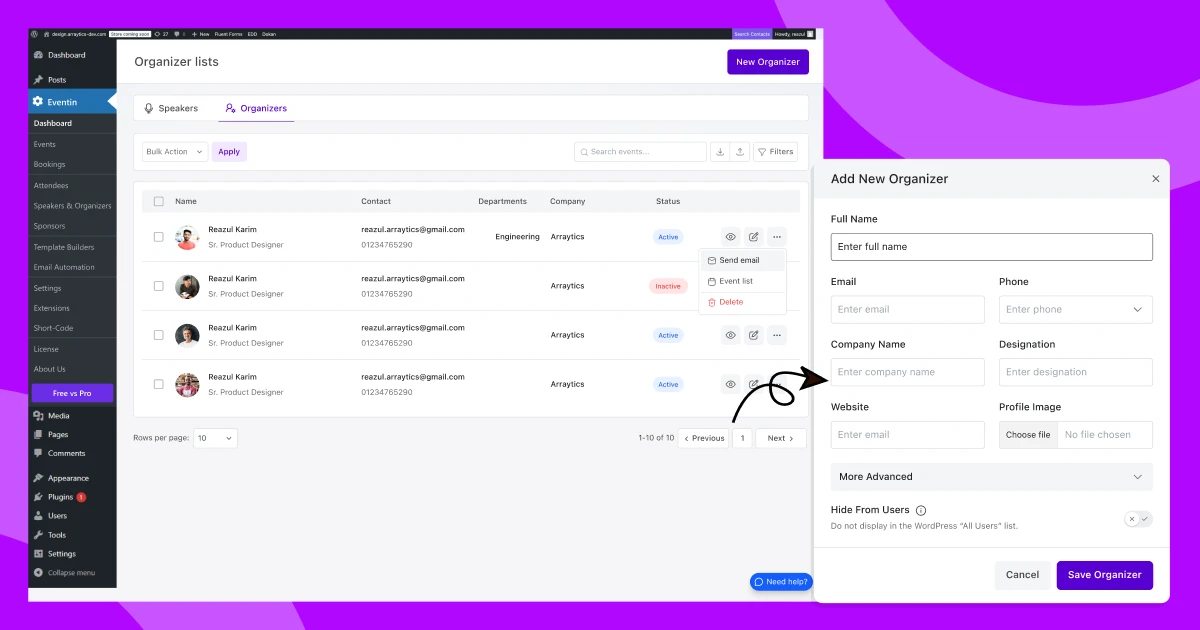
Creating speakers list in WordPress is easy when you choose the right speakers list WordPress plugin.
Though there are various speaker management software available, managing your events in WordPress requires you to choose the right event speakers management plugin.
By using these intuitive event management plugins, you and your team can showcase your event speakers in a more engaging way.
Here is the simplest breakdown of how to create speakers list in WordPress and drive attendee engagement to get a faster ROI within the same platform.
Step-01: Get a Speakers List WordPress Plugin
At WordPress, you can get a bundle of event management plugins with unique features. Some allow to create astonishing seat plans, whereas others might help to add payment getaways for WooCommerce products.
However, to create speakers lists, it’s important to choose a speakers list WordPress plugin that allows the addition of singles to multiple speakers.
For today’s tutorial, I prefer the Eventin event management plugin for WordPress. It offers highly visual speaker templates, so you don’t need any coding knowledge to create any. Additionally, this platform contains a rich user interface design, is easy to use, and has a lower learning curve, so you won’t get stuck anywhere.
So, to create speakers list in WordPress, simply go to ‘Plugins’ from the left sidebar plugin section.
Now search for Eventin > Install the plugin > and Activate it.
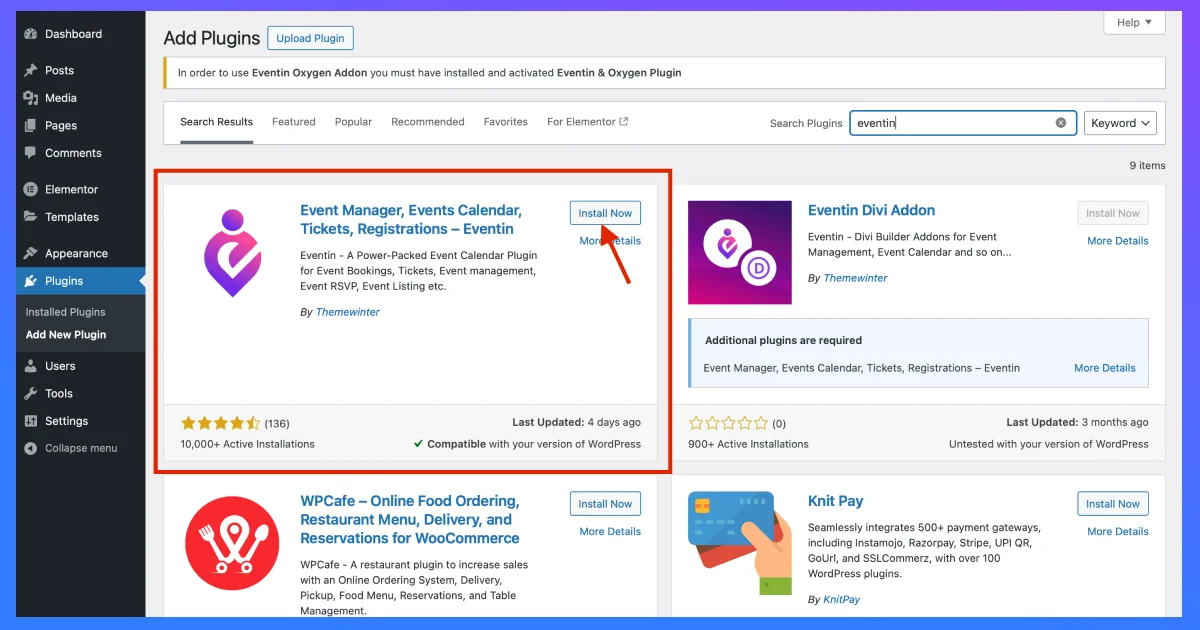
Once added, let’s move into our most important phase on the journey of ‘how to create speakers list in WordPress’ —
Step-02: Create Speakers List
There are two different ways to add event speakers using the Eventin event manager plugin–
- Method-01: Add Single Speaker
- Method-02: Add Speakers Group
Method-01: Add Single Speaker
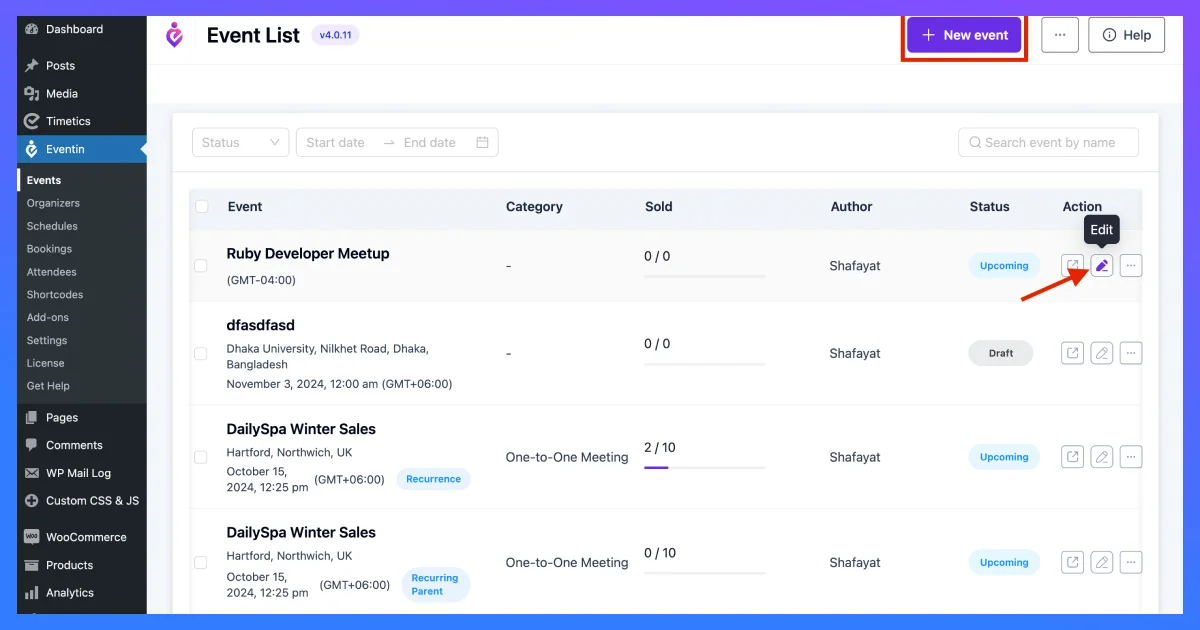
To a single speaker, simply go to Events and click on ‘Add new Event.’ You can also simply click on edit to any of your existing events.
From the event editor, select the ‘Speakers & Organizers’ tab.
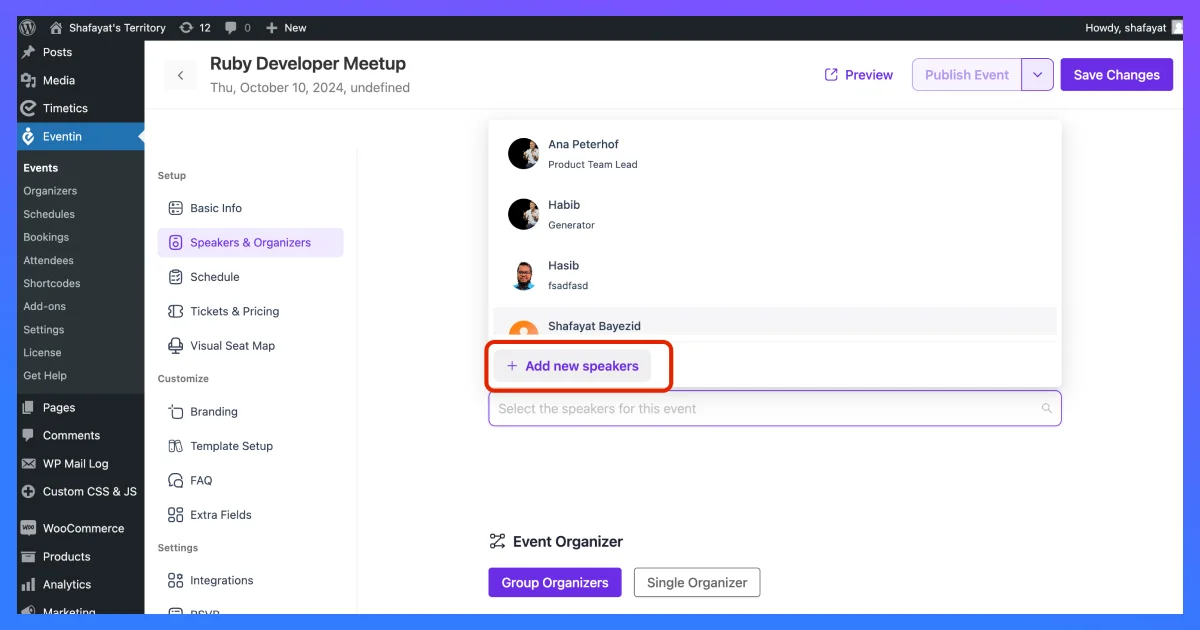
Now, click on the ‘Single Speaker’ option.
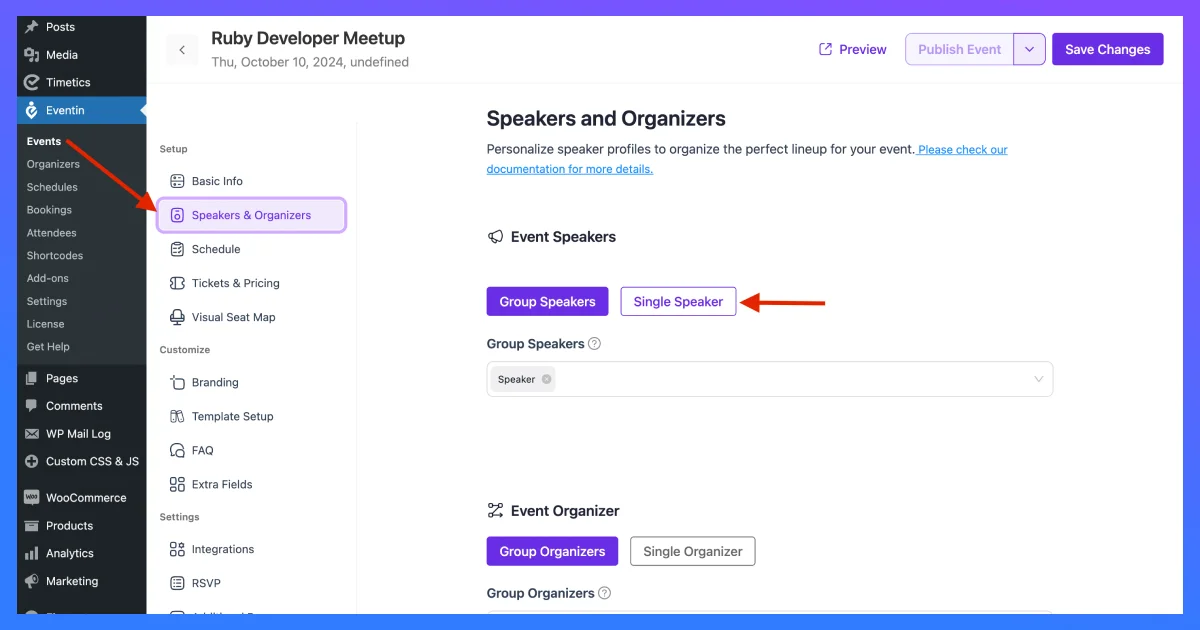
Here, you can add new single-event speakers to particular events.
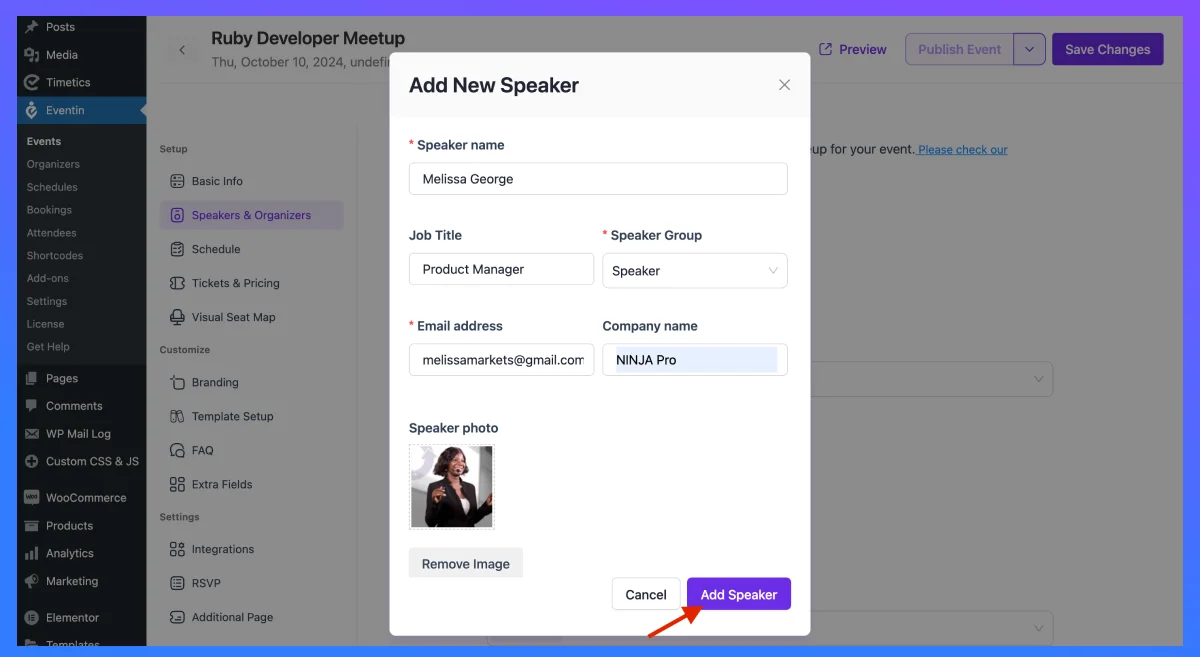
Once selected, A new popup form will appear. Here, add your speaker details, including name, job title, and email, and add them to a particular group.
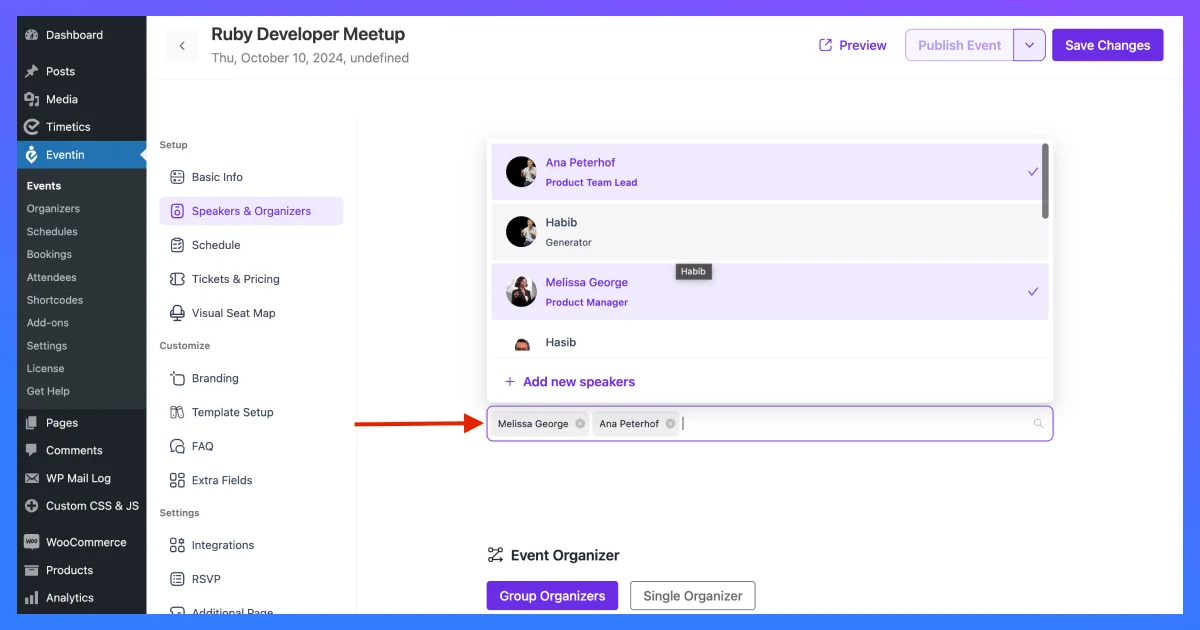
When you are done adding a speaker, you can select multiple speakers and create speakers list for this particular events.
Method-02: Add Speakers Group
In other ways, the Eventin event plugin also allows users to create speaker list groups. Here, you can add multiple speakers under particular categories and select that category whenever creating manual events.
To add a speakers group, similarly select ‘Group Speakers’ instead of ‘Single Speaker.’
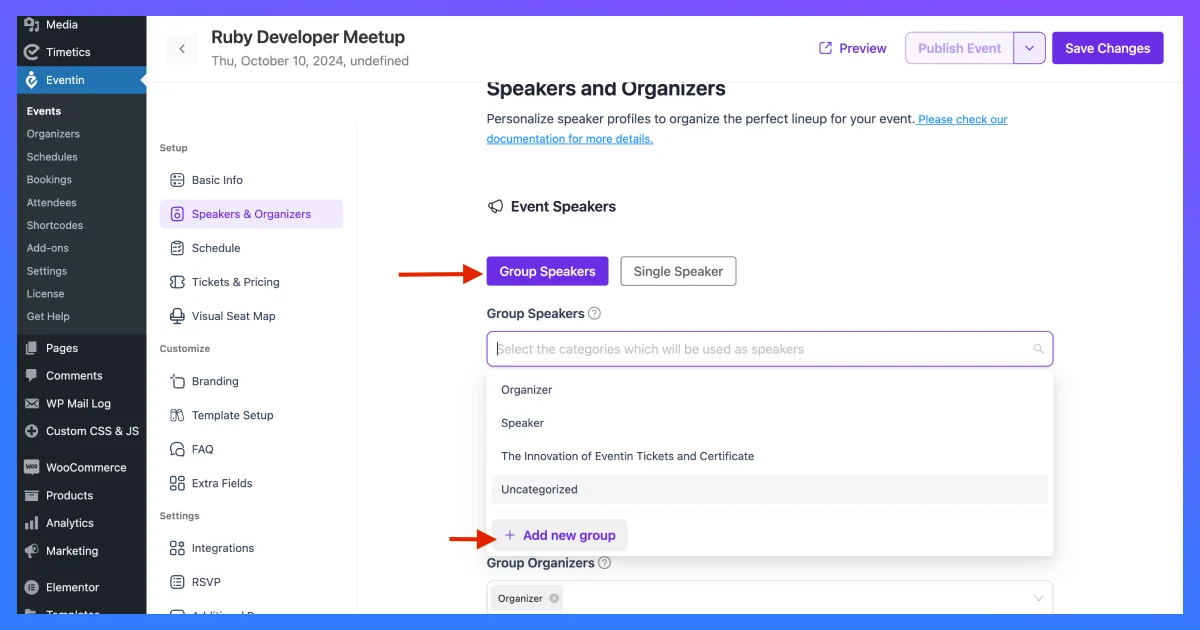
Give a name for that particular speaker category. Select speakers from the single speakers list, and finally click on ‘Add Speaker Group.’
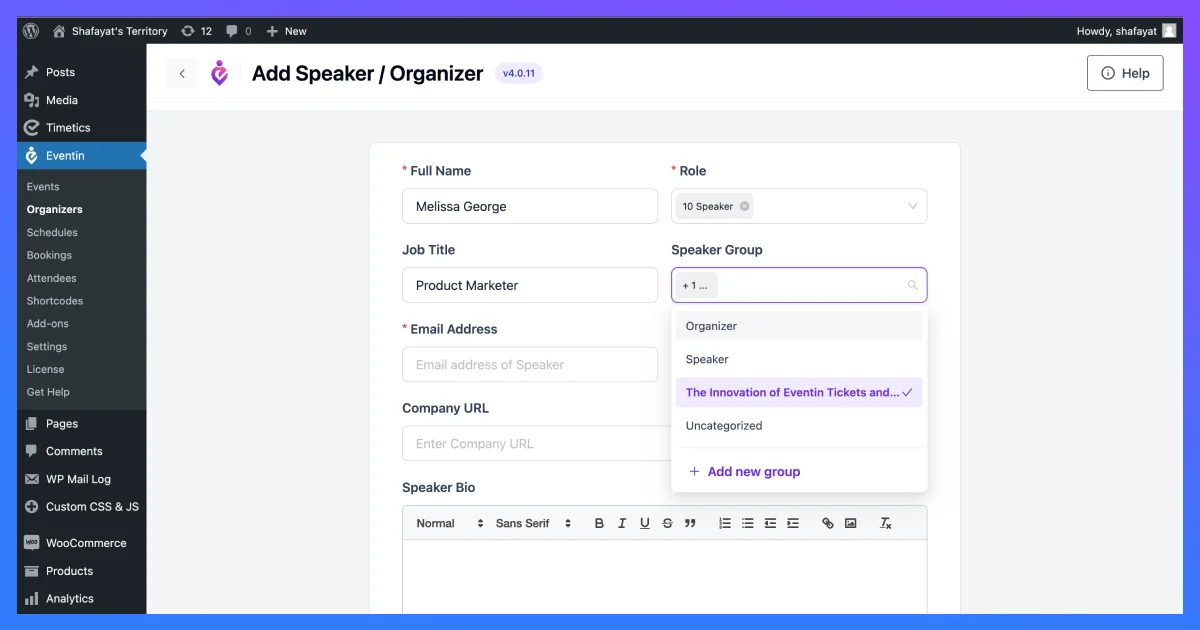
Now, whenever you create a new event, you can access this speaker’s list and add them to your events.
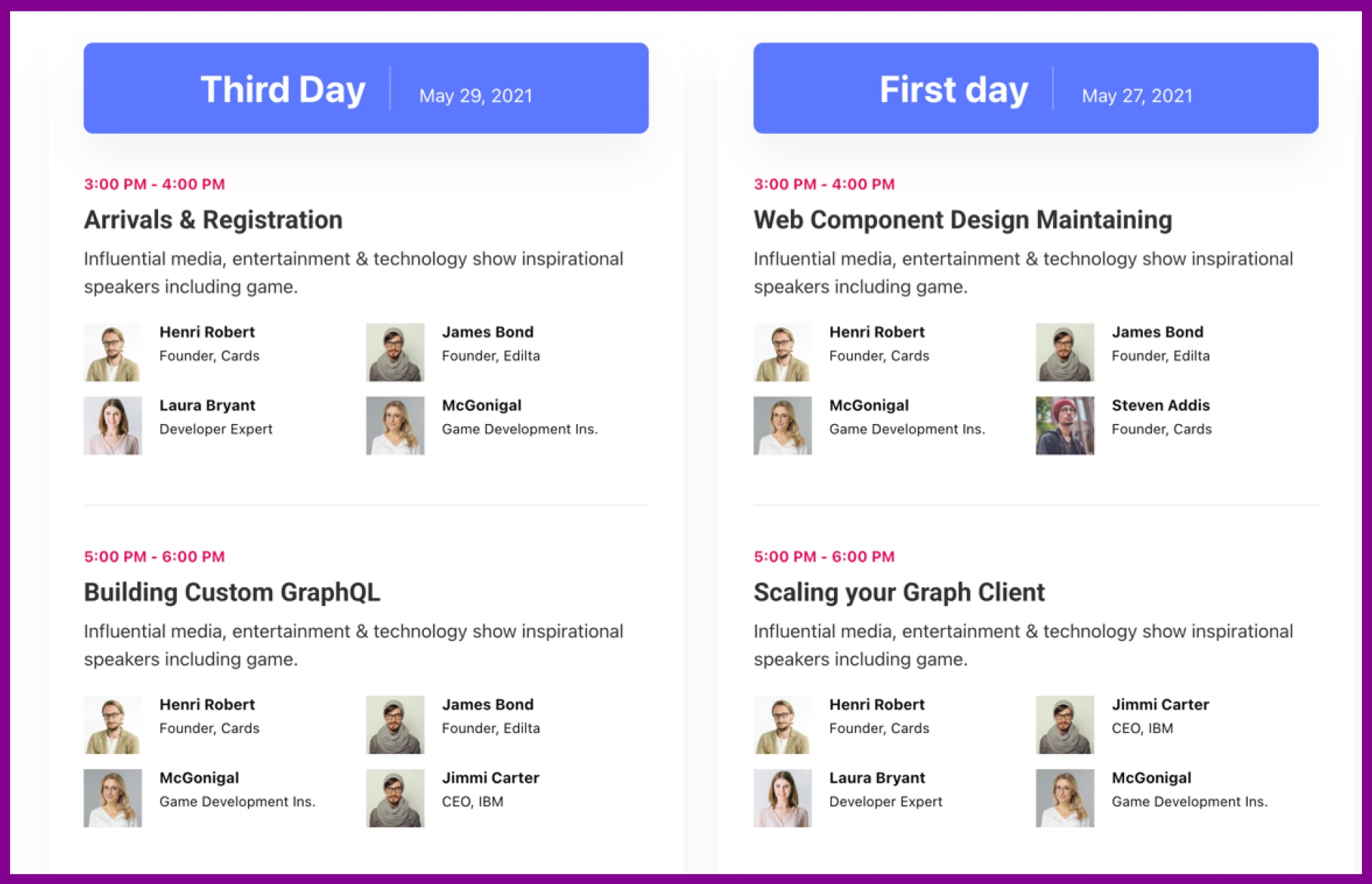
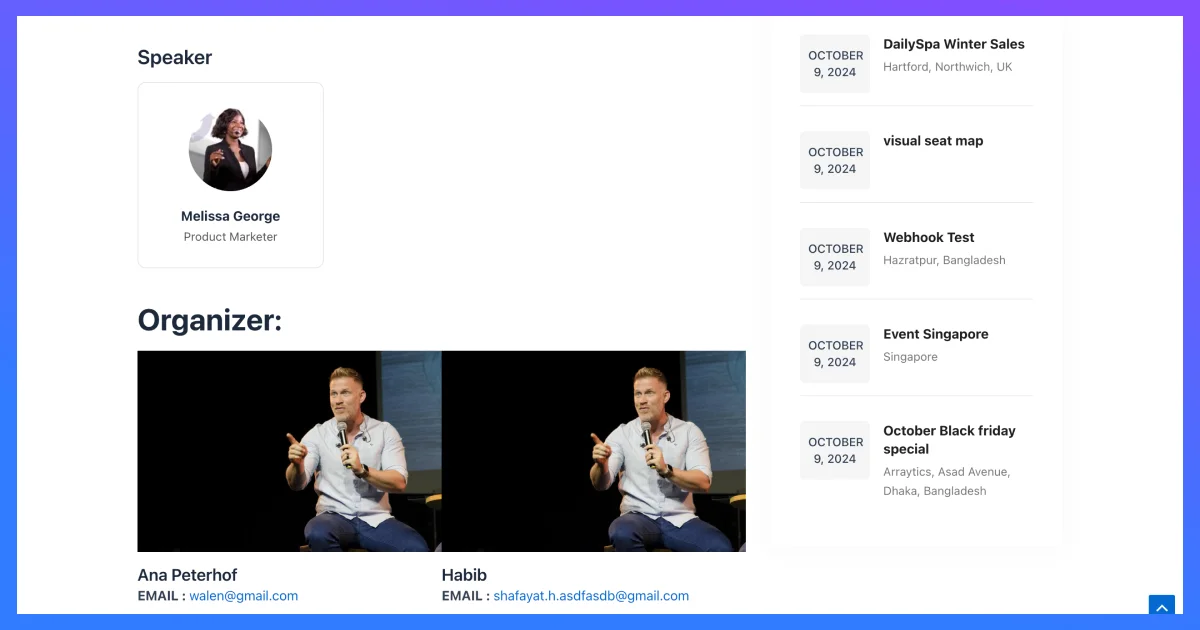
Here’s what your speakers list looks like on your published event page—
🚀 Take Your Speaker Management to the Next Level
You’ve already learned how to create and manage a speakers list using Eventin. But if you want more control, better layouts, and advanced event features, upgrading to Pro can make a big difference.
With Eventin Pro, you can unlock more flexibility in managing speakers, organizing sessions, and creating a more professional event experience for your audience.
Instead of handling limitations, you get a smoother workflow and more powerful tools to run your events efficiently.
Frequently Asked Questions
How do I add speakers to an event in WordPress?
You can add speakers by using an event plugin like Eventin. It allows you to create speaker profiles, add details like bio and images, and assign them to specific events.
What information should I include in a speaker profile?
A speaker profile should include the speaker’s name, photo, short bio, designation, session topic, and social links. This helps attendees understand who is speaking and why they matter.
How do I display speakers on my event page?
With Eventin, you can display speakers directly on your event page using built-in layouts. It automatically shows speaker details in a clean and organized format.
Can I manage multiple speakers for one event in WordPress?
Yes, you can manage multiple speakers easily using Eventin. You can add multiple profiles and assign them to the same event without any complexity.
How do I organize speakers for large events or conferences?
For large events, you should group speakers by sessions, categories, or roles. Eventin helps you manage this structure so attendees can easily browse and understand the lineup.
Is there a free way to create a speakers list in WordPress?
Yes, Eventin offers a free version where you can create and manage speaker profiles. You can upgrade to Pro if you need more advanced features and flexibility.
Does adding speakers help with event SEO?
Yes, adding speaker profiles with structured content can improve your event page SEO and increase visibility in search results.