Best Way to Add Pickup & Delivery in WooCommerce for Restaurants



Table of Contents
Running a restaurant today is not just about serving great food. Customers also expect an easy way to order online, whether they want pickup or home delivery.
If your restaurant website uses WordPress, WooCommerce can help you start an online ordering system.
However, WooCommerce mainly handles payments and orders. Setting up pickup and delivery options can become a bit complicated.
This guide will help you solve that. It shows simple steps to set up food pickup and delivery in WooCommerce. It also explains how a restaurant plugin can make it easier to manage menus, orders, and delivery settings.
This way, you can manage your full online ordering system directly from your own website. 🍽️
📚 Related reading: WooCommerce Food Ordering vs SaaS Platforms: Which Is Better in 2026?
First way: Add Pickup & Delivery Using Default WooCommerce
WooCommerce comes with built-in shipping methods that are completely free and easy to set up. This is a great starting point if you’re just testing online orders or have a very small operation.
- Go to WooCommerce > Settings > Shipping > Shipping Zones.
- Edit your local zone (or add one for your city).
- Click Add shipping method and choose Local Pickup.
- Name it something friendly like “Free Store Pickup”.
- Set the cost to $0 and save.
For delivery, add a Flat Rate or Free Shipping method in the same zone and set rules (like minimum order amount).
What you get:
- Customers can choose pickup at checkout
- No shipping address needed for pickup orders
- Completely free
Note: Why Only WooCommerce Isn’t Enough for Your Restaurants
WooCommerce is a powerful, free, open-source e-commerce plugin for WordPress. It powers millions of online stores worldwide by offering flexible product management.
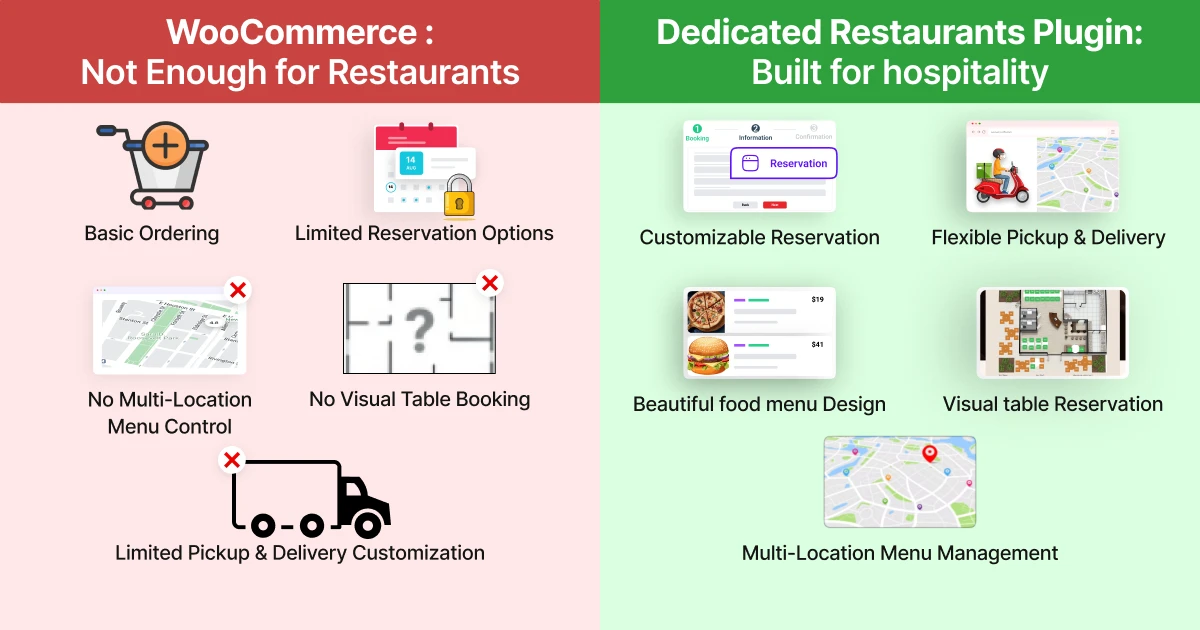
However, when it comes to online food ordering for restaurants, cafes, bakeries, or cloud kitchens, WooCommerce’s default features are too basic and not tailored for the unique, time-sensitive nature of food service.
Without additional plugins or custom development, WooCommerce alone cannot effectively handle critical restaurant requirements.
Here’s a clear breakdown of what it lacks natively:
- Show time slots (e.g., 11:00 AM – 11:30 AM): Default WooCommerce has no built-in time-slot picker for pickup or delivery.
- Set preparation time or minimum order rules: There’s no automatic prep-time buffer (e.g., 20–40 minutes cooking time) or enforced minimum order amounts for delivery.
- Block holidays or busy days: WooCommerce doesn’t support automatic disabling of pickup/delivery on holidays, weekly off-days, or special closures.
- Manage multiple branches: For restaurants with more than one location (e.g., branches), default WooCommerce lacks branch-specific menus, separate schedules, different delivery zones, or location-based ordering.
- Design a beautiful food menu: WooCommerce product pages are functional but plain for food; limited native layouts mean basic grids or lists without eye-catching restaurant-style displays.
- Table reservation: No native support for dine-in reservations, table booking calendars, guest limits, seat capacity, or confirmation emails.
Result? Kitchen gets overloaded during unexpected rushes, staff struggles with uncoordinated timing, customers face confusion, and you lose potential sales and repeat business.
That’s why dedicated restaurant plugins like WPCafe (built specifically on WooCommerce) fill these gaps perfectly, adding smart scheduling, stunning menus, reservations, and more, without losing WooCommerce’s core strengths.

The Better Way: Use a Restaurant-Specific Plugin for Food Pickup & Delivery
The best way to add a food pickup and delivery option in WooCommerce is to use a restaurant-specific plugin built on top of WooCommerce.
These plugins don’t replace WooCommerce; they enhance it.
Among the top options in 2026 (Five star restaurant menu, Orderable, GloriaFood, etc.), over 7,000+ Among the popular options in 2026, restaurant owners consistently choose WPCafe over alternatives like Five Star Restaurant Menu or GloriaFood.
And for good reason: WPCafe powers 7,000+ restaurants worldwide and has become the go-to WooCommerce-friendly solution for restaurants running on WordPress.
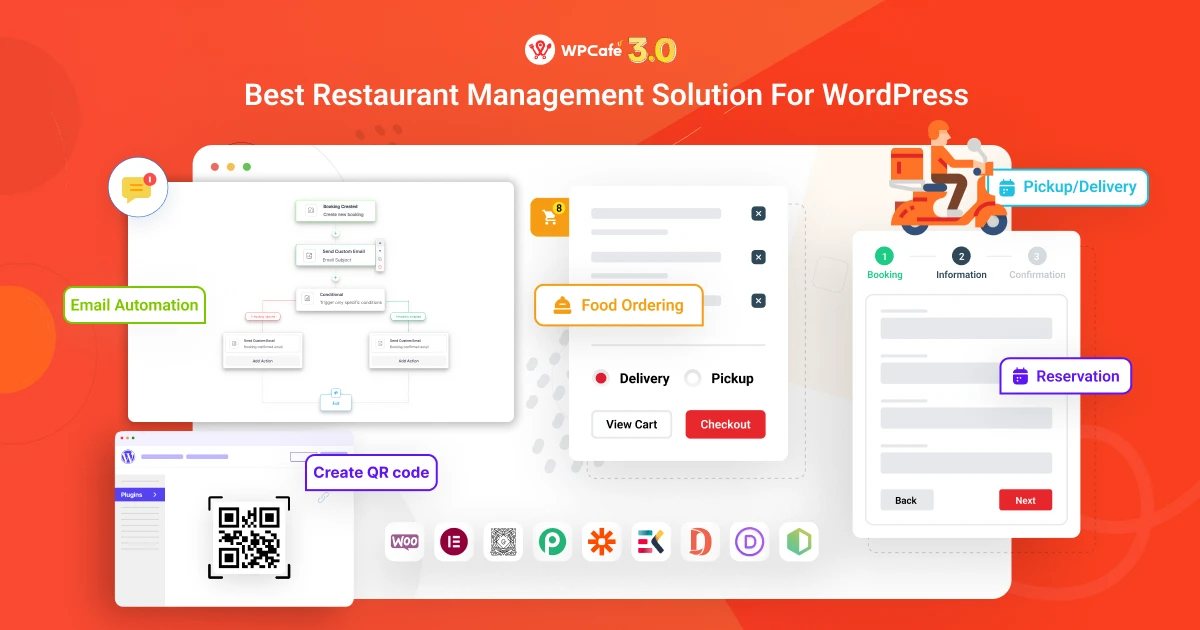
Easily Add Food Pickup & Delivery Options in WooCommerce with WPCafe
WPCafe is a smart restaurant management plugin for WordPress that works perfectly with WooCommerce. It turns your standard WooCommerce store into a professional online food ordering system specifically designed for restaurants, cafes, cloud kitchens, and takeaways.
Instead of struggling with basic shipping methods, WPCafe offers 3 main service types:
1. Food Pickup,
2. Food Delivery,
3. QR code Dine-in (through table reservations),
all with smart scheduling, time slots, and beautiful menus. Everything stays inside your WordPress dashboard.
It is the best choice in 2026 because it gives you full control over timing, prevents kitchen overload, supports multi-branch restaurants, and includes stunning menu designs.
Key Highlight Features of WPCafe
- Smart Time Slot Picker — Customers see only available slots for pickup, delivery, or dine-in at checkout or on a dedicated ordering page.
- Weekly Schedule + Holiday Blocking — Define open hours, breaks, and blackout dates (Eid, Pohela Boishakh, etc.) for each service type separately.
- 34+ Beautiful Menu Layouts — Drag-and-drop grids, tabs, carousels, and filters so your food looks mouthwatering and encourages more orders.
- Live Notifications & Multi-Branch Support — Real-time kitchen alerts + separate menus/schedules for each branch (Pro).
- Add-ons, Tipping & Discounts — Extra cheese, sauces, custom tips, and promotions — all work with pickup, delivery, and dine-in.
Step-by-Step Setup Process (Takes 20–40 Minutes)
Step 1. Install the Plugins
Go to your WordPress dashboard → Plugins > Add New. Search and install WooCommerce (if not already installed) and WPCafe (free version from WordPress.org). Activate both.
Step 2. Run the Quick Setup Wizard
After activating WPCafe, a setup wizard appears. Enter your restaurant name, logo, address, and basic opening hours. Click through to finish.
Step 3. Enable the Modules
Go to your WordPress dashboard → WPCafe → Settings & Tools → Modules.
Turn ON the following modules:
- Pickup
- Delivery
- Reservation (for Dine-in/table booking)
- Click Save Changes.
Once enabled, separate settings pages for Pickup and Delivery will appear.
Step 4: Set Time Intervals & Weekly Schedule (Shared for Pickup & Delivery)
Go to WPCafe → Settings & Tools → Settings → Schedule.
Set Time Intervals (example: 15 or 30 minutes) — this decides how the time slots appear to customers.
Configure Weekly Schedule:
- Toggle each day On or Off.
- Set Start Time and End Time for each day.
- Click + Add Slot if you want multiple time windows per day (e.g., lunch + dinner).
- Turn a day Off to close it completely.
- Click Save Changes.
This schedule applies to both Pickup and Delivery (you can override per branch later).
Step 5: Configure Pickup Settings
Go to WPCafe → Settings & Tools → Settings → Pickup.
Set the following:
- Minimum Order Amount (e.g., $10)
- Minimum Preparation Time (e.g., 25 minutes)
- Pickup Orders → Enable
- Show Pickup Date in checkout → Enable
- Show Pickup Time in checkout → Enable
- Pickup Message → Add instructions (e.g., “Please bring your order number”)
- Click Save Changes.
Step 6: Configure Delivery Settings (Same way as Pickup )
Step 7: Multi-Branch / Location-Wise Setup (Optional but Recommended)
If you have multiple restaurant branches:
- Go to WPCafe → Settings → Locations.
- Select a location → Enable Override Default Schedule.
- Set custom weekly schedule, time intervals, prep time, and minimum order for that branch.
- Save.
Step 8: Add the Time Slot Picker to Your Website
- Create a new page (e.g., “Order Online” or “Pickup & Delivery”).
- Add the shortcode: [wpc_pickup_delivery_search]
- Or use the WPCafe Gutenberg/Elementor blocks for a more visual layout.
- Publish the page.
Customers will now see a clean selector for Pickup, Delivery, or Dine-in with only available time slots.
Test the Complete Flow
- As a test customer, add food items to the cart.
- Go to checkout.
- Choose Pickup or Delivery → Select date and time slot.
- Complete the order.
- Check the admin dashboard for the new order and live notifications.
That’s it! Your professional pickup, delivery, and dine-in system is now live.
WPCafe makes adding these options incredibly easy while giving you restaurant-specific tools that default WooCommerce simply can’t match.
📚 Related reading: 10 Best Restaurant Management Plugins for WordPress
WPCafe Pricing & Getting Started
Choose the plan that fits your restaurant’s needs and transform your restaurant into a modern online ordering powerhouse. 7,000+ restaurant owners worldwide already trust WPCafe, with 100+ happy reviews praising its ease of use, powerful features, and excellent 20/7 support.
| Costs Type | WPCafe Pro |
| Starter | $49/ 6month |
| Entry-Level / Basic Plan | Annual: $89/year (Standard, 2 sites) |
| Lifetime: $149 one-time (1 site) | |
| Mid / Premium Plan | Annual: $199/year (2 sites) |
| Lifetime: $419 one-time (20 sites) | |
| High / Agency / Unlimited Plan | Annual: $329/year (unlimited sites) |
| Lifetime: $899 one-time (unlimited sites) | |
| Billing Frequency | Annual (recurring yearly) or Lifetime (one-time payment, no renewals) |
| Key Notes | Lifetime options give true ownership – pay once and keep all updates/support forever. No add-on fees for core features. |
FAQ
Who is WPCafe for?
-WPCafe is designed for restaurants, cafes, food chains, cloud kitchens, and takeaway businesses. It works well for single-location restaurants as well as businesses with multiple branches. If you take table reservations, manage food menus, or accept online orders, WPCafe is built to support those workflows.
How to add food pickup and delivery in WooCommerce?
–To add a food pickup and delivery option in WooCommerce, install WooCommerce and a WPCafe restaurant plugin. In the WPCafe settings, enable the self-pickup option and define available pickup days and time slots. Customers will then be able to choose pickup during checkout when placing their order.
Best WooCommerce plugin for food delivery?
–A popular choice is WPCafe because it extends WooCommerce with restaurant-specific features. It lets you create food menus, accept online orders, enable delivery and pickup options, manage reservations, and control restaurant operations directly from your WordPress dashboard.
How to set up delivery zones in WooCommerce for a restaurant?
–You can create delivery zones using WooCommerce’s shipping settings. Go toWooCommerce → Settings → Shipping and create zones based on city, region, or ZIP codes. After that, assign delivery methods and fees to each zone so your restaurant can control where orders can be delivered.
How to manage local food pickup and delivery in WooCommerce?
–WooCommerce includes a local pickup method that allows customers to collect their orders from the restaurant. With WPCafe, you canimprove this process by allowing customers to select pickup time slots and by organizing orders inside the WooCommerce order dashboard.
How to schedule food delivery times in WooCommerce?
–Delivery scheduling can be handled with WPCafe. You can define working hours, delivery days, and time intervals so customers can select a preferred delivery time during checkout.
Is there a free WooCommerce food delivery plugin?
–Yes, the free version of WPCafe provides basic restaurant ordering features for WooCommerce. It allows you to display food menus, accept online orders, and enable pickup and delivery options. More advanced restaurant management features are available in the pro version.
How to set up a restaurant online ordering system using WooCommerce?
-First, install WooCommerce on your WordPress site and add the WPCafe restaurant plugin. Then create your food menu as products, configure pickup and delivery settings, define delivery zones, and enable payment methods. Once the menu page is published, customers can place orders online and select pickup or delivery directly from your website.