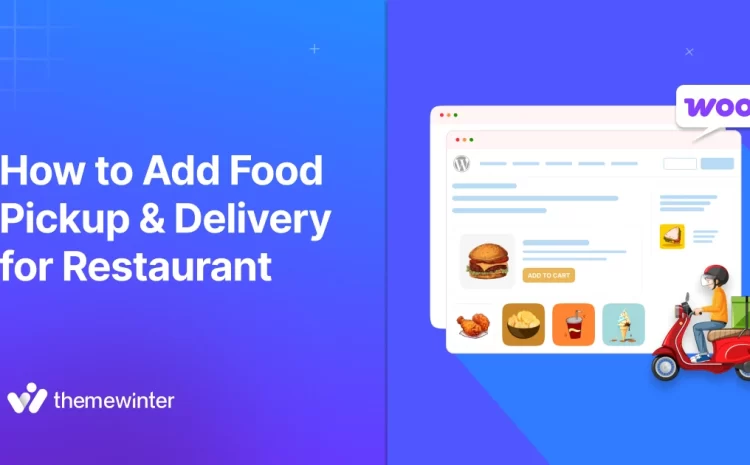
Table, Online, and QR Ordering Systems: Which Is Best for Your Restaurant? (2026)


Table of Contents
Did you know? Most restaurants already upgraded their ordering system in 2025.
If you still haven’t, 2026 might be the year you fall behind. Customers now expect faster service, shorter wait times, and a smooth ordering flow.
Table ordering, online ordering, and QR ordering are all growing fast.
Each one helps in a different way and fits a different type of food business. Some restaurants want quicker table service. Some want to cut wait times. Others want a simple digital flow with less pressure on staff.
In this guide, we compare all three food ordering systems in plain words. You will see how they work, where they fit best, and which one can support your restaurant in 2026.
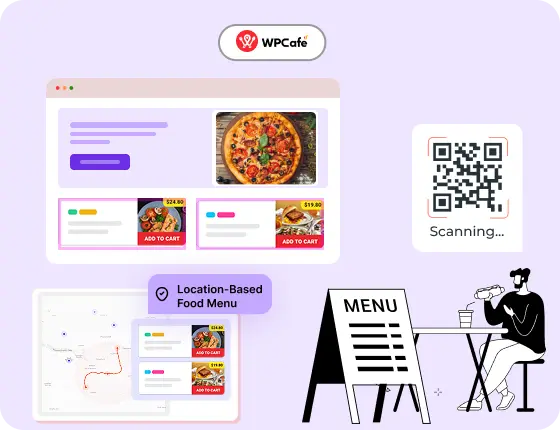
Want More Control? Upgrade to WPCafe Pro
Get advanced tools to manage multi-branch operations, automate bookings, and simplify your daily restaurant tasks.
- 🟣 Time-based menus (breakfast/lunch/dinner)
- 🟣 Multi-branch management
- 🟣 Reservation automation
- 🟣 Smart discounts & product rules
- 🟣 Visual email builder
Table Ordering vs. Online Ordering vs. QR Ordering
| Table Ordering | Online Ordering | QR Ordering |
| Staff take orders at the table | Customers order through a website or app | Guests scan a QR code to order from the table |
| Full-service restaurants | Delivery and pickup | Dine-in with fewer staff |
| Ordering slow | Faster process | Very fast process |
| Many staff needed | Low staff needed | Low staff needed |
| Hard to handle customer | Easy customer control | Easy customer control |
| Medium/high setup cost | Low/medium setup cost | Low setup cost |
| Upsell depends on the staff | Strong Upsell (online ordering) | Strong Upsell (on-screen) |
| For personal service | For remote orders | For hybrid and fast dine-in |
Which food ordering is better for restaurants?

There is no single best option for every restaurant. Each ordering method works well in a different setup, and each one helps customers in its own way.
- If you run a physical dine-in restaurant, table ordering is helpful. Guests get direct support from staff, ask questions, and enjoy a calm service flow.
- If you focus on delivery or pickup, online ordering fits better. Customers place orders from their phone, choose a time, and avoid waiting in line.
- If your restaurant wants fast, contactless dine-in, QR code ordering works well. Guests scan a code, view the menu, and order without calling a waiter.
But all three systems matter. When you offer table ordering, online ordering, and QR ordering together, you serve every type of customer and keep your operations steady.
Don’t worry! You can manage all three ordering types inside one system in WordPress.
Why WordPress is better than Wix and Shopify?
Quick look at why WordPress gives restaurants more control, flexibility, and growth options than Wix and Shopify.
| WordPress | Wix | Shopify |
|---|---|---|
| Full control with plugins | Limited apps, fewer options | Built for retail, not restaurants |
| Advanced ordering, QR, table, pickup, and delivery | Basic ordering tools | Needs paid apps for most features |
| High customization of every part of the workflow | Moderate, template-based | Low, fixed layouts and flows |
| More affordable over the long term | Higher cost when upgrading | Monthly fees plus app charges |
| Very strong plugin ecosystem | Weak app ecosystem | Needs many costly add-ons |
| Very flexible with categories, add-ons, and variations | Basic feature set | Designed mainly for products, not menus |
| Unlimited growth with plugins and APIs | Can feel limited as you scale | Mostly store‑focused apps |
| Easy to grow with your restaurant | Can hit platform limits fast | Scales better for retail than restaurant workflows |
Set up WordPress with a popular restaurant management plugin
Start by getting your website ready.
Buy a domain and hosting, then install WordPress from your hosting panel. When WordPress is live, choose a simple restaurant-friendly theme. This gives your site a clean base for menus and orders.
Now you need to install restaurant management plugins to accept online food orders.
In this tutorial, we pick the WPCafe restaurant management solution, the best restaurant management plugin for WordPress. You can take table orders, run online orders, offer QR code ordering, and even handle delivery. You can also manage multiple branches from one dashboard.
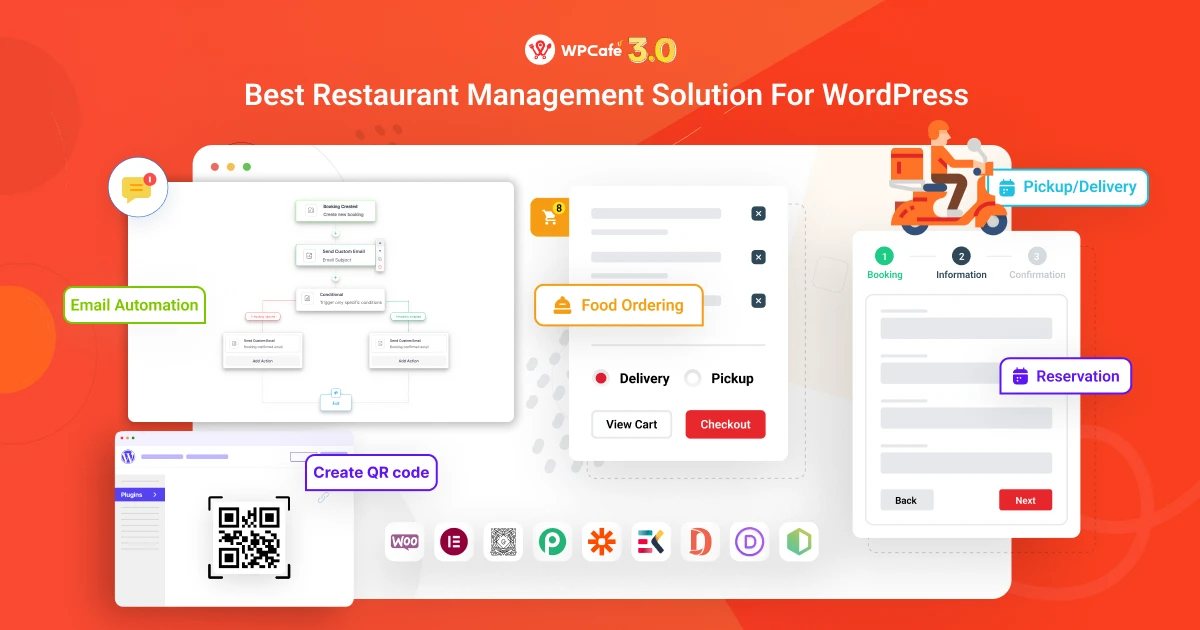
So, using it, your restaurant can cover every ordering need in 2026 and stay ready for any customer flow.
Install WPCafe and WooCommerce
Go to Plugins → Add New in your WordPress dashboard. Search for WooCommerce and WPCafe, then install and activate both.
- WooCommerce handles the cart, checkout, payments, and order tracking.
- WPCafe adds all the restaurant features you need, like online ordering, pickup, delivery, table orders, and QR ordering.
📌 Note: If WooCommerce is already installed and you have existing food items in your product list, you do not need to reinstall anything. WPCafe will automatically add your current WooCommerce products and show them in your food menu layout.
How to create an online food ordering (+QR code) website using WPCafe
Step 1: Set up your food menu for online food ordering
Now it’s time to create the menu that your customers will see on your website.
WPCafe works with WooCommerce products, so every food item you sell should be added as a WooCommerce product.
- Go to WooCommerce→ Products → Add New in your WordPress dashboard.
- Enter the food name, price, and a short description.
- Add a clear image so customers know what they are ordering.
- Choose a category like Pizza, Drinks, Burger, or Dessert.
- Publish the item.
Create all your food items the same way, one by one.
WPCafe will automatically show these items in a clean food menu layout on your online ordering page.
If you have different sizes or addons (small, medium, spicy level, cheese, toppings), you can use variable products or product addons to give customers full control when placing an order.
Step 2: Add QR code menu for each table
QR ordering lets customers scan a code at their table and order food directly from their phone.
This speeds up service and reduces the need for staff to take manual orders.
Here’s how to set it up:
- Go to the QR Ordering section inside WPCafe.
- Select the branch location (if you have more than one).
- Choose whether you want:
- One QR code for the entire branch
- A unique QR code for each table
- For table-wise QR codes, enter the table names or numbers (Table 1, Table 2, Table 3, etc.).
- WPCafe will generate a QR code for each table automatically.
- Download the QR images and print them on small table cards or stickers.
- Place each QR code on its correct table so orders go to the right place.
When a customer scans the QR code:
- They land directly on your digital menu
- They select food items
- Add them to the cart
- Place the order
- The order appears in your WPCafe dashboard with the table number
This makes service faster, reduces back-and-forth communication, and gives customers full control over their orders.
💁 Guide: Having trouble setting up your QR code? Here is the full documentation, it may be helpful for you- Read more.
Step 3: Enable food pickup and delivery (Optional)
WPCafe also lets you offer more order types beyond dine-in and QR orders. You can turn on pickup and delivery so customers can choose how they want to receive their food. Everything is handled inside WPCafe, and you don’t need any extra plugins to make it work.
Once you open the Food Ordering settings, you will see options to allow:
- Pickup orders: Customers can order online and collect the food from your restaurant at a set time.
- Delivery orders: You can serve nearby areas, add a delivery fee, set minimum order limits, or offer free delivery above a certain amount.
- Dine-in options: Guests can book a table before they arrive and order food when they come in.
All these features run together inside one system. This makes it easy for your restaurant to serve walk-in customers, online customers, and local delivery customers without switching between different tools.
💁 Related reading: Dine-In to Delivery: Learn (with a tutorial) how to take your Restaurant Online with WordPress- Read more.
Final thoughts: Boost your restaurant’s sales with WPCafe
Having table ordering, online ordering, and QR code ordering in one system makes your restaurant ready for every type of customer. This reduces wait time, cuts mistakes, and helps your team stay focused during busy hours.
WPCafe brings all of these features together in one dashboard, which can help you to simplify your workflow and give customers a smooth experience from start to finish.
If you want a complete ordering system that fits the needs of restaurants in 2026, WPCafe is a strong choice.
Try WPCafe today and make your ordering system simple, fast, and ready for more sales.
FAQ
1. What is QR code ordering?
QR ordering lets customers scan a code at their table and order food from their phone without waiting for staff.
2. Which ordering method is best for small restaurants?
Small restaurants often benefit most from QR ordering because it reduces workload and speeds up service.
3. Can I use table ordering, online ordering, and QR ordering methods together?
Yes. With WPCafe, you can use table ordering, online ordering, and QR ordering at the same time to serve all customer types.
4. Does WPCafe support QR, table, and online orders?
Yes. WPCafe handles all three inside one system, along with pickup, delivery, and multi-branch management.
5. Do I need extra plugins for QR ordering with WPCafe?
No. QR ordering is built into WPCafe, so you can create QR menus and table codes without adding more tools.