How to Fix “This Site Can’t Provide a Secure Connection” on WordPress


Table of Contents
Ever see the message “This site can’t provide a secure connection” while trying to visit your WordPress site? You’re not alone. This is a common issue that many users face, especially when setting up SSL or moving to HTTPS.
The error usually shows up in your browser when it cannot load the site securely. It often appears as “this site can’t provide a secure connection, Chrome” or a similar message in other browsers.
This problem can be frustrating, especially if your website was working fine before. It can also stop your visitors from accessing your content and affect trust in your site.
In this guide, we’ll show you how to fix this site can’t provide a secure connection in WordPress. We’ll explain what causes the error, how it appears in different browsers, and the steps you can take to solve it.

Grow Your Events Faster
Plan, manage, and grow your events with Eventin event manager.
- 🟣 Attendee registrations
- 🟣 Virtual events with Zoom
- 🟣 Smart email reminders
- 🟣 Secure ticket sales with Woo
Quick Overview
Seeing the “This site can’t provide a secure connection” error on your WordPress site usually means there’s a problem with SSL, HTTPS, or server configuration. This guide walks you through clear, step-by-step fixes to solve the issue and get your site loading securely again.
- What the “secure connection” error really means
- Common reasons this error appears on WordPress sites
- How to fix SSL and HTTPS issues step by step
- Server, browser, and plugin-related fixes
- How to test and confirm your site is secure again
- FAQs about WordPress SSL and HTTPS errors
What is ‘this site can’t provide a secure connection’ error?
This error shows up when your browser tries to connect to a website using HTTPS, but the connection cannot be completed securely. Instead of loading the page, it displays a warning that says the site is not secure.
In most cases, this means there is a problem with the SSL certificate or how the website is handling secure connections. The browser blocks access to protect the user’s data.
The goal of HTTPS is to create a private and encrypted connection between the browser and the website. If something interrupts this process, the browser blocks the request and shows this error instead.
This issue is also known as a WordPress secure connection error or a WordPress SSL connection error, especially when it happens on WordPress websites.
What actually causes this error?
The “This site can’t provide a secure connection” error can happen for several reasons. It’s often linked to problems with your SSL certificate or server settings, but other small issues can trigger it too.
Below are the most common causes:
- SSL certificate not installed or expired: If your website doesn’t have an SSL certificate installed, or if the certificate has expired, your browser won’t be able to create a secure connection. This is one of the most common causes of a WordPress SSL connection error.
- Mixed content or incorrect HTTPS settings: Mixed content happens when your site tries to load both HTTP and HTTPS resources. For example, some images or scripts might still be linked using HTTP, which breaks the secure connection. Incorrect WordPress URLs can also lead to WordPress HTTPS not working properly.
- Server-side misconfiguration: Sometimes the server is not set up correctly to handle HTTPS requests. This could be due to missing SSL support, misconfigured redirects, or web server settings like Apache or Nginx rules.
- Outdated cURL, OpenSSL, or browser cache: If your hosting server uses outdated SSL libraries like cURL or OpenSSL, it might not support the latest secure protocols. Also, your browser might be holding on to old SSL data, causing the connection to fail.
- Conflicts from plugins or themes: Some WordPress plugins or themes can interfere with how SSL is handled, especially if they force redirect rules or use outdated functions. This can lead to a WordPress secure connection error without any obvious reason.
- DNS issues or incorrect domain settings: If your domain’s DNS records are not pointing correctly to your hosting server, or if there’s a delay in DNS propagation, your site may fail to serve the secure version.
Read also: Common WordPress Errors and How to Fix Them
How do different browsers display this error?
Different browsers may show this error in slightly different ways, but they all mean the same thing.
Google Chrome
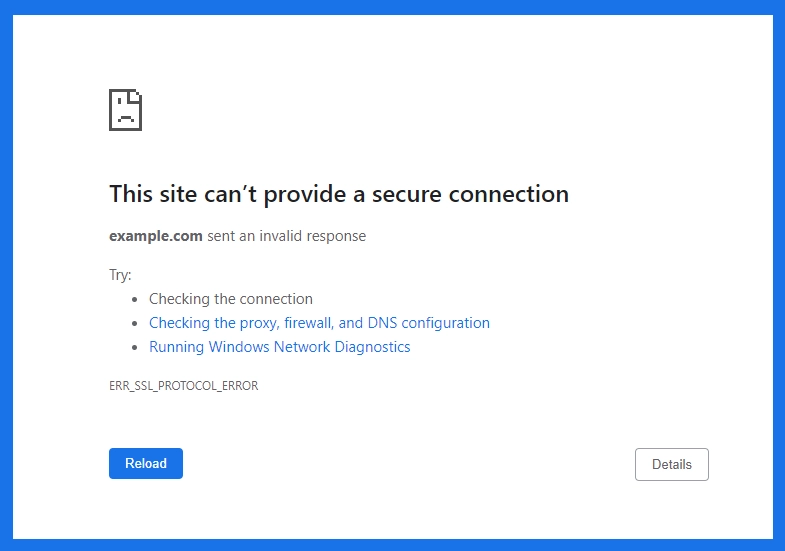
In Chrome, this error usually appears as:
This site can’t provide a secure connection
You may also see an error code like ERR_SSL_PROTOCOL_ERROR or ERR_SSL_VERSION_OR_CIPHER_MISMATCH
This message means Chrome was not able to complete the HTTPS handshake, often due to SSL issues or misconfigured server settings.
Mozilla Firefox
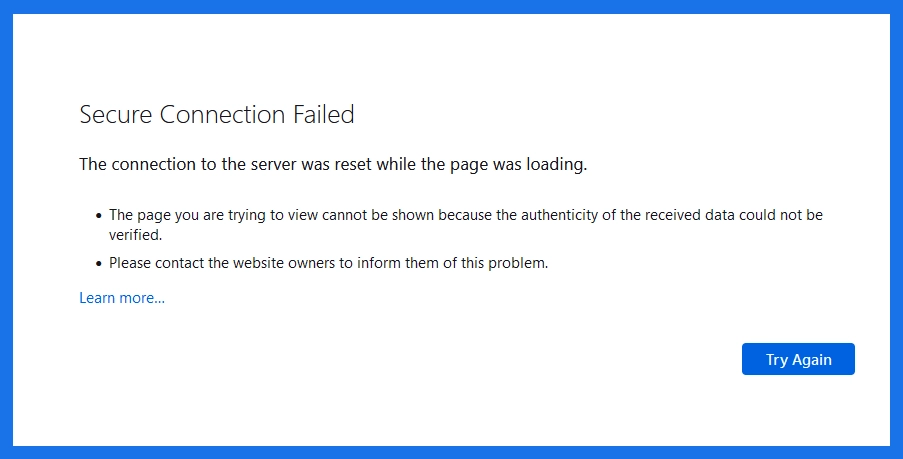
Firefox shows the error like this:
Secure Connection Failed
The connection to the server was reset while the page was loading.
Firefox may also show more technical details, like the type of SSL error it encountered. Also, block access altogether unless the user adds an exception.
Safari
Safari will show:
Safari can’t establish a secure connection to the server
Safari is more strict with security. If your site uses a self-signed certificate or doesn’t match the domain names, it may refuse the connection entirely.

Microsoft Edge
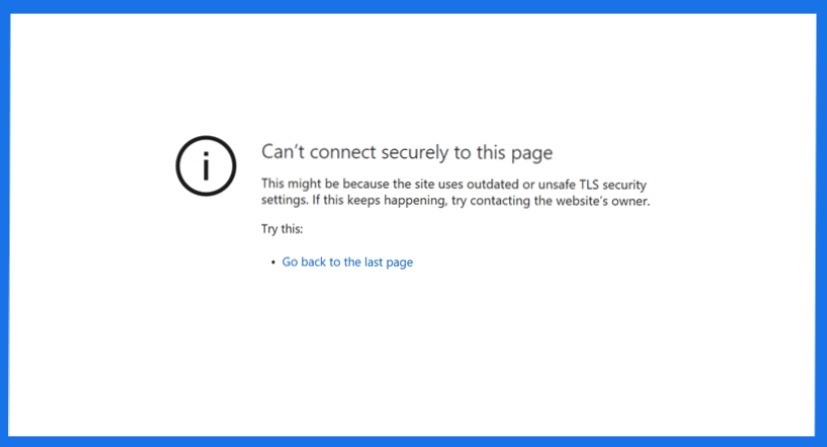
In Edge, the message is:
Can’t connect securely to this page
This might be because the site uses outdated or unsafe TLS security settings.
Edge focuses more on outdated SSL protocols or incorrect TLS configurations.
Why the Message Looks Different
Each browser handles security warnings in its own way. Some show technical error codes, while others use simple messages. But behind every version of this warning is the same issue. The browser does not trust the secure connection.
How to Fix “This Site Can’t Provide a Secure Connection” in WordPress
There are several ways to fix this site can’t provide a secure connection error, depending on what’s causing it. We’ll go through each method in a clear and simple way. In many cases, the error is resolved early, and you do not need to touch server settings.
Method 1: Clear browser cache and cookies
This step may look basic, but it works more often than people expect.
Browsers store SSL data in the cache. If your SSL certificate was renewed, changed, or fixed recently, the browser can still use old data. This can trigger a WordPress secure connection error even when everything is set up correctly.
Clearing the cache forces the browser to fetch fresh security details from your site.
Steps for clearing the cache in different browsers
Google Chrome
- Click the three dots in the top-right corner.
- Go to Settings > Privacy and security > Clear browsing data.
- Choose All time as the time range.
- Check Cookies and other site data, and Cached images and files.
- Click Clear data.
Mozilla Firefox
- Click the menu button (three lines).
- Go to Settings > Privacy & Security.
- Under Cookies and Site Data, click Clear Data.
- Select both options and click Clear.
Microsoft Edge
- Click the three dots in the top-right corner.
- Go to Settings > Privacy, search, and services.
- Under Clear browsing data, click Choose what to clear.
- Select Cookies and cached files, then click Clear now.
Safari (macOS)
- Go to Safari > Settings (or Preferences).
- Select the Privacy tab.
- Click Manage Website Data and then Remove All.
Open your site in an incognito or private window. If the site loads without errors, the problem is almost always related to cached data.
If the error still appears, move on to the next method. In the next section, we will check your SSL certificate, which is one of the most common causes of this issue.
Read also: How to Fix “Not Secure” Website in Chrome
Method 2: Check your SSL certificate
If clearing the browser cache does not work, the next step is to check your SSL certificate. This is one of the most common reasons behind a WordPress SSL connection error.
Your site cannot load securely if the SSL certificate is missing, expired, or not set up correctly.
How to check your SSL certificate
Open your site in a browser and look at the address bar.
- If you see https:// with a lock icon, SSL is installed.
- If you see http:// or a warning icon, SSL may not be active.
You can use an online tool like SSL Labs SSL Test or Why No Padlock to quickly check your site’s SSL status, whether SSL is installed, when it expires, whether it’s properly configured, etc.
What to look for:
- Expired certificate: You’ll need to renew it.
- Self-signed certificate: Browsers may not trust it.
- Certificate mismatch: The certificate should match your domain (including www or non-www).
How to fix SSL certificate issues
- If you don’t have an SSL certificate: Most WordPress hosting providers offer free SSL through Let’s Encrypt. You can usually install it through your hosting control panel (like cPanel or a custom dashboard).
- If your certificate has expired: Log into your hosting account and look for SSL settings. Renew or reinstall the certificate. Many providers have auto-renewal enabled, but it can fail if domain verification is interrupted.
- If you’re using Cloudflare: Make sure SSL is enabled and set to Full or Full (Strict) mode. Using Flexible SSL can sometimes lead to a WordPress SSL connection error.
Once SSL is confirmed and working, reload your site. If the error still appears, move on to the following method. We will now fix WordPress URL settings and force HTTPS properly.
Need Help Getting an SSL Certificate?
If you don’t have an SSL certificate yet, you can get one for free. Most WordPress hosting providers include free SSL from Let’s Encrypt. If you’re not sure where to start, check out our guide: How to get a free SSL certificate for a WordPress website
Method 3: Update WordPress site URLs
If your WordPress site is still using HTTP URLs after installing an SSL certificate, browsers may not connect securely. This can cause the WordPress HTTPS not working issue and trigger the secure connection error.
To fix this, you need to make sure your WordPress settings and URLs are using HTTPS.
Step 1: Update Site URL in WordPress Settings
- Log in to your WordPress dashboard.
- Go to Settings > General.
- Check the WordPress Address (URL) and Site Address (URL) fields.
- Make sure both URLs start with https:// instead of http://.
- Click Save Changes.
If you cannot access the dashboard, you can update the URLs manually.
Step 2: Update URLs manually in wp-config.php
- Access your site files through FTP or File Manager in cPanel.
- Open the wp-config.php file.
- Add these lines above the “That’s all, stop editing!” line:
define(‘WP_HOME’,’https://yourdomain.com’);
define(‘WP_SITEURL’,’https://yourdomain.com‘);
Now, replace yourdomain.com with your actual domain.
Step 3: Force HTTPS with a plugin
If you’re not comfortable editing files, you can use a plugin like Really Simple SSL to handle this automatically.
- Install and activate Really Simple SSL from the plugin repository.
- It will detect your SSL certificate and update your site settings.
- It also redirects all traffic to HTTPS.
This helps resolve common cases of the WordPress secure connection error, especially if your site was recently migrated or had SSL added for the first time.
Once HTTPS is forced, clear your cache again and reload the site. If the error still shows, the next step is to check for mixed content issues.
Method 4: Fix mixed content issues
Even after installing an SSL certificate, your site may still load some resources over HTTP instead of HTTPS. This creates what’s called mixed content, and it can trigger the WordPress secure connection error in some browsers.
Instead of loading your site securely, the browser may block these insecure resources, which can lead to connection errors, broken layouts, or missing images.
To fix this, you need to make sure all images, scripts, stylesheets, and links on your site are loaded over HTTPS.
We’ve covered this process in detail in a separate guide: Fix Mixed Content Error in WordPress (3 Simple Methods)
Remember, this method works well when mixed content is the main cause of the error. After fixing mixed content, clear all caches and reload your site. If the error still appears, the issue may be related to your hosting or server setup.
Method 5: Check hosting and server settings
If everything inside WordPress looks correct, the issue may be coming from your hosting or server. This is common when SSL is active, but the server is not handling secure requests properly.
A server issue can easily trigger a WordPress secure connection error, even if your site settings are correct.
1. Make sure SSL is enabled on your hosting account
Some hosting providers require you to manually enable SSL after it’s installed. Log in to your hosting dashboard and check:
- If the SSL certificate is active
- If HTTPS redirection is enabled
- If your hosting plan supports SSL (some very basic plans might not)
2. Check web server configuration (Apache or Nginx)
If you or your developer has custom settings in .htaccess (Apache) or nginx.conf (Nginx), make sure they handle HTTPS requests correctly.
3. Check for outdated server software
Some servers run outdated versions of cURL, OpenSSL, or PHP, which can cause compatibility issues and lead to errors like This site can’t provide a secure connection Chrome.
If your host cannot update these, it may be time to consider switching to a WordPress-optimized hosting like Kinsta.
4. Use HTTPS in CDN settings
If you use a CDN like Cloudflare, KeyCDN, or StackPath, make sure HTTPS is enabled:
- In Cloudflare, set SSL/TLS mode to Full or Full (Strict)
- Enable Always Use HTTPS
- Clear the CDN cache after any SSL changes
Method 6: Disable conflicting plugins and themes
Sometimes, a plugin or theme can interfere with how WordPress handles HTTPS. This can result in a WordPress SSL connection error, even if your SSL certificate and server are set up correctly.
These issues often happen when a WordPress plugin forces its own redirects, uses outdated code, loads scripts over HTTP, or overrides default WordPress behavior.
To test for this,
- First, deactivate all plugins and reload your site in a private browser. If the error is gone, reactivate plugins one at a time to find the one causing the issue.
- If plugins aren’t the problem, switch to a default theme like Twenty Twenty-Four from Appearance > Themes.
If the error disappears, your original theme may be using insecure URLs or conflicting with SSL settings. In that case, contact the theme developer or consider using a theme that fully supports HTTPS.
Read also: Best WordPress Themes
How to prevent this error in the future
Once you’ve fixed the error, it’s a good idea to take a few simple steps to make sure it doesn’t come back. A secure connection is important not just for security but also for user trust and search rankings.
Here’s how you can prevent the WordPress secure connection error from happening again:
- Auto-renewal SSL: Most SSL certificates from hosting providers or services like Let’s Encrypt support auto-renewal. Make sure auto-renew is enabled so your certificate doesn’t expire without you noticing.
- Monitor site uptime and certificate status: Use a monitoring tool or plugin to track your site’s uptime and SSL status. These tools can alert you when something goes wrong so you can fix it early.
Uptime Robot – for monitoring uptime and SSL expiration
ManageWP or MainWP – for managing multiple WordPress sites with SSL checks
- Regular backups and site health checks: Use a WordPress backup plugin like UpdraftPlus, Jetpack Backup, or BlogVault to create regular backups of your site and database. If a plugin or update causes the WordPress SSL connection error, you can restore your site to a working state quickly.
Read also: How to Speed Up WordPress Site Performance
Conclusion
The “This site can’t provide a secure connection” message can look serious, but in most cases, it is caused by a simple setup issue. If you are trying to understand how to fix this site that can’t provide a secure connection, always start with the basics.
Clear your browser cache first. Then check your SSL certificate. After that, make sure WordPress is using HTTPS everywhere. If the issue continues, review mixed content, hosting settings, and plugin conflicts. One of these steps usually resolves the problem.
When nothing works, contact your hosting provider. They can check server-level SSL and security settings that are not visible inside WordPress. Once fixed, focus on prevention. This helps avoid future WordPress secure connection error issues and keeps your site accessible and trusted.
Read also: Is WordPress Dying? What is the current state of WordPress?
FAQs
What does “This site can’t provide a secure connection” mean in WordPress?
This error means the browser could not create a secure HTTPS connection with your website. An SSL certificate issue, misconfigured HTTPS settings, or server problems usually cause it.
Why does this error appear only in some browsers?
Different browsers handle security checks in various ways. One browser may cache old SSL data while another does not. That is why the site may load in one browser but fail in another.
Can I fix the secure connection error without coding?
Yes. Many issues can be fixed using plugins like Really Simple SSL or tools provided by your hosting provider. You can also clear your browser cache or update settings from the WordPress dashboard.
Is this error bad for SEO?
Yes. If your site cannot load securely, search engines may lower its trust. Fixing secure connection issues helps protect rankings and user trust.