WordPress Full Site Editing (FSE): A Guide for Beginners


Table of Contents
Why did WordPress move full site control into the editor in the first place? One clear reason, themes are no longer enough to provide all control over the site.
As WordPress evolved, users wanted more control without code. That shift led to Full Site Editing (FSE), first introduced around WordPress 5.8.
Full site editing expands the block system beyond posts and pages. It lets you design headers, footers, templates, and global styles using the same block editor.
That sounds convenient. In practice, it’s mixed.
FSE works well when you want faster layout changes and fewer theme edits. It becomes painful when global changes break layouts, clients edit the wrong template, or rollbacks get messy.
This guide focuses on real use cases and real problems regarding WordPress full site editing and how to decide if it fits your site before you commit.
Grow Your Events Faster
Plan, manage, and grow your events with Eventin event manager.
- 🟣 Attendee registrations
- 🟣 Virtual events with Zoom
- 🟣 Smart email reminders
- 🟣 Secure ticket sales with Woo
What WordPress full site editing actually changes
Full site editing changes who controls your site layout. With classic themes, layouts lived in theme files.
PHP templates and the customizer handled headers, footers, and page structure. And (FSE) full site editing moves that control into the editor.
1. From PHP templates to visual layout control
Instead of editing template files, you now edit layouts visually. Headers, footers, and page templates are built with blocks. This makes layout changes faster. It also means one edit can affect the whole site.
2. More than just Gutenberg blocks
Gutenberg started with posts and pages. But the full site editing expands blocks to the entire site.
Here is how it controls:
- Templates
- Global styles
- Reusable site sections
Content and layout live in the same space.
3. What changes and what remains the same?
| Block-based areas replace widgets | Stays the same | Changes with Full Site Editing |
|---|---|---|
| Content | Posts and pages work the same way | Content and layout are edited in the same editor |
| Plugins | Plugins keep working as before | Some plugin settings may appear inside the editor |
| Editor | The block editor remains | The editor now controls site-wide layouts |
| Customization | N/A | The Customizer is no longer the main control panel |
| Widgets | N/A | Widgets are replaced by block-based areas |
| Theme options | N/A | Theme settings move into the Site Editor |
Many users still think that WordPress is dying, but the fact is, it’s growing faster than ever. And the full site editing gives the opportunity for more control. Knowing what you gain and what you lose makes it easier to decide if this approach fits your WordPress setup or not.
Need help with Full Site Editing?
Get expert support for WordPress Full Site Editing
If you’re switching to Full Site Editing, updating a block theme, or fixing template issues, our team can help you plan, build, and maintain your site the right way.
- Set up block themes and the Site Editor safely
- Create and refine templates, headers, and footers
- Improve performance, layout stability, and SEO structure
- Fix broken templates, styling issues, and global layout mistakes
Core parts of WordPress full site editing
Once you understand how full site editing changes theme control, the next step is knowing how its main parts work together. These are not separate features; instead, they depend on each other.
1. Block themes
Full site editing only works with block themes. A block theme is built around blocks instead of PHP template files. It allows WordPress to move layout control into the editor.
With a block theme, you can:
- Edit headers and footers visually
- Change page layouts without touching code
- Control design styles from one place
If you’re using a classic theme, Full Site Editing features won’t be available.
2. Site editor
The site editor is where full site editing actually happens. It lets you edit site-wide elements using the same block editor you already use for posts and pages.
Site editor lets you:
- Modify headers and footers
- Edit templates for pages, posts, and archives
- Adjust global styles like colors and fonts
A key thing to remember: changes made here affect the entire site, not a single page.
3. Templates vs template parts
Templates and template parts control how you should structure your website. On the other hand, templates define layouts for specific content types, such as:
- Blog posts
- Pages
- Archives
Template parts are reusable sections, like:
- Headers
- Footers
- Shared sections used across multiple templates
If you edit a template part, your pages get an update automatically. For instance, it saves time & effort, but at the same time, there is a high chance of mistakes.
4. theme.json (Simple Explanation)
theme.json is the configuration file behind Full Site Editing. It controls global design settings such as:
- Colors
- Fonts
- Spacing
- Layout widths
Instead of adding custom CSS for everything, WordPress uses theme.json to apply styles in a consistent and efficient way.
You don’t need to touch this file to use Full Site Editing, but it defines how much control the editor gives you.
What can you build faster with full site editing?
Full Site Editing is not a universal solution. It shines in specific scenarios where layout speed matters more than strict control.
Here’s where it actually helps.
1. Blogs and content-heavy sites
For blogs and publishing sites, Full Site Editing works well.
You can:
- Adjust headers and post layouts without editing theme files
- Apply global style changes across all posts
- Update typography and spacing in one place
If your site focuses on writing and publishing, this reduces setup time and ongoing tweaks.
2. Simple business websites
Small business sites with a few pages benefit from Full Site Editing.
It’s easier to:
- Create and adjust page layouts
- Keep design consistent across pages
- Update site-wide elements like footers or calls to action
For brochure-style sites, this removes the need for custom theme edits.
3. Landing pages without page builders
Full Site Editing can replace basic page builders. Using blocks and patterns, you can:
- Build clean landing pages
- Reuse sections across pages
- Avoid extra builder plugins
This works best for simple layouts without advanced animations or logic.
4. Sites with frequent layout changes
If you often change structure, Full Site Editing saves time.
Examples include:
- Seasonal promotions
- Temporary announcements
- Layout updates across many pages
Updating one template or template part can refresh the whole site at once.
Bonus: Where full site editing falls short?
Full Site Editing is faster for layout changes, but not for everything. These still take longer than expected:
- Precise design control
- Complex responsive layouts
- Client handoff and training
- Fixing mistakes made at the template level
It speeds up the right work. It slows down the wrong kind of work.
What are the common differences between WordPress full site editing vs WordPress classic themes?
This comparison matters because many people treat full site editing as a direct replacement to the WordPress classic themes. But in reality, it’s not.
Here’s how the two approaches differ in real use.
| Area | Full Site Editing | Classic Theme |
|---|---|---|
| Header / Footer | Edited visually with blocks | Controlled by code or the Customizer |
| Layout control | Block-based and flexible | Template-based and structured |
| Learning curve | Medium, requires adjustment | Low and familiar |
| Client safety | Lower, global edits are easy to break | Higher, fewer site-wide risks |
| Long-term future | Strong and actively developed | Gradually declining |
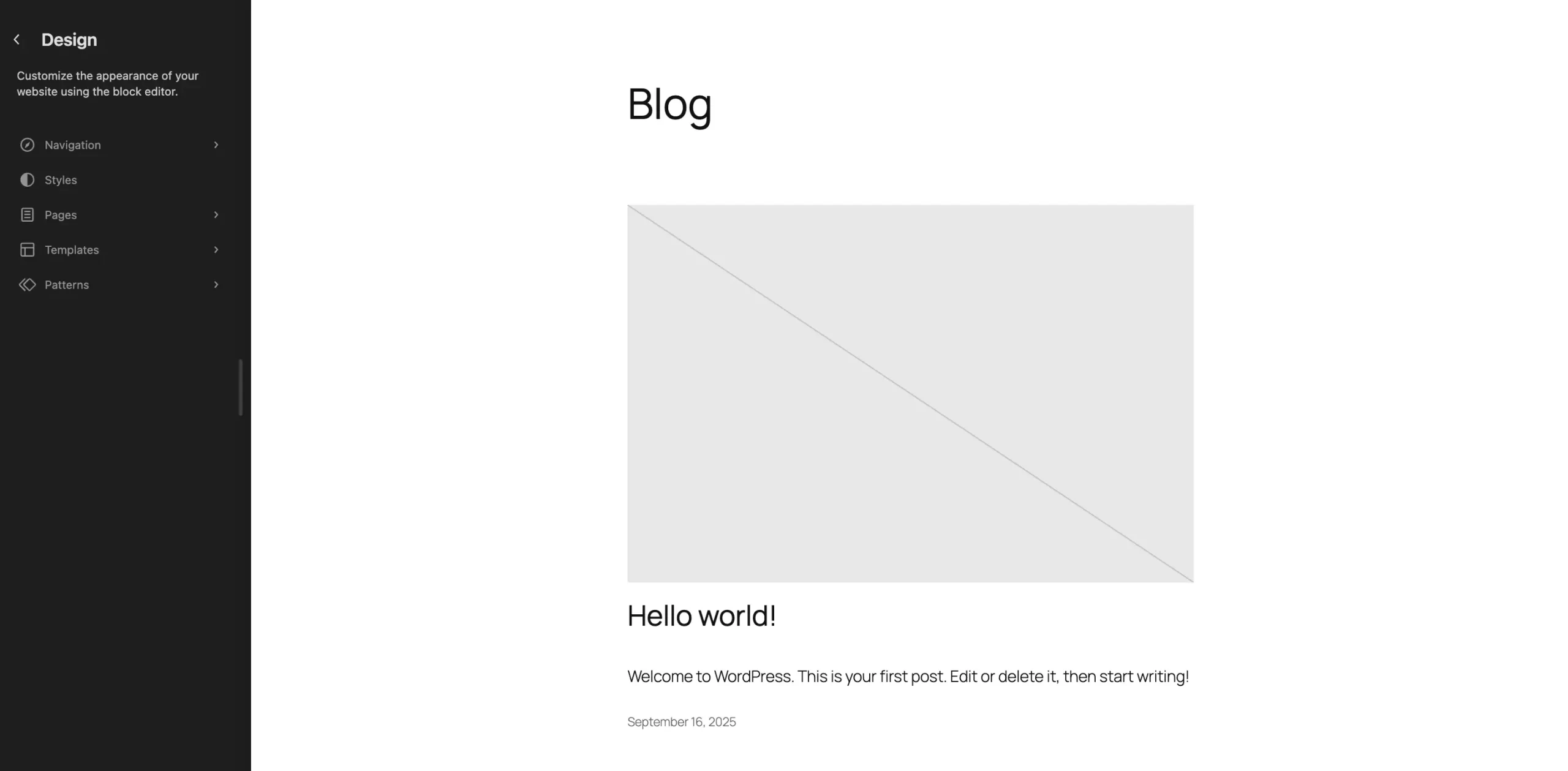
For a greater view, let’s check out their separated interface below.
Full site editing interface
You can see the available options for editing the entire page. You can edit each section and make the essential changes for your page. It has the side-by-side preview option to get an overview of every change you make.
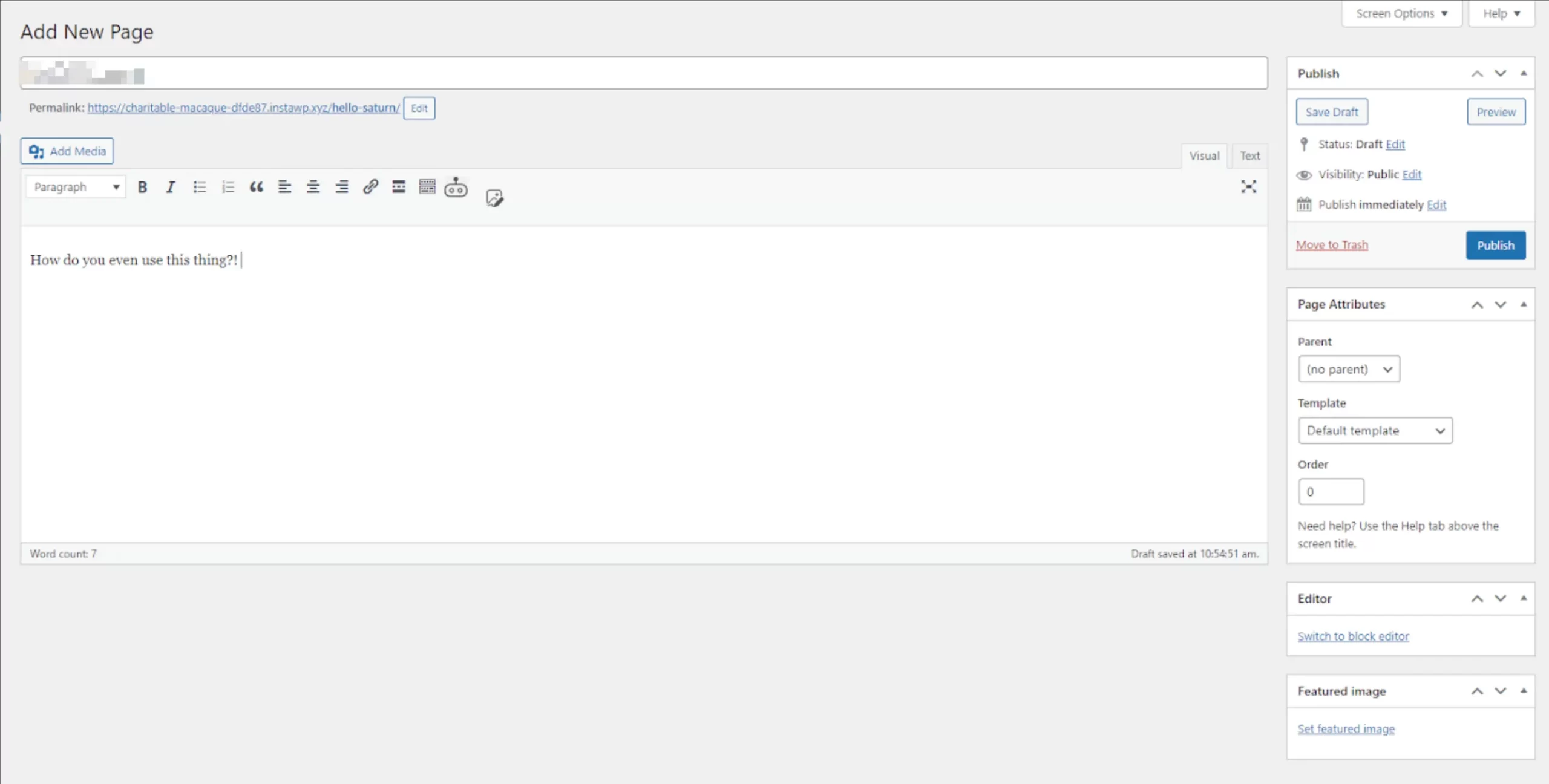
WordPress Classic editor
On the other hand, you can see the generalized editing interface. You can call it the traditional editor of WordPress. Those who have used this version know how hard to add text, images, and so on. The overall experience wasn’t good, we can say.
So what should be your take on this?
Full site editing is not an automatic upgrade. It offers more control, but with fewer opportunities. At the same time, classic themes remain a safer choice for stability, client projects, and sites that don’t need frequent layout changes on WordPress.
Full site editing vs page builders
This is one of the most common questions people ask before switching to Full Site Editing. Can it replace page builders, or do you still need one?
The answer depends on how your site is built.
| Area | Full Site Editing | Page Builders |
|---|---|---|
| Primary use | Site-wide layout and structure | Page-level design and layouts |
| Best for | Blogs and simple business sites | Marketing and client sites |
| Design control | Basic to moderate | Advanced and precise |
| Responsive control | Limited | Strong and visual |
| Performance | Cleaner core output | Heavier but optimized |
| Learning curve | Medium | Low to medium |
| Client safety | Lower, global edits affect all pages | Higher, layouts are more isolated |
| Long-term maintenance | Tied to WordPress core changes | Stable and controlled updates |
Full site editing focuses on core control and future direction. Page builders focus on design safety and predictability on WordPress.
Should you switch to full site editing?
Switching to full site editing changes how your site is controlled long-term. It gives more freedom, but removes familiar guardrails.
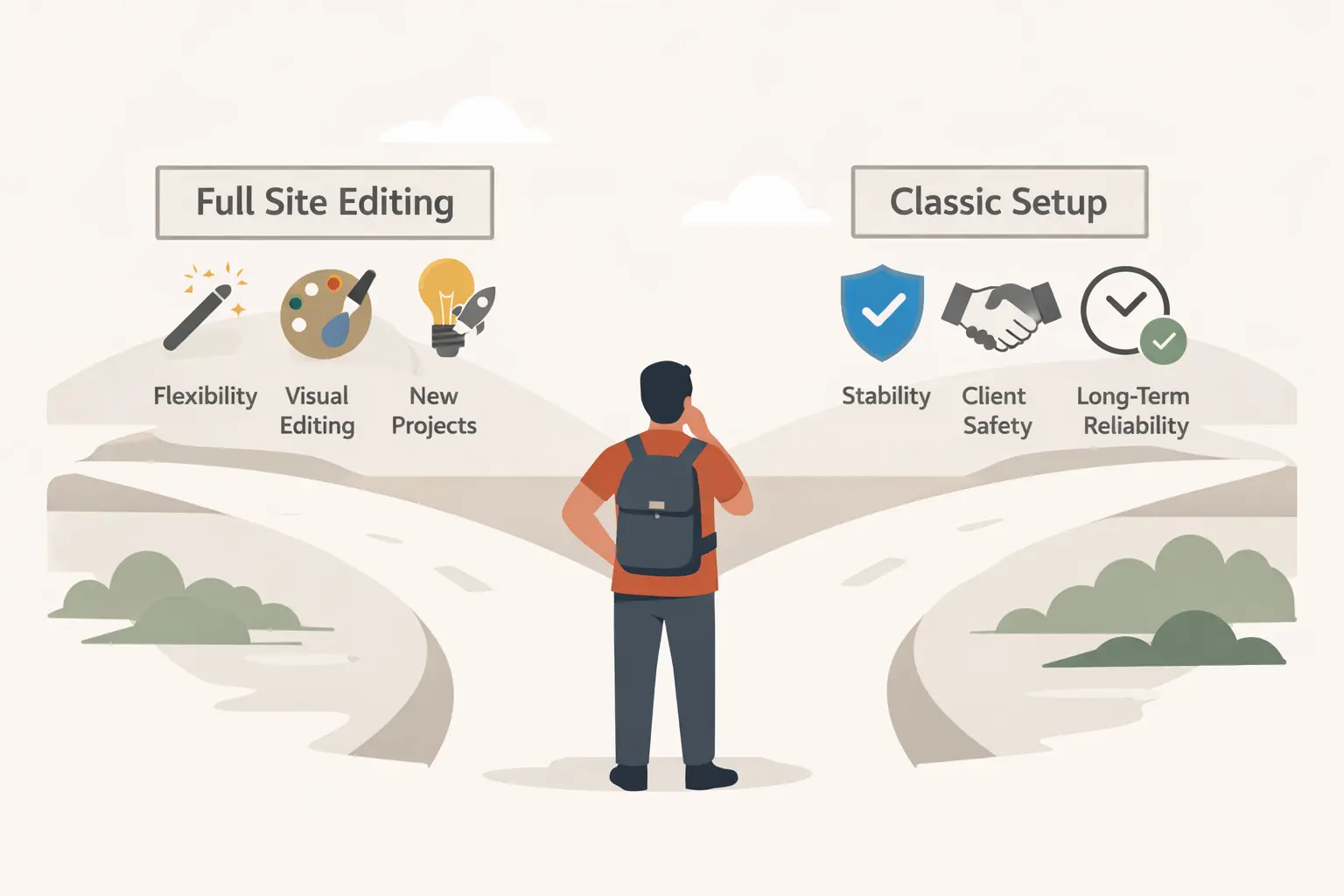
If you manage your own site or are starting fresh, FSE makes sense. If you handle client sites or need strict layout stability, it adds risk.
Utilize the full site editing if:
- You manage your own site: You control edits and understand how templates work.
- You want layout control without code: You prefer visual editing over theme files.
- You’re starting a new project: New sites avoid migration issues and broken layouts.
In these cases, Full Site Editing can save time and reduce dependency on custom themes.
Avoid full site editing if:
- You build sites for clients: Clients often edit global templates by mistake.
- You need strict layout control: FSE allows too much freedom for locked designs.
- You rely heavily on legacy plugins: Some plugins expect classic theme behavior.
- Your site must stay stable long-term: FSE evolves fast and changes workflows.
How to use WordPress full site editing?
A block theme is built entirely with blocks. It uses blocks for headers, navigation, content areas, and footers. There are no classic PHP layout files controlling these parts.
Inside the Site Editor, you can use all regular blocks you already know. On top of that, WordPress includes special theme blocks made only for site-wide layout, like site title, navigation, and post content.
a. Getting started
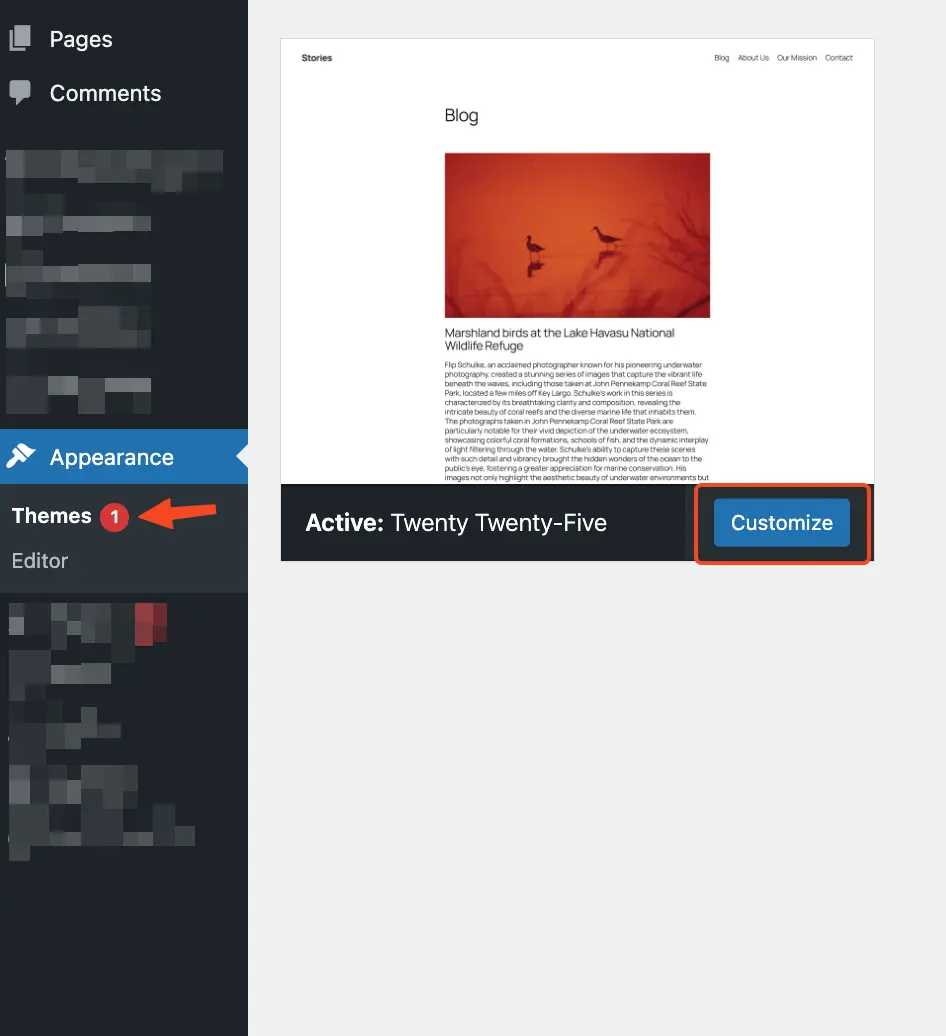
To find block themes in WordPress:
- Go to Appearance → Themes
- Click Add New
- Choose Block Themes from the filter
You’ll see themes that fully support Full Site Editing and work with the Site Editor out of the box.
b. Customizing options
- Navigation: It lets you view and adjust your site menus. You can add, remove, or reorder menu items without leaving the editor.
- StylesL Gives direct access to global design settings. From here, you can change colors, fonts, spacing, and switch between style variations.
- Pages: Allows you to open and edit page content directly from the Site Editor. This is useful when layout and content changes need to happen together.
- Templates: Shows the layouts used for different parts of your site, such as blog posts, archives, search results, and error pages. Editing a template changes how all matching pages are displayed.
- Patterns: Manages synced patterns and template parts. Updates made here apply everywhere the pattern is used.
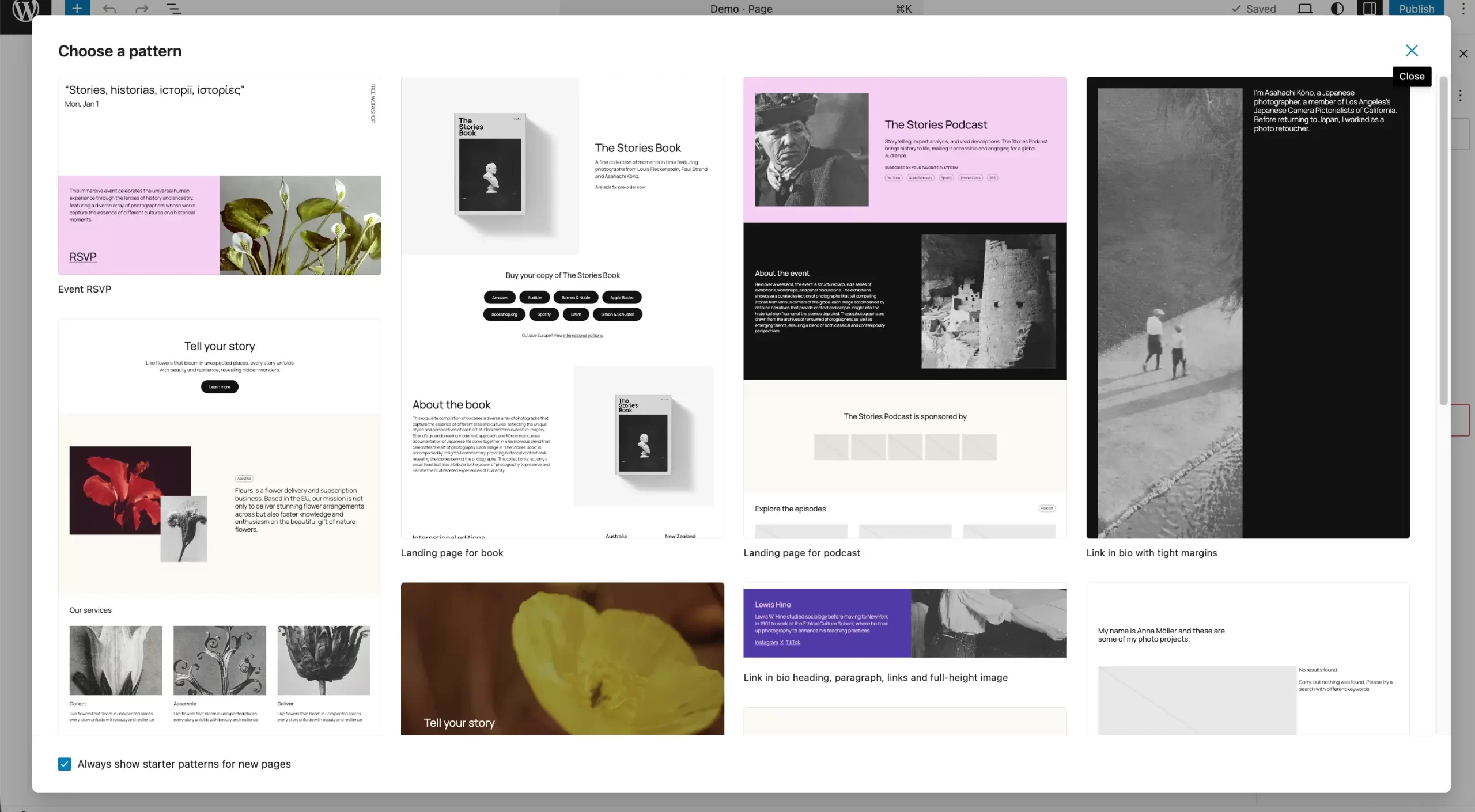
c. The editing overview
After you edit any page, you will get introduced to an interface where you can select the pre-made template from the list. Either you can stay with the default view, or you can customize any of the templates.
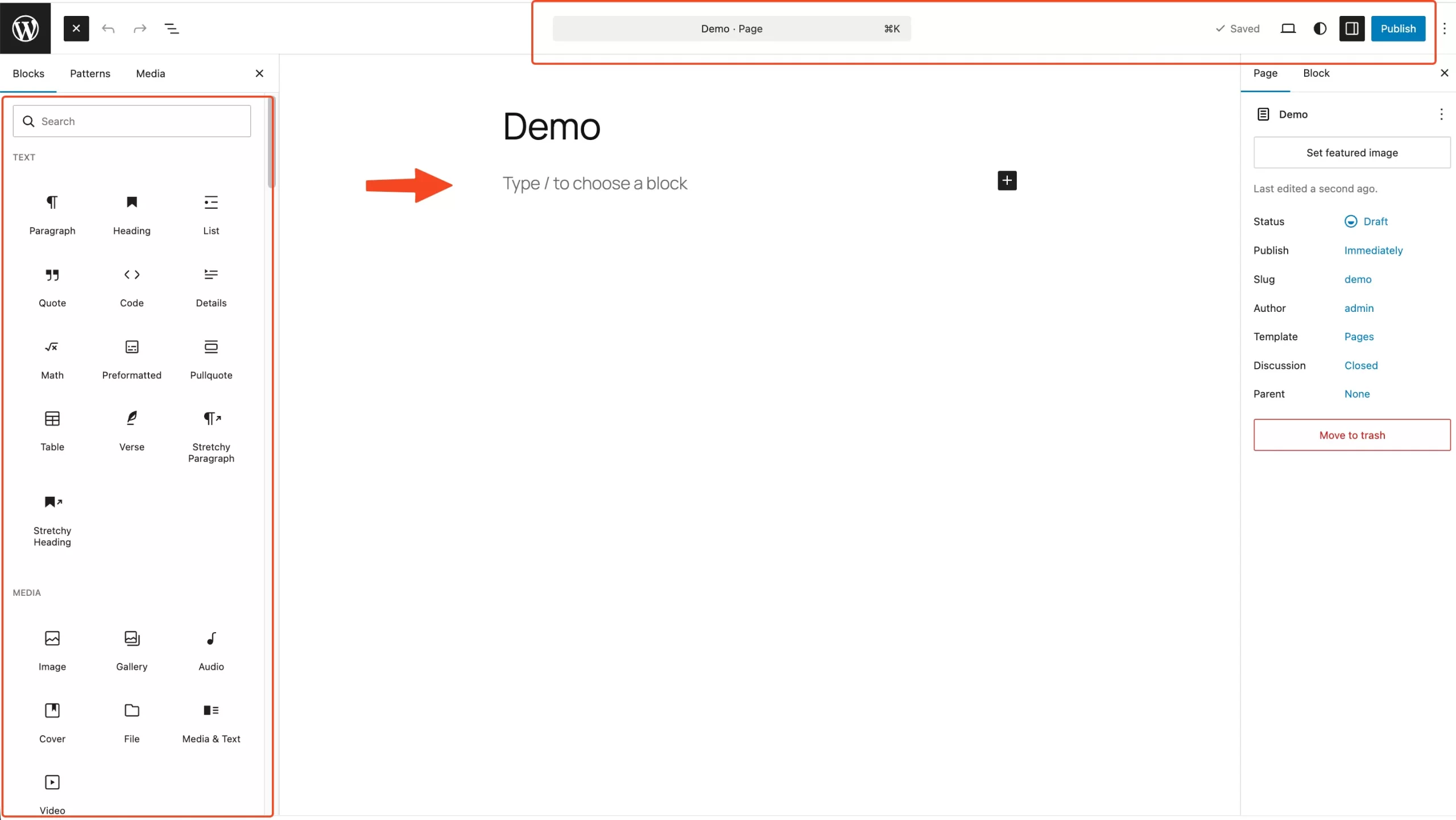
d. Editing the canvas of the block editor
Now, inside the block editor panel, you can see the widgets on the left side. And on the top side, you can see the page name, status, and publish button.
Also, on the main page, you can add a title and provide your content by clicking on the “type or use/” icon.
e. More additional options for the block editor
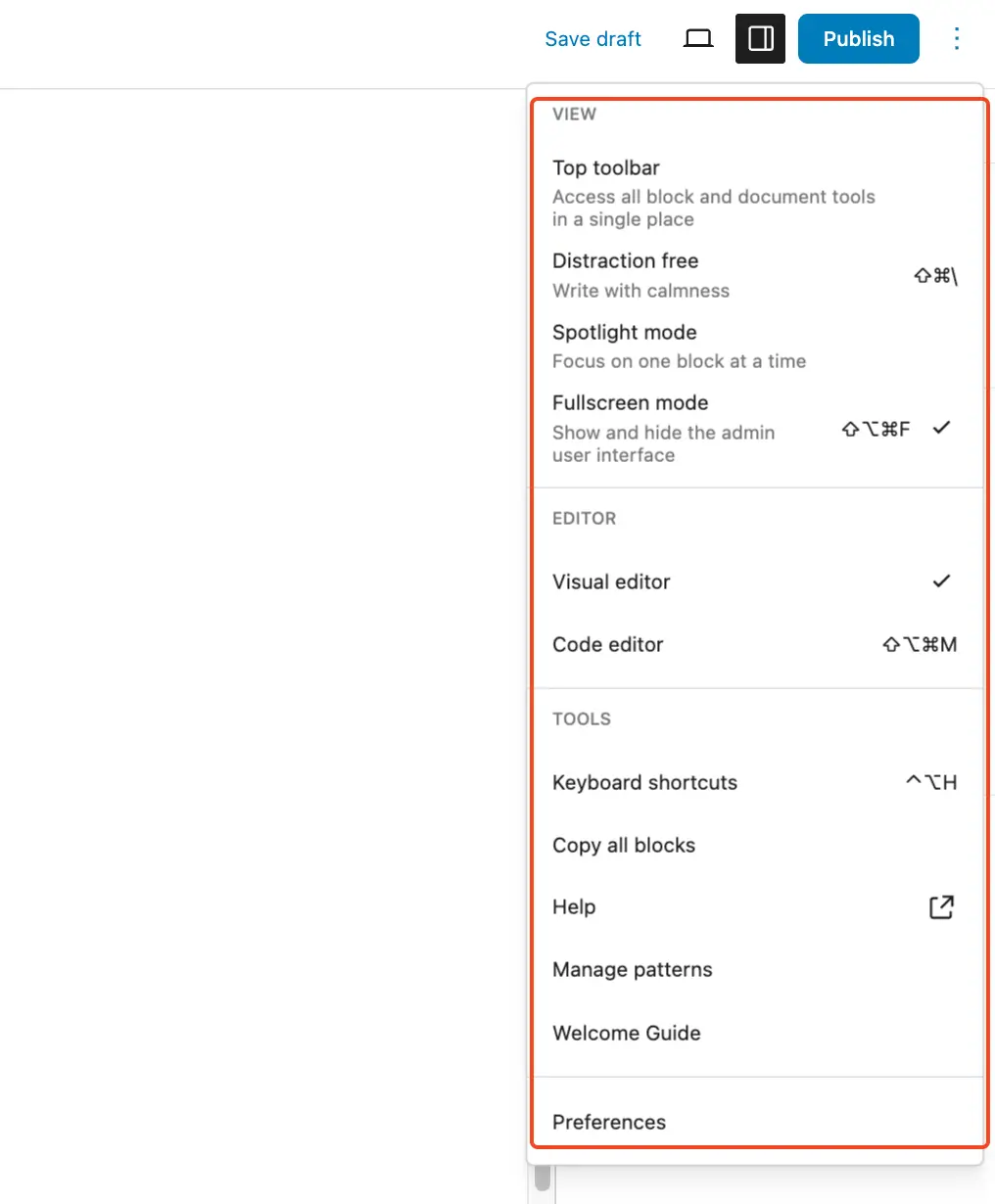
Click the three vertical dots icon to open additional settings and tools. Here you can utilize several settings, such as:
- Top toolbar: Moves block controls to the top of the editor. When enabled, block toolbars stay fixed under the main toolbar instead of floating above each block.
- Spotlight mode: Fades out all other blocks and keeps only the active block highlighted. This helps you focus on one section at a time.
- Distraction-free mode: Hides non-essential interface elements so you can edit without visual noise.
- Editor view: The editor opens in Visual mode by default. You can switch to Code view to see and edit the page’s HTML structure.
- Plugins panel: Lets you toggle between Settings and Styles inside the Site Editor sidebar.
- Tools: Provides utility options such as exporting the theme with updated templates, viewing keyboard shortcuts, opening the Site Editor guide, copying all blocks, and accessing help resources.
- Preferences: Allows you to adjust how the editor behaves and customize your overall editing experience.
f. How to use the site editor
You can use the Site Editor to control styles across the entire site. Style settings apply globally, no matter which template or section you’re editing.
To access them:
- Go to Appearance → Editor
- Open Styles from the menu or the icon next to the sidebar
From here, you can:
- Switch between theme style variations
- Update colors, fonts, and layout site-wide
- Adjust block styles that apply everywhere
To review past changes or reset styles, open the three-dot menu in the top corner and choose the option you need.
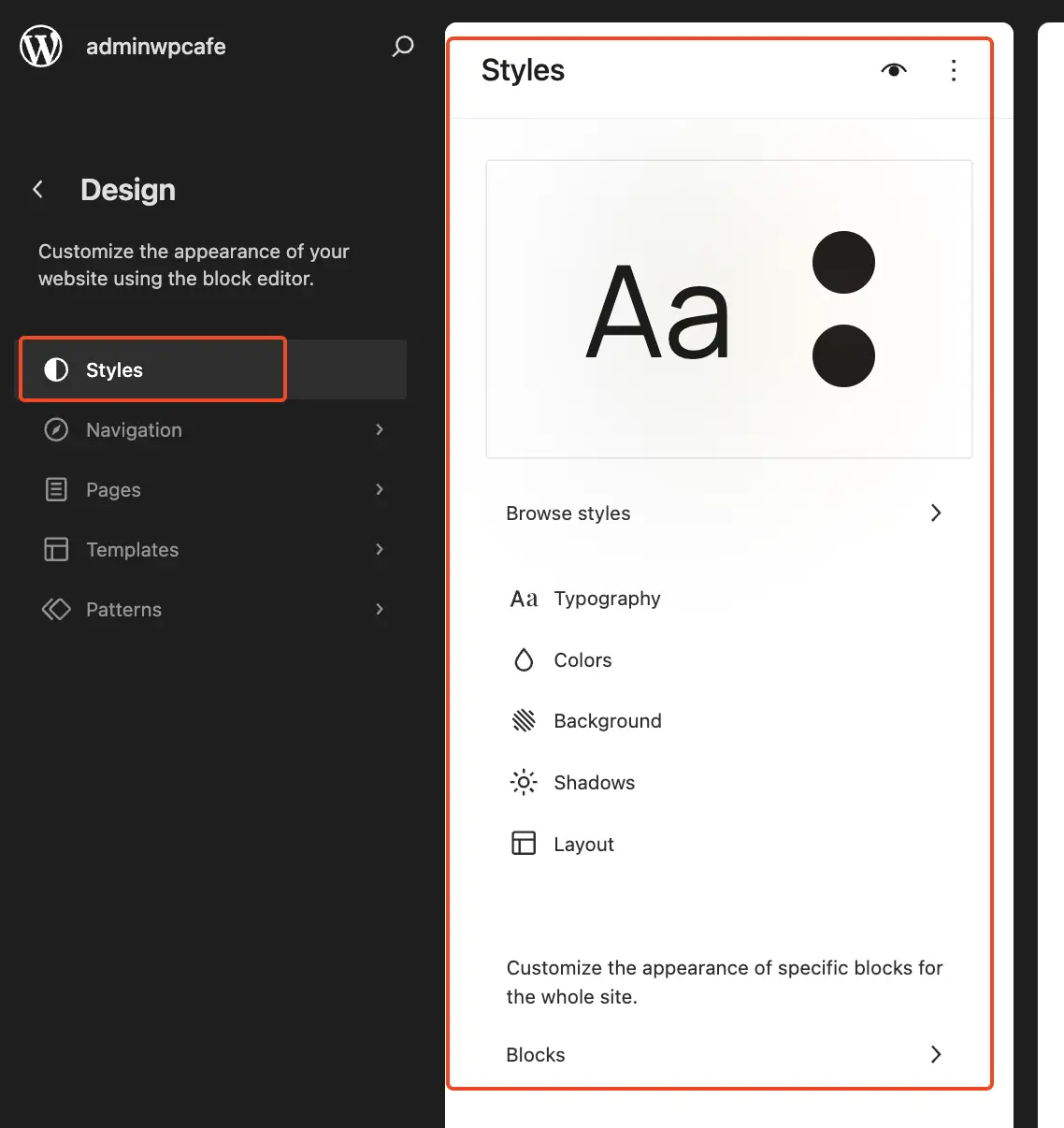
So this is how you can stylize the site editor using WordPress.
Official WordPress Resources for Full Site Editing
Use these official guides to understand templates, template parts, patterns, and advanced Site Editor features.
Template Editor
Learn how templates control layouts and site-wide structure.
Template PartsTemplate Part Block
Understand reusable sections like headers and footers.
Site EditorPages in the Site Editor
How pages behave when edited inside the Site Editor.
ProductivityCommand Palette
Use quick commands to move faster inside the Site Editor.
PatternsBlock Patterns
Build layouts faster using reusable block patterns.
How full site editing affects performance and SEO
Full Site Editing doesn’t automatically make a site faster or slower. Its impact depends on how it’s used.
Here’s what actually changes.
a. Performance impact
Full Site Editing relies on core WordPress blocks. That means cleaner markup compared to most page builders.
Positive effects:
- Less extra JavaScript
- Styles are loaded only when needed
- Global styles reduce repeated CSS
Common issues:
- Overusing blocks adds unnecessary markup
- Heavy patterns increase page size
- Poor layout choices affect mobile performance
In short, FSE performs well when layouts stay simple. It slows down when flexibility is overused.
b. SEO impact
From an SEO perspective, Full Site Editing is safe.
What stays solid:
- Clean HTML output
- Proper heading structure
- Full compatibility with SEO plugins
What needs attention:
- Incorrect heading order inside templates
- Missing semantic structure in custom layouts
- Global template mistakes affecting all pages
SEO issues usually come from layout decisions, not from Full Site Editing itself.
So we can say, full site editing does not hurt SEO traffic performance. It removes some technical barriers, but also eliminates safeguards.
The future of full site editing in WordPress
Full Site Editing is not an experiment anymore. It is the direction WordPress is moving toward.
WordPress core development is focused on improving the editor, not expanding the Classic Customizer or older theme systems. Each major release adds more control, better performance, and clearer workflows inside the Site Editor. Over time, this will reduce reliance on classic theme structures.
That said, Full Site Editing is still evolving. Some workflows are unfinished, and breaking changes are more likely than with classic themes. This means early adoption brings flexibility, but also adjustment.
Key facts to keep in mind:
- Full Site Editing is a long-term core priority
- Block themes will receive the most future updates
- The Classic Customizer is slowly being phased out
- Editor-based styling will replace many theme options panels
- Patterns and templates will become more standardized
- Backward compatibility will remain, but innovation will happen in FSE
The future points toward a more unified editing experience. Understanding this shift now helps you make better decisions for long-term site stability on WordPress.
Frequently asked questions regarding WordPress full site editing
-
Is Full Site Editing stable?
Yes, Full Site Editing is stable for production sites. It’s part of WordPress core and actively maintained. That said, workflows still change between major releases, so it’s more stable for self-managed sites than long-running client projects.
-
Can I disable it?
You can’t disable Full Site Editing globally, but you can avoid it. Using a classic theme will hide the Site Editor and restore the traditional workflow. No extra settings or plugins are required.
-
Can I go back to Classic themes?
Yes, you can switch back to a classic theme at any time. Your content will remain intact, but layouts created with block templates may need adjustment since classic themes use a different structure.
-
Do plugins still work?
Most plugins work normally with Full Site Editing. Issues usually appear with plugins that rely on classic widgets or Customizer settings. Well-maintained plugins are already compatible with block-based setups.
-
Is FSE suitable for WooCommerce?
It works for basic WooCommerce stores. For advanced layouts, custom product pages, or heavy customization, classic themes or page builders still offer more control and predictability.
-
Can you use full site editing partially?
Yes, and this is often the safest approach. You can use Full Site Editing for headers, footers, or global styles while keeping page content simple or handled by other tools.
-
What are the most common full site editing mistakes?
Most problems with Full Site Editing don’t come from bugs. They come from misunderstanding how site-wide editing works.
1. Editing templates instead of pages
2. Overusing global styles
3. Confusing templates with template parts
4. Treating FSE like a page builder
5. Ignoring responsive views
6. Giving editor access to non-technical users
Final verdict: Is full site editing ready in 2026?
Yes, but with conditions.
Full Site Editing is ready for modern WordPress sites that value flexibility and visual control. It works well for blogs, content-driven websites, and new projects where layouts are expected to evolve over time.
It is not a universal replacement yet. Client sites, complex layouts, and long-term projects that need strict stability still benefit from classic themes or page builders.
In 2026, WordPress Full Site Editing will no longer be optional to understand. It’s the direction WordPress is moving in. The key is not whether it’s ready, but whether it fits how you build and manage your site today.