How to Remove Malware from WordPress in 2 Easy Methods


Table of Contents
Are you trying to remove malware from your WordPress site? Malware files are a genuine concern for many WordPress users, and they can cause trouble if you don’t fix them in time.
WordPress has grown stronger with security updates, but no system is entirely safe.
The reasons?
- Weak plugins
- Outdated themes
- Simple mistakes can still open the door for attackers.
If you start to see strange redirects, unknown pages, or changes you did not make, your site may already be infected. The sooner you act, the easier it is to clean.
In this guide, you will learn the simple ways to remove malware from WordPress. You’ll see how to clean it yourself, how to use a plugin, and when it’s better to take help from a service.
This helps you choose the best method for your site. Let’s begin!

What is malware & how it’s delivered?
Malware means “malicious software.” It’s a file or code made to harm your website, steal data, or take control of your system.
And how is it delivered to your WordPress site? People usually face malware risks through emails, websites, phone calls, and unsafe software or app downloads.
What damage that a malware file do? It can:
- Change your pages
- Add unwanted ads
- Redirect visitors to strange sites
- Create fake admin accounts
- Steal user data
- Slow down or break your site
And the devastating factor is, it can hide inside themes, plugins, uploads, or even your database. It often runs quietly in the background, so many users don’t notice it until the damage starts.
In short, malware is harmful code that enters your site without permission and causes trouble until you remove it.
What are the types of malware files? Check below!
Viruses
Attach to normal files and spread when triggered.
Worms
Spread on their own through servers and slow down websites.
Trojans
Look safe but secretly open access for attackers.
Spyware
Steals sensitive data like passwords and user details.
Backdoors
Hidden entry points attackers use to return even after cleanup.
Adware
Shows unwanted ads or redirects visitors to unknown sites.
Fileless Malware
Runs in memory instead of files, making detection harder.
Cryptominers
Use your server power to mine crypto and slow down your site.
7 signs your WordPress site is infected with malware
It’s not always easy to notice malware right away. Many attacks run quietly in the background, and your site shows some warning signs. Here are the most common ones:
- Sudden redirects: Visitors are taken to random or spam websites without clicking anything. This is one of the earliest and most apparent signs of infection.
- Strange pop-ups or ads: You may see ads you didn’t add, or pop-ups that appear on pages where they don’t belong.
- Unknown files or new pages: Hackers often create new folders, .php files, or spam pages inside your site. If you see pages you never wrote, your site is likely compromised.
- New admin accounts: Malware often creates fake administrator accounts to keep control of your site. If you see any user you didn’t make, treat it as a red flag.
- Google warnings: Search Console or Chrome may show messages like: “This site may be hacked” or “Deceptive site ahead”. These warnings mean Google detected harmful code on your site.
- Slow performance or resource spikes: Your site becomes slow, unresponsive, or shows frequent errors. Malware like bots or cryptominers often use your server resources in the background.
- Hosting provider alerts: Your hosting provider may suspend your site or notify you about malicious files on the server.
However, many WordPress users don’t pay any heed and ignore them at first. But when things are going worst, they begin to search for removing the Malware from their WordPress site.
🔐 Recommended Resource: Strengthen Your Security
Want to protect your site in a simple and practical way? Check this step-by-step guide: WordPress Security Checklist
Why do WordPress sites get Malware attacks?
WordPress itself is safe, but many sites still get infected because of weak settings or risky choices made during setup.
Here are the main reasons:
Outdated plugins or themes
Old versions often have known bugs. Attackers scan the web and target sites that do not update.
Weak passwords
Simple or reused passwords make it easy to guess or crack your WordPress, hosting, or FTP logins.
Nulled themes and plugins
“Free” cracked downloads often include hidden malware that gives attackers control of your site.
Unsafe hosting
Weak server security, bad isolation, or poor config on shared hosting can expose your site to attacks.
No firewall or security plugin
Without basic protection, bots can run brute-force logins and exploit flaws without being blocked.
Unsafe file uploads
Open upload forms or weak rules in the uploads folder let attackers upload harmful PHP files.
Poor user access control
Old admin accounts, too many admins, or shared logins make it easier for attackers to get in.
Infected personal devices
If your own computer has malware, keyloggers can steal your WordPress and hosting passwords.
How to check for malware infections with a free plugin
You can scan your WordPress site for malware without paying for premium tools. Free plugins give you a good first look at infections and help you confirm if something is wrong. Follow these steps:
Step 1: Install a trusted free scanner
If you check different threads on Reddit, you will see some common suggestions regarding the malware scanner. From the list, we have compiled the top scanners for you.
Here you go:
- Wordfence Security – finds changed files, hidden scripts, redirects, and spam
- Sucuri Security – checks file integrity and highlights files that shouldn’t exist
- Jetpack Protect – scans for known vulnerabilities
One of the Reddit users stated:
“Wordfence free is still one of the most reliable ways to detect infected files.”
Step 2: Run the full scan
After installing the plugin:
- In Wordfence, go to Wordfence → Scan and start a new scan
- In Sucuri, run the Integrity Check
- Jetpack Protect scans automatically and shows alerts
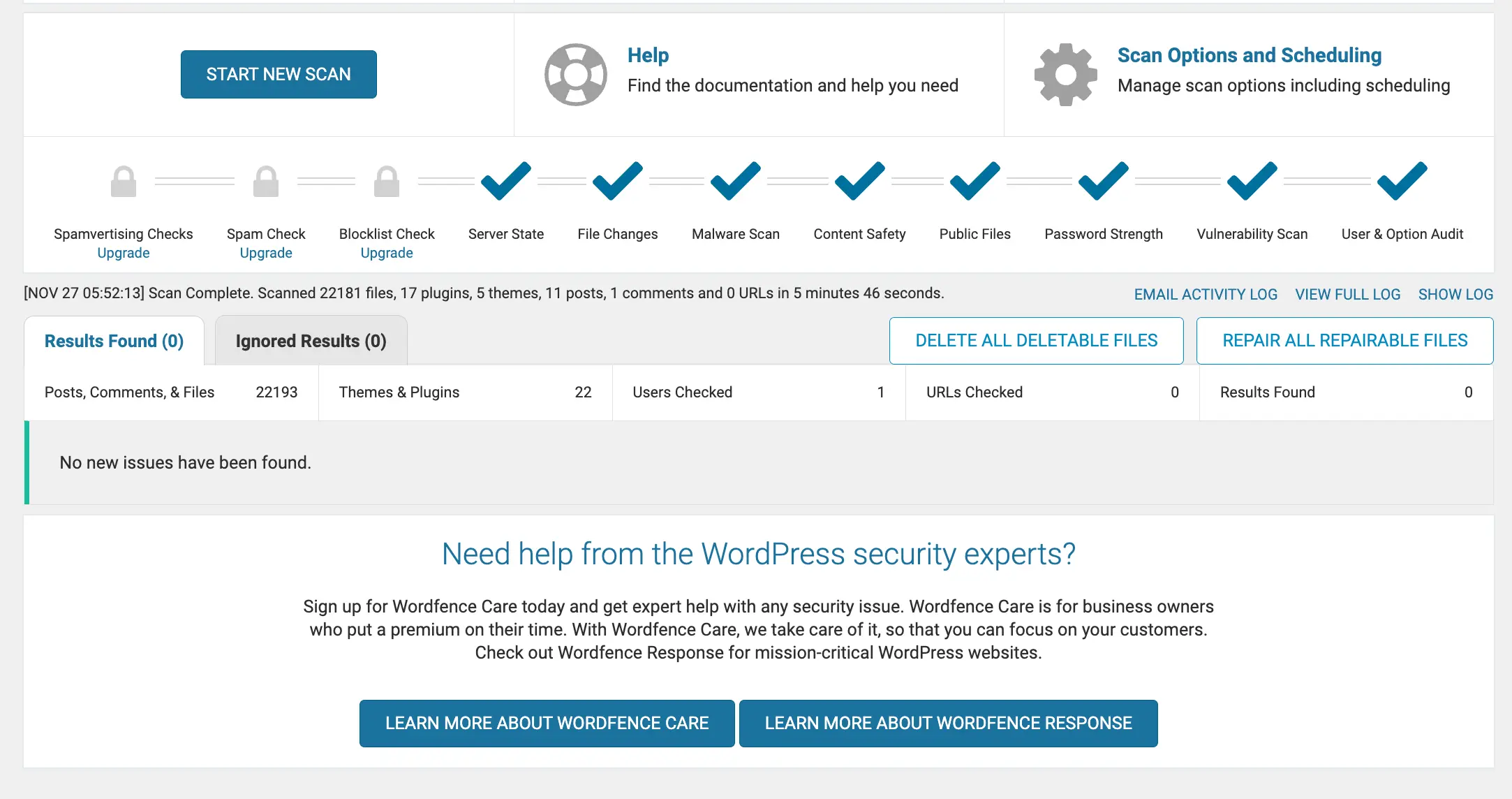
Below is the screenshot from the WordFence scanning page. You can see the stages are completed and it seems no issues are found within the site.
Step 3: Pay attention to flagged files and unknown scripts
Free plugins usually highlight issues like:
- Modified core files
- Unknown .php files
- Redirect code
- Spam in posts or widgets
- Base64 or eval code inside templates
But if you want more advanced issues and errors, you need to get the premium version of the malware scanning plugin. It will give a detailed report so you can take action.
Step 4: Check for new admin accounts and login activity
Malware often creates fake admin users or logs in from unknown places. For instance, you can head over to the log section and check these things below:
- New user accounts
- Failed login attempts
- Logins from countries you don’t expect
Step 5: Double-check using a free online scanner
You need to check and further confirm whether your site has the issues below. Such as:
- Your site is blacklisted or not
- Spam pages exist or not
- Redirects are activated or disabled
Step 6: Review the database if the plugin reports suspicious content
This section is essential. After checking all the stuff, you need to review your database. Since plugins can’t thoroughly scan the database, they can warn you about strange entries. If something looks off, you can search the database with phpMyAdmin using simple keywords like:
<script>iframebase64eval(
Step 7: Re-scan after a specific period
Attackers often try to re-add files after you clean them. Scanning again after a few hours helps confirm if the infection is still active. Another Reddit user stated: If a file keeps coming back after a scan, you have a backdoor somewhere.
Check if Google marks your site as unsafe
You can use Google’s Safe Browsing tool to see if your website is flagged for malware, deceptive content, or other security issues. Enter your site URL on the page below and review the status.
Open Google Safe Browsing CheckerHow to remove malware from an affected WordPress site
When you confirm that your website has malware, the next step is to clean it the right way. Malware can hide in your files, themes, plugins, database, and even inside the uploads folder.
If you remove only the visible parts, the infection may return later. That’s why you need a complete process that helps you remove harmful code, close the security gaps, and make sure the attacker cannot get back in.
What are the requirements before cleaning malware files?
- Turn on maintenance mode
- Take a full backup of your website
- Block public access (not “Blog public access”)
- Change all passwords
- WordPress admin
- Hosting / cPanel
- FTP / SFTP
- Database
- Scan your own computer for viruses or keyloggers
We will show the process in two methods: using a security plugin and a manual process to remove malware.
Method A: Remove malware with a security plugin (Wordfence)
If you want a simple way to clean malware, you can use a security plugin. You only need to follow the process and get your job done.
However, you have already learned how to scan your WordPress site for malware files from the previous section. So if you follow that step, you can skip the first step because scanning is almost the same process.
a. Review infected files
Your plugin will show a list with details like:
- File name
- Exact location
- Why was it flagged
- What type of code was found
Look for things like:
- Unknown .php files
- Files inside
/wp-content/uploads/ - Base64 code
- JavaScript redirects
- Modified core files
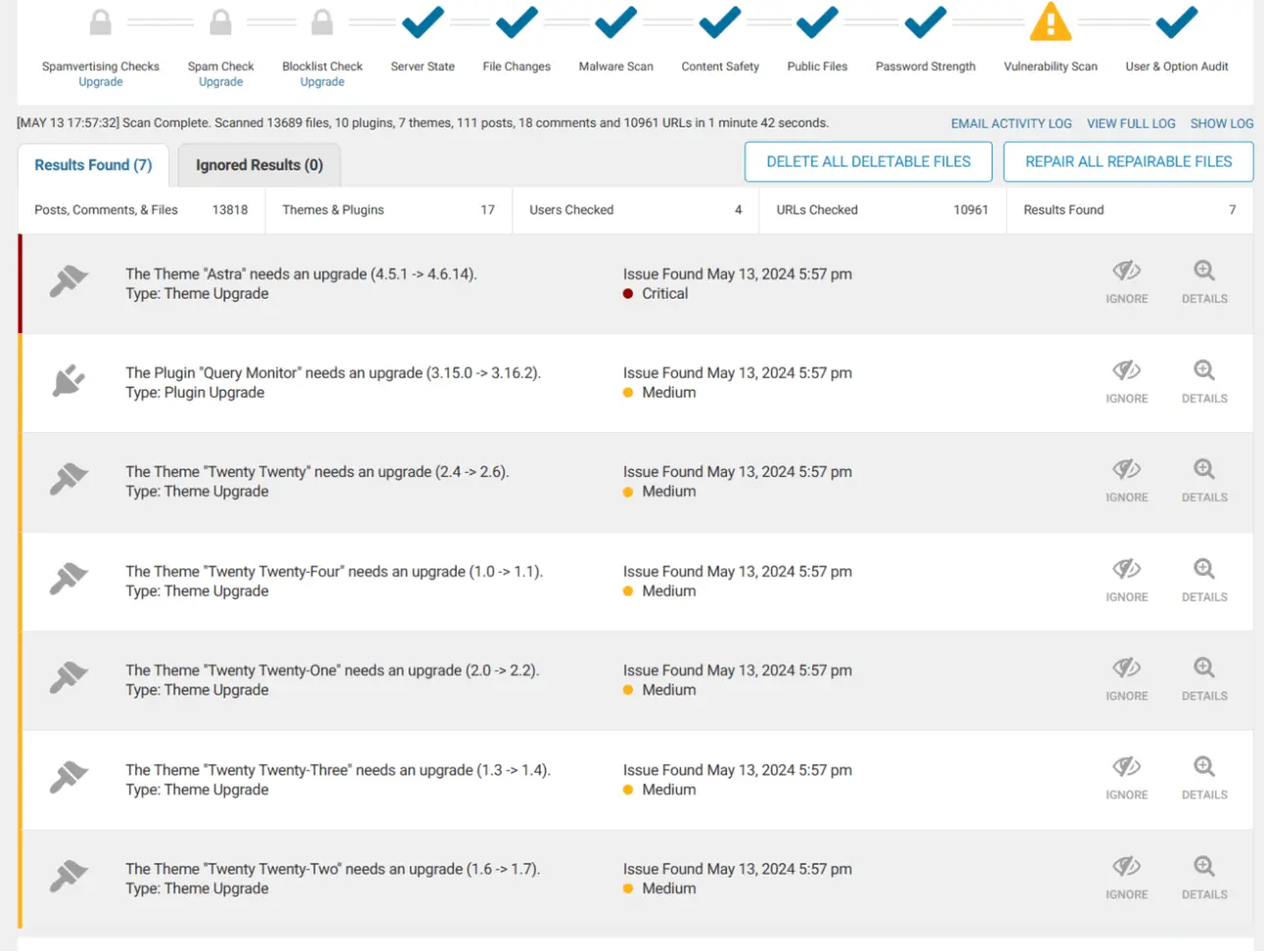
This step helps you understand how deep the infection is. A standard tip from WordPress pros: If you see files that you know you never created → they are likely infected.
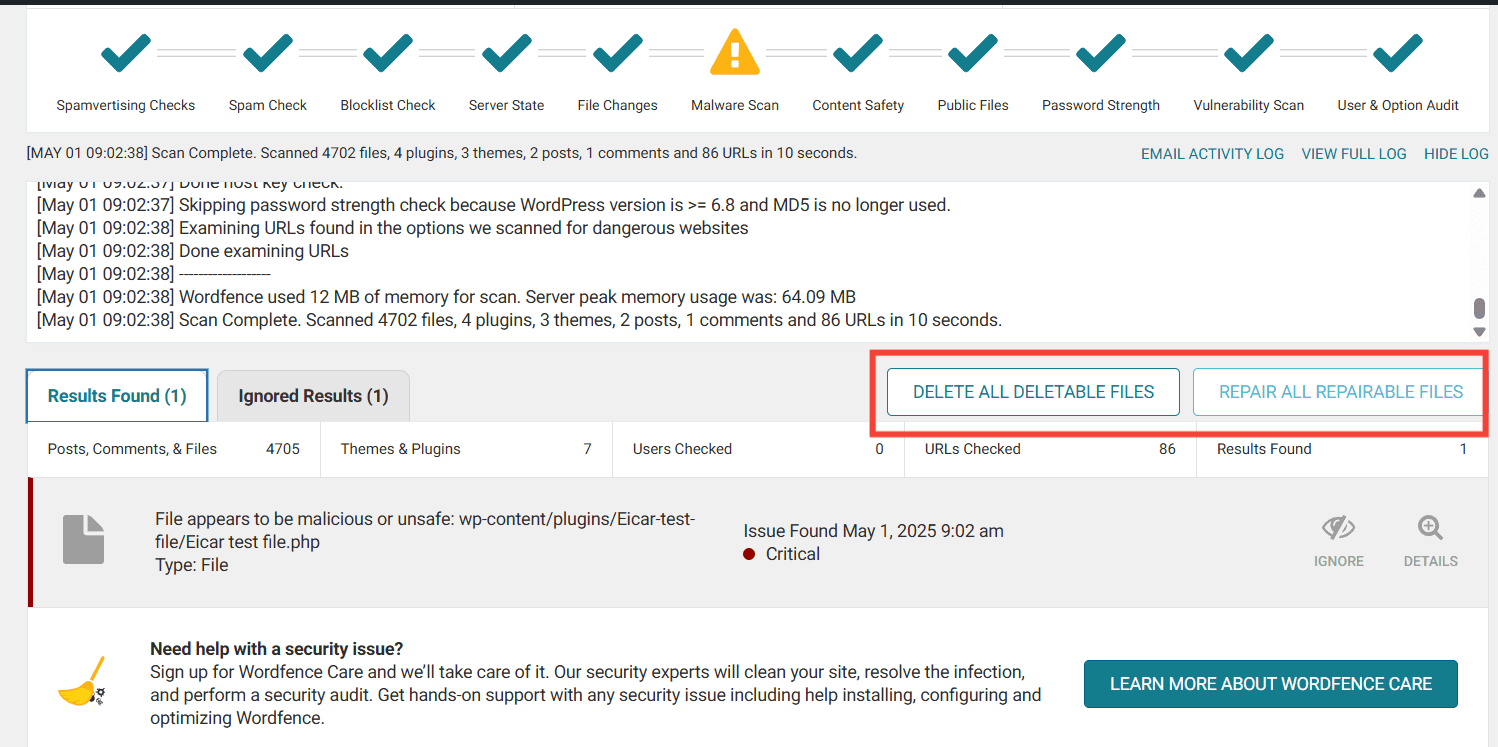
b. Click the auto-clean or “repair” button
If a core file or a plugin/theme file is marked as changed, open it and check the code first. When you click Repair, the plugin will replace that file with a clean version from the official WordPress source.
If a file looks harmful or you don’t recognize it, review it and then use Delete. Some files may belong to custom plugins or your hosting provider, so always check before removing anything.
Auto-clean usually does the following:
- Replaces damaged core files with fresh ones
- Removes injected malware code
- Deletes unknown scripts
- Fixes modified themes or plugins
- Removes files that should not exist
Let the plugin complete the process thoroughly or you can take our expert help removing malware from your WordPress site.
If the infection is deep or keeps coming back, you can let our ThemeWinter team handle the full cleanup for you. We manage WordPress security every day and can restore your site safely without downtime.
What we include:
- Complete malware cleanup (files + database)
- Fix for spam pages, redirects, and hidden scripts
- Security hardening to stop future attacks
- Review of plugins, themes, and risky settings
- Help removing Google “Unsafe” or “Hacked” warnings
- Personal guidance from a WordPress specialist
c. Run a second scan to confirm
After running the auto-cleaning, some websites need another full scan. It’s just to ensure that no malware files remain because it’s evident that malware tries to come back.
If the second scan still shows alerts:
- You may have a backdoor file still active
- Malware might be inside the uploads folder
- A plugin or theme might be reinfected
Do not skip the second scan.
d. Remove false alerts (if any)
Sometimes plugins flag safe files, such as:
- Custom theme edits
- Child theme functions
- Cache files
- Temporary logs
Only mark something as safe if you know exactly what the file is. If you are unsure, leave it flagged or ask for expert help. Once you confirm that all the issues are solved, you can consider that your website is safe.

Method B: Remove malware manually
You know the automatic process of removing malware files using a plugin. Now, it’s time to understand how you can remove it manually. Well, it requires a bit of technical knowledge for the malware removal process.
But no worries, we are going to keep the process as simple as possible. So you can do it by yourself.
After you know that your WordPress site has malware files, the first thing that you need to do is:
a. Replace WordPress core files
- For instance, download a clean WordPress copy. Please get the latest WordPress zip file from WordPress.org and unzip it on your computer.
Second,
- delete
wp‑adminandwp‑includes– Use an FTP client or your host’s file manager to delete the existingwp‑adminandwp‑includesfolders on your server.
And lastly,
- Upload all files and directories from the clean WordPress copy except
wp‑contentandwp‑config.php. Overwrite the existing files on your server. This ensures you have untampered core code.
b. Clean wp-config.php
For instnace, you need to open wp‑config.php in a text editor.
- Compare it to the default
wp‑config‑sample.phpto spot added code. Jetpack suggests downloading the sample file from the WordPress Codex and using it as a reference when reviewing your existing.wp‑config.php
Next, look for unknown code.
- Malware often injects unfamiliar includes or functions. Remove any code that does not belong. Make sure the file only contains standard configuration directives and legitimate custom settings.
Verify database credentials:
- Check that the database name, user, and password are correct. Attackers sometimes alter these values to redirect your site to their own database.
Lastly, upload the cleaned file – Save the cleaned wp‑config.php and upload it back to the server.
c. Clean the .htaccess file
- Delete the existing
.htaccessfile: Hackers use.htaccessto create redirect rules that send visitors to malicious pages. Our experts advise simply deleting the file; WordPress will recreate it automatically.
- Regenerate a fresh
.htaccess: If WordPress does not recreate the file automatically, go to Settings → Permalinks in your WordPress dashboard and click Save Changes. This writes a new default..htaccess
- Check for leftover rules: If you keep a custom
.htaccess. Ensure there are no suspicious redirects or rewrite rules before restoring it.
d. Check wp-content carefully
Plugins:
- Delete all plugin folders: Our experts recommend deleting the entire
pluginsdirectory and reinstalling plugins from scratch to ensure no backdoors are left behind. - Reinstall clean copies: Download fresh copies of each plugin from the WordPress repository or the developer, then reinstall and activate them individually.
Themes:
- Delete and reinstall the parent theme: Jetpack notes that you should reinstall a clean version of your theme and then activate your child theme. Deleting old themes also removes potential backdoor files.
- Review
functions.phpIn child themes: Look for suspicious functions like eval, base64_decode, or gzinflate that indicate injected malware.
Uploads:
- Remove unexpected executable files: There is no legitimate reason for
.php,.icoor.phtmlfiles to reside inwp‑content/uploads. WPBeginner recommends searching recursively for such files and deleting them. - Check for randomly named folders: Malware sometimes stores payloads in hidden directories within
uploads. Inspect any folders with unusual names and remove them.
e. Remove backdoors
Look for files containing:
- eval
- base64_decode
- gzinflate
- system
- assert
- rot13
These functions may appear in obfuscated strings or adjacent to legitimate code.
Search familiar hiding places, for example, Backdoors are often disguised as legitimate WordPress files or placed in unusual locations.
- Fake plugin folders
- Uploads folder
- Theme functions.php
- index.php copies
- Random PHP files in wp-content
Delete or clean compromised files: When you find a backdoor, remove the malicious code or delete the entire file. If you are unsure whether a file is needed, compare it with the same file from a clean WordPress installation.
f. Clean the database
- Connect to your database: Use phpMyAdmin or your host’s database manager.
- Back up the database: Always export a full database backup before making changes.
- Search for spam or malicious content: Look for spammy keywords, hidden links, or
<script>tags in tables likewp_postsandwp_options. Remove the malicious content and save the row. - Scan for standard functions: Our expert suggest searching for functions like
eval,base64_decodeandgzinflatewithin the database and removing those entries. - Remove unknown users: Attackers often create hidden administrator accounts. Sucuri advises reviewing all user accounts and deleting any you do not recognize.
- Remove injected spam URLs: If spam posts were injected on a specific date, you can use SQL to change their status to ‘trash’.
g. Clear all cached data
- Purge WordPress caching plugins: If you use a cache plugin (e.g., LiteSpeed Cache, WP Super Cache, or W3 Total Cache), open its settings and click the “Clear Cache” or “Purge All” button.
- Clear CDN cache (Cloudflare): Hostinger explains that to purge Cloudflare cache, you must log into your Cloudflare dashboard, navigate to Caching → Configuration, and click Purge Everything.
- Clear your browser cache – Removing your local browser cache ensures you are seeing the latest cleaned version of your site. In Chrome, go to the three‑dot menu → More tools → Clear browsing data and clear cached images and files
h. Remove Google warnings
Once your site is clean, you need to remove any malware warnings from Google:
- Check your status: Use Google’s Safe Browsing Transparency Report to ensure Google no longer detects malware or phishing.
- Submit a review request: Log in to Google Search Console, navigate to Security & Manual Actions → Security Issues, and click Request a Review. Include details about how you cleaned your site.
- Wait for the review: Google may take a few days to review malware issues. Ensure your site is clean before submitting; repeated rejections can result in a “Repeat Offender” status, preventing new requests for 30 days.
I. Test your website fully
- Use an incognito/private window: After cleaning, open your site in an incognito browser to avoid cached files. Confirm that pages and posts load correctly.
- Test critical functions: Submit forms, log in and out, and check shopping carts or other dynamic features. Make sure they work and do not trigger redirects or errors.
- Run another malware scan: After testing, run another scan using a security plugin or an external scanner (Sucuri SiteCheck, etc.) to confirm there is no remaining malware.
- Verify database changes: After removing suspicious content from your database, test your site to ensure it still functions properly.
By following these steps methodically, you can manually remove malware from your WordPress site. However, manual cleanup is time‑consuming and prone to errors.
WordPress Security plugins and professional services provide faster and safer alternatives, especially for users who are not comfortable editing code or databases.
7 helpful tips to protect your WordPress site from future malware attacks
Cleaning your site is only half of the job. You also need to set up a few things that keep malware away in the future.
Here are some easy steps you can follow.
Keep everything updated
Update WordPress, themes, and plugins often. Old versions are a common attack point.
Remove unused themes and plugins
Delete anything you do not use. Even inactive items can be a security risk.
Install a firewall
A firewall blocks bad requests and stops many attacks before they reach your site.
Enable two-factor login
Add a second step to your login. It stops attackers even if they know your password.
Limit login attempts
Stop bots from trying many passwords. Limit login retries to keep your site safe.
Lock down file permissions
Use safe permissions like 755 for folders and 644 for files to block unwanted edits.
Run daily or weekly scans
Scan your site on a schedule to catch problems early before they grow.
Frequently asked questions about Malware files, protection, and prevention.
-
What does malicious code look like?
Malicious code often looks strange or out of place.
You may see:
1. long strings of unreadable text
2. encoded functions likebase64_decode
3. lines starting witheval,gzinflate, orsystem
4. hidden “include” calls to unknown files
5. PHP files inside the uploads folder
If you see code you did not write and do not understand, treat it as unsafe. -
How can I understand if my website is under a Malware attack?
Common signs include:
1. sudden redirects
2. spam pages
3. unknown users in your dashboard
4. odd files inside wp-content
5. warnings from Google Search Console
6. slow performance
7. pop-ups you did not add
Running a malware scan with a free plugin can confirm the issue. -
Examples of common malware & how they look?
Here are a few examples:
1. Redirect malware → sends guests to spam sites
2. Injected scripts → appear inside posts as<script>...</script>
3. Backdoors → hidden PHP files with encoded text
4. SEO spam → unwanted links or pages for other websites
5. Fake plugins → folders that pretend to be plugins
These forms of malware usually hide in themes, plugins, uploads, or the database. -
What is the safest way to clean a hacked website?
The safest way is to follow a complete cleanup process. You should replace core files, remove infected themes and plugins, clean the database, and run fresh scans. If you are not sure about any step, work with a security expert. A partial cleanup can leave backdoors behind, and the attack can return.
-
Can free plugins remove all malware?
Free plugins can find and remove many common infections. They can also show which files were changed and where harmful code is hiding. But they cannot fix every type of malware. Deep infections, hidden backdoors, and advanced scripts often need manual cleanup or help from a specialist.
Final words
Malware can damage your site, but you can fix it with the proper steps. You learned how to scan your site, clean files, remove backdoors, and protect your system from future attacks.
Keep everything updated, run regular scans, and stay alert for any strange changes. With a solid routine in place, your website remains safe and healthy.
When you should not clean it yourself
You should avoid cleaning the site on your own if the attack is deep, if files keep coming back after you delete them, or if you do not understand the code you see. Also, avoid doing it yourself if Google has marked your site unsafe or if your hosting company says the infection is severe.
Want a security expert to handle it for you?
If your site is badly infected, keeps getting reinfected, or you are not fully sure about manual cleanup, it is safer to let a professional do it. Our ThemeWinter team can clean the malware, secure your site, and help you get back online with less risk.
We review your files, database, users, and server setup, then fix the issues that caused the hack so the same problem is less likely to happen again.