Skip to content
Themewinter Docs
  • Docs

Aisentic

3
  • Gettings Started
    • Getting Started with Aisentic: Your AI Assistant for WordPress
    • How to Connect Your WordPress Plugins with AISentic
    • How to Manage Eventin Events Using AISentic’s AI Chatbot

Authorsy

8
  • Introduction
  • Getting Started
    • Introduction
    • Plugin installation
    • License
  • Author Box
    • Add New Author
    • Author Settings
  • Voting
    • Voting
  • Shortcodes
    • ShortCode

Delivery Module(Pro)

4
  • Add Food Store’s Location on Google Map(Pro)
  • Google autocomplete address in the checkout(Pro)
  • Minimum order amount to place order(Pro)
  • General

Eventin

114
  • Introduction of Eventin
  • Gettings Started
    • How to Install the Eventin Plugin
    • How to Activate an Eventin License
    • Introduction of Eventin
    • Quick Start Guide
    • How to Upgrade Eventin Free to Pro Version
  • General Settings
    • General Settings for Eventin
    • Getting support
    • How to Manage Role-Based Access in Eventin
    • How to Use Embeddable Scripts in Events(Pro)
    • How to Create a Webhook for Events (Pro)
    • How to Change Event & Speaker Slug
    • How to Set Up Native Tax in Eventin
  • Events
    • How to Create Event in Eventin
    • How to Customize the Eventin Event Page with Elementor
    • How to Create Event Ticket Variations
    • How to Create Recurring Event in Eventin
    • How to Use WooCommerce Coupon for Events
    • How to Assign Categories and Tags to Events
    • How to work global stock
    • How to Use the Waitlist Feature in Eventin
    • How to Submit Events from the Front End in Eventin
    • How to insert Event Location in Eventin
    • How to Create Event Categories and Tags
    • How to Create a Hybrid Event in Eventin
    • How to Check Event Report
  • Event Attendees
    • How to Purchase Tickets on Eventin
    • How to Manage Attendees in Eventin
    • How to Manage Booking of Events
    • How to Send Event Certificates
    • How to Set a Countdown Timer for Ticket Purchases in Eventin
    • How to View Event Bookings on the Frontend
    • How to Refund a Booking (Full or Partial) in Eventin
    • How to Add Attendee Extra Fields
    • How to Add Attendees Manually (Pro)
    • How to Generate and Scan QR code(Pro)
    • How to Enable Event Attendee Registration
  • Event Imports
    • How to import events in Eventin from Eventbrite?
    • How to import event from facebook in Eventin
    • How to import event from The Events Calendar to Eventin
  • Email Settings
    • How to Configure Confirmation Email for Event
    • How to Configure RSVP Email
    • How to Configure Reminder Email for Event
    • Email Automation Workflow Builder
  • Speakers and Organizers
    • Introduction of Eventin Speaker & Organizer
    • How to Create Eventin Speaker
    • How to Create Eventin Organizer
    • How to assign speakers on schedules
    • How to assign a speaker/organizer on events
  • Schedules
    • How to Create Eventin Schedule
    • Introduction of Eventin Schedules
    • How to Assign Schedule on Events
  • Payment Type
    • How to Configure the Stripe Payment Gateway in Eventin (Pro)
    • How to Configure the WooCommerce in Eventin
    • How to Configure the PayPal Payment Gateway in Eventin
    • Which payment methods are supported by Eventin?
    • How to Configure SureCart in Eventin
    • How to Configure the Local Payment in Eventin
    • How to Configure FluentCart with Eventin
  • Shortcodes & Widgets
    • How to Use Eventin Shortcodes
    • Event Calendar View In Eventin
    • Elementor Widgets in Eventin
    • Available Shortcodes & Widgets in Eventin
  • RSVP Events (Pro)
    • How to Create RSVP in Eventin
    • How to send RSVP invitations
    • What is RSVP Event
    • RSVP Attendee Report
  • Visual Seat Map
    • How to Create Event with Visual Seat Map in Eventin
  • Integration
    • How to Integrate Zoom Module with Eventin
    • How to Integrate Calendar with Eventin (Google, Apple etc)
    • How to Integrate Zapier with Eventin
    • How to Integrate Pabbly with Eventin
    • How to Integrate FluentCRM with Eventin (pro)
    • How to Integrate Twilio SMS Remindar with Eventin
    • How to Integrate Dokan with Eventin for Multivendor Events( Pro)
    • How to Integrate DIVI Builder with Eventin
    • How to Integrate BuddyBoss with Eventin(Pro)
    • How to Integrate Bricks Builder with Eventin(Pro)
    • How to Integrate Google Meet with Eventin (Pro)
    • How to Integrate Oxyzen Builder with Eventin(Pro)
    • How to Integrate Artificial Intelligence (AI) with Eventin (Pro)
    • How to Integrate WowRevenue with Eventin
    • How to Integrate SEO Plugin with Eventin
    • Automate Eventin Bookings with Make.com Webhooks
    • How to Integrate Eventin with OttoKit (formerly SureTriggers) to Automate Event Workflows
    • How to Integrate Eventin with Bit Flows
    • How to Integrate Eventin with Bit Integrations
    • How to Integrate Tutor LMS with Eventin
    • How to integrate Mail Mint with Eventin
    • How to integration Funnelkit (autonami ) with Eventin
    • How to integrate Zoho CRM with Eventin
    • How to integrate Mailpoet with Eventin
    • How to Integrate Optiontics with Eventin
    • How to Use WCFM Multivendor with Eventin
  • Eventin MCP
    • How to use Eventin’s MCP to manage your WordPress events through Claude, Codex, and other AI assistants
  • Templates
    • How to Override Event Template
    • How to Override Speaker Template
    • How to Override Archive Page
    • How to Change Event Templates
    • How to Change Speaker Templates
    • How to Change Ticket Templates
    • How to Override Email Template
  • Template Builder
    • How to Create Event Certificate Templates in Eventin (Pro)
    • How to Create Event Ticket Templates in Eventin (Pro)
    • How to Create Custom Event Landing Pages in Eventin (Pro)
  • Translations
    • Which translation plugins are supported in Eventin?
    • Which languages are supported in Eventin?
    • How to Translate Eventin with WPML
  • Rollback V4 to V3
    • Rollback V4 to V3
  • Troubleshooting
    • How to Fix 404 issue on Event Page
    • ACF Field Support
    • Ticket Email Sent from WordPress
    • Admin Email Showing in Public Source Code
  • Coupon
    • How to Create and Use Coupons in Eventin

General

1
  • How to Cancel Your Subscription

Optiontics

14
  • How to Create Product Options?
  • What is Optiontics?
  • How to Install Optiontics?
  • How to Use Advanced Date and Time Picker using Optiontics
  • How to Add Font Picker Product Option Using Optiontics
  • How to use Range Slider Block in Optiontics
  • How to Add ShortCode Product Option Using Optiontics
  • How to use Switch Product Addon using Optiontics
  • How to use File Upload Field in Optiontics
  • How to use Radio Field in Optiontics
  • How to use Dropdown Field in Optiontics
  • How to use Checkbox Input in Optiontics
  • How to use in Button Group Field in Optiontics
  • How to use Image Swatch Field in Optiontics

Pointics

18
  • Points Program
    • How Do I Apply Advanced Conditions in Earning Rules
    • How Do I Create Point Earning Rules
  • Reward Program
    • How Do I Apply Advanced Conditions in Reward Program
    • How Do I Create Rewards Customers Can Redeem
  • Levels
    • How Do I Set Up VIP Levels
  • AI Features
    • How Do I Use the Pointics AI Assistant
  • Getting Started
    • How Do I Activate Pointics Pro
    • Introduction to Pointics
    • How Do I Set Up My Loyalty Program with the Pointics Setup Wizard
  • Customers
    • How Do Customers See Their Points
    • How Do I Manage Customers and Adjust Their Points
  • Transactions
    • How Do Points Expire
    • How Do I Read the Points Ledger
  • Automations
    • How Do I Send Automated Loyalty Emails
  • Settings
    • How Do I Configure Pointics Settings
  • Integrations
    • How Do I Install and Manage Integrations
  • Refferal
    • How Do I Set Up Referrals
  • Analytics
    • How Do I Read the Analytics Dashboard

WPCafe

69
  • Introduction of WPCafe
  • Troubleshooting
    • Slug Change
  • Getting Started
    • How to install the WPCafe Plugin
    • How to Activate WPCafe License
    • Plugin Uninstallation
    • Quick Start Guide
    • How to Upgrade WPCafe Free to Pro Version
  • Email Settings
    • How to Automate Reservation Emails in WPCafe
  • Product Addons
    • Product Addons (Pro)
  • Translation
    • How to Translate WPCafe
    • Translation with Loco Translate
  • Rollback V2 to V3
    • How to Roll Back to an Older Version of WP Cafe
  • General settings
    • How to use shortocde on WPCafe
    • WpCafe Elementor Widgets
    • Get Support
    • Theme Compatibility
    • User Roles and Permissions
    • General Settings for Date and Time
    • How to Manage Global Schedule Settings
  • Food Ordering
    • How to Add & Manage Food Categories and Tags
    • How to Add and Manage Food Menu in WPCafe
    • How to Manage Restaurant Locations in WPCafe
    • How to Enable Mini Cart in WPCafe
    • How to Enbale Sound Notification in WPCafe
    • How to Set Up Tipping Using WPCafe
    • How to Add Discounts Using WPCafe
    • How to Setup Pickup for Food Ordering in WPCafe
    • How to Setup Delivery for Food Ordering in WPCafe
    • How to Generate QR Codes for Food Menu
    • Searching Products with Pickup/Delivery(Pro)
    • How to Add & Manage Brands
    • How to Use Time Based Products in WPCafe
    • How to Show Food Menu by Location in WPCafe
    • How to Set Up the One Page Checkout in WPCafe
    • How to Manage Restaurant from Frontend or WordPress Site Panel – WP Cafe
    • How to Use Product Label in WP Cafe
    • Product Nutritional and Allergen Info in WP Cafe
    • How to Use Order Delay Notification in WPCafe
    • How to use Recipt Layout in WPCafe for Order/Recipts Printing
    • How to Use Optiontics with WP Cafe for Food Add-ons
    • How to Set Up Dine-in, Pickup, Delivery, and ASAP Orders in WP Cafe
  • Reservation
    • Reservation with Food Ordering (PRO)
    • How to Customize Table Layout in Reservation
    • How to Configure Reservation Settings in WPCafe
    • How to Customize the Reservation Form in WPCafe
    • Schedule
    • Email Settings
    • How to Display the Reservation Form
    • How to Receive Deposit Payment in Reservation in WP Cafe
  • Integrations
    • How to Integrate Multivendor Addon in WPCafe
    • How to Use WPCafe Elements in Oxygen Builder
    • How to Integrate Shipday Plugin with WPCafe
    • How to Integration Twilio SMS with WPCafe
    • How to Integrate Zapier in WPcafe
    • How to Integrate Pabbly with WPCafe
    • Loyalty Program Points & Rewards for Food Orders
    • How to Integrate Clover POS with WPCafe
    • How to Integrate Fluent CRM with WPCafe
    • How to Create Webhook from WPCafe and Send Data to Any Third party integration
    • How to integrate Zoho Flow with WPCafe
    • WPCafe Multivendor Addon for WCFM Marketplace, Run a Multi-Restaurant Food Marketplace
    • How to Integrate MailPoet in WPCafe
    • How to Add Mailmint Integration with WPCafe
    • How to Integrate Flowmattic in WPCafe
    • How to Use WPML with WPCafe (Multilingual Setup)
    • How to Integrate FunnelKit Automation in WPCafe
    • How to Integrate Uncanny Automator in WPCafe
  • Style Settings
    • Style Settings
  • WPCafe MCP
    • How to Use WPCafe MCP with Claude, Codex & AI Assistants to Manage Your Restaurant
View Categories
  • Home
  • Docs
  • Eventin
  • Events
  • How to work global stock

How to work global stock

Global Capacity (also called “Global Stock”) lets you set one shared ticket pool for an entire event, instead of giving every ticket type its own separate quantity. When it is on, all ticket types: General, VIP, Student, and so on draw from the same total. Once that total is reached, every ticket type shows as “Sold Out”.

Use it when you only care about total attendance (for example, a venue that holds 200 people regardless of ticket tier).

Where to Find It #

In your WordPress admin, go to:

Eventin → Events → (Open or create an event) → Tickets tab

At the top of the Tickets tab you will see a banner titled “Enable Global Capacity” with a toggle switch.
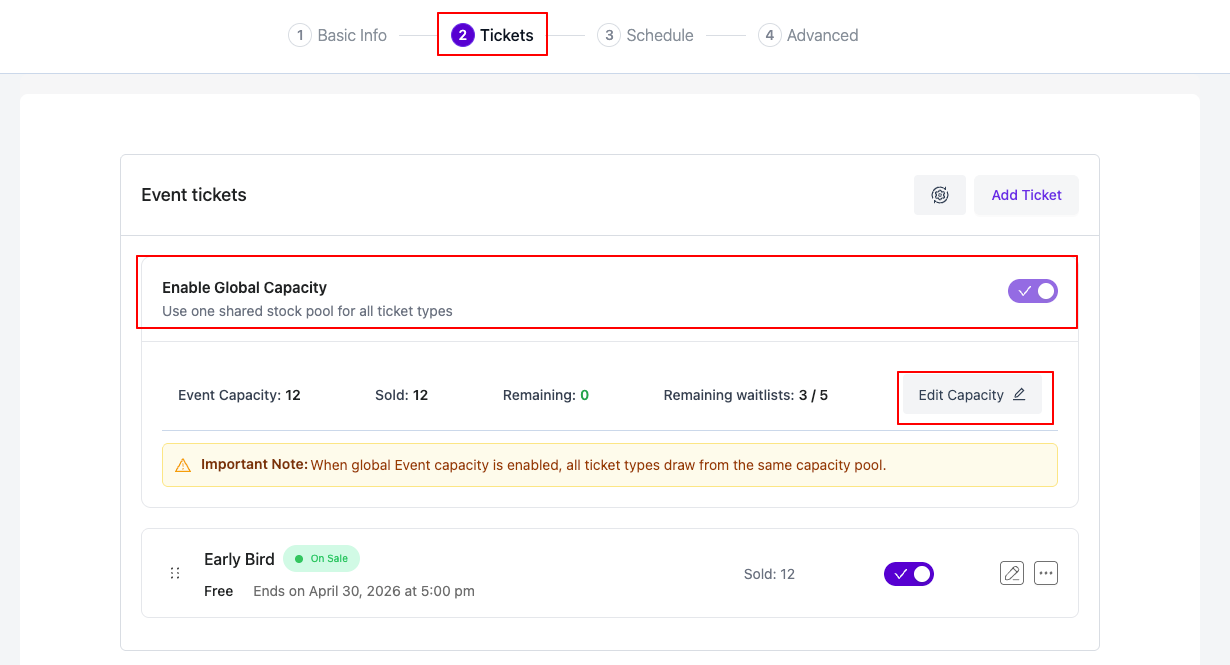
Tickets page

How to Enable Global Capacity #

  1. Open the event in Eventin and switch to the Tickets tab.
  2. Toggle the “Enable Global Capacity” switch ON.
  3. The banner expands and shows three numbers:
    • Event Capacity — the shared pool (starts at 0)
    • Sold — how many tickets are already sold
    • Remaining — Capacity minus Sold
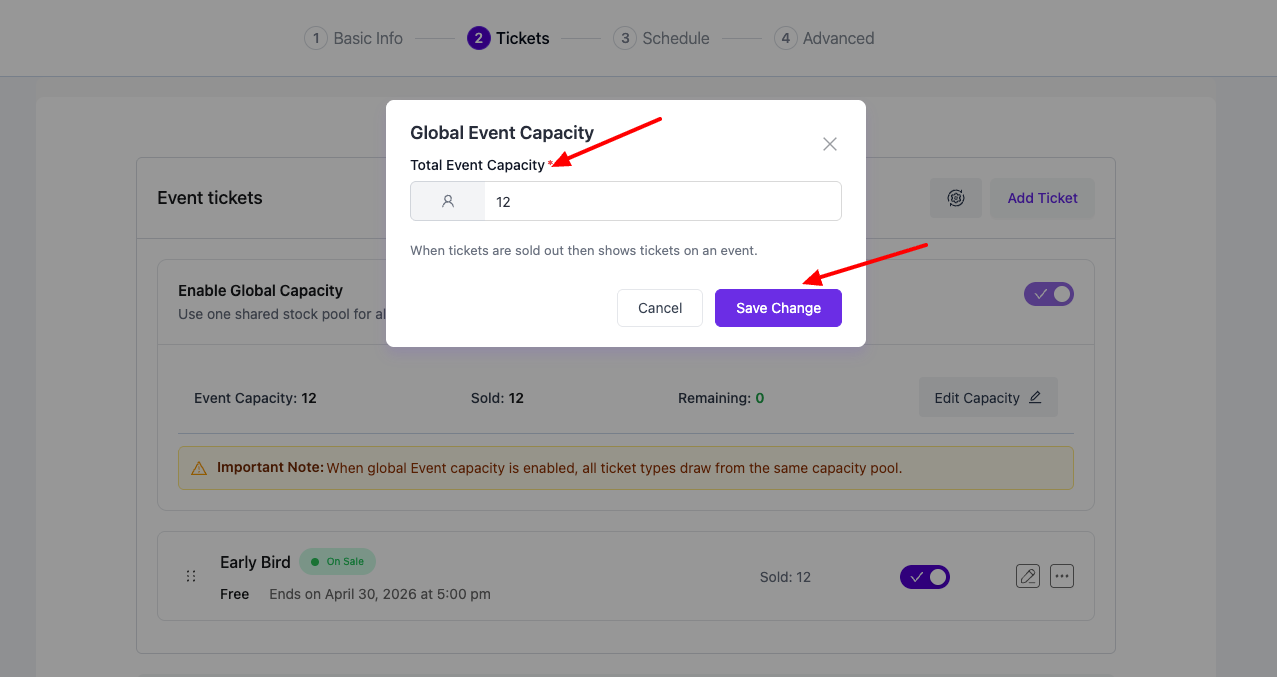
  4. Click “Edit Capacity” on the right side of the banner.
  5. In the modal, enter the total number of tickets you want to make available across the whole event.
  6. Click “Save Change”.

Global capacity modal

Reading the Banner #

Once enabled, the banner shows you a live view of stock:

  • Event Capacity — total tickets available across all types
  • Sold — tickets already paid for (all types combined)
  • Remaining — Capacity minus Sold
  • Remaining waitlists — waitlist spots left (only if the Attendee Waiting List is enabled)

A yellow “Important Note” box reminds you that all ticket types are sharing the same pool while Global Capacity is ON.

How to Turn Global Capacity Off #

Toggle the “Enable Global Capacity” switch OFF.

Important: Once tickets have been sold from the global pool, the toggle is locked and a tooltip explains why. This prevents you from accidentally breaking the inventory of an event that is already selling. To free the toggle, you would need to refund the sold tickets first.
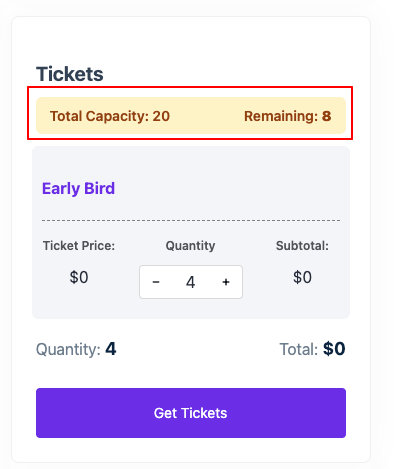
Frontend ticket view

FAQs #

Q1. What is the difference between Global Capacity and the per-ticket quantity?
A: Per-ticket quantity limits the number of tickets available for a specific ticket type (for example, 20 VIP tickets). Global Capacity sets a shared limit across all ticket types. When Global Capacity is enabled, the shared event capacity controls ticket availability instead of the individual ticket quantities.

Q2. Why is the “Enable Global Capacity” toggle greyed out?
A: This happens when ticket sales have already started. If Global Capacity is enabled, it cannot be turned off after tickets are sold. Likewise, if ticket types have already been sold individually, Global Capacity cannot be enabled later.

Q3. Can I set the Event Capacity lower than the number of tickets already sold?
A: No. The event capacity cannot be reduced below the number of tickets already sold. The Save Changes button remains disabled until a valid capacity is entered.

Q4. Can I change the Event Capacity after the event is live?
A: Yes. You can increase the capacity at any time. You can also decrease it, but only to a value that is equal to or greater than the number of tickets already sold.

Q5. What happens when the Global Capacity is full?
A: When the remaining Global Capacity reaches 0, all ticket types are marked as Sold Out, even if an individual ticket type still has unused quantity. No more tickets can be purchased once the shared capacity is reached.

Conclusion #

Global Capacity is the simplest way to manage events where what matters is the total number of attendees, not which tier they booked. With one toggle and one number, you stop worrying about keeping ticket-tier inventories in sync and let Eventin enforce a single, shared limit for the whole event.

Updated on August 4, 2026

What are your Feelings

  • Happy
  • Normal
  • Sad

Share This Article :

  • Facebook
  • X
  • LinkedIn
  • Pinterest
How to Assign Categories and Tags to EventsHow to Use the Waitlist Feature in Eventin
Table of Contents
  • Where to Find It
  • How to Enable Global Capacity
  • Reading the Banner
  • How to Turn Global Capacity Off
  • FAQs
  • Conclusion
Copyright © 2026 Themewinter Docs